This blog post explains Interaction to Next Paint (INP), Google's new Core Web Vitals ranking signal that measures how quickly websites respond to user interactions like button clicks. It covers how poor INP scores can hurt both customer experience and search rankings, while providing practical guidance on testing and improving INP performance for Shopify stores.
A customer lands on your product page, taps “Add to Cart,” and nothing happens. A beat passes. Then another.
The button finally responds — but they’ve already lost trust in the experience, and some of them have already left.
That gap between action and response is exactly what INP measures. And if you’re running paid traffic to a store with a poor INP score, you’re paying for visitors who bounce at the precise moment they were about to buy.
Google officially made INP a Core Web Vitals ranking signal in March 2024. That means poor INP now hits you twice — once on the customer experience side, and again on search visibility. This blog covers what INP is, how to check where your store stands, and how to fix it.
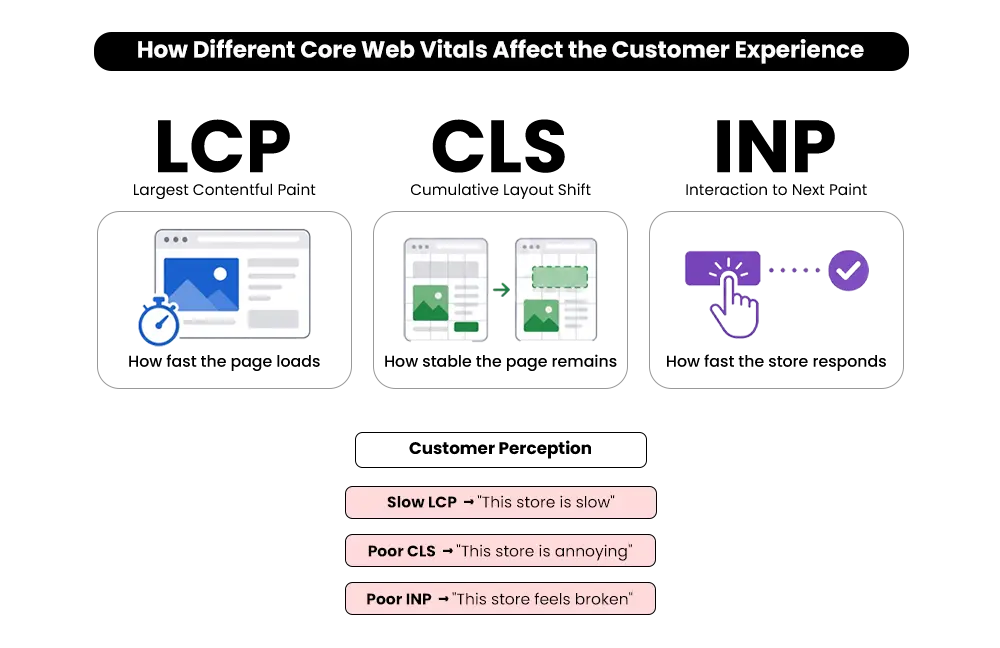
INP and Page Speed Are Not the Same Thing
Most merchants know page speed matters. INP is a different measurement — and a lot of stores that score well on speed tests have quietly bad INP numbers.
Page speed tells you how fast your store loads. INP tells you how fast it reacts once it’s loaded. A store can open in under two seconds and still leave customers waiting half a second every time they tap a button. Those are separate problems with separate causes.
Google’s INP thresholds, measured from real Chrome user data, break down like this:
Why INP Replaced FID
The old metric, FID, only captured the delay of a customer’s first interaction with a page. INP tracks responsiveness across the full visit — every button tap, every filter, every variant selection. It’s a much more honest picture of how your store actually feels to use.
One thing worth being clear about: a green Lighthouse or PageSpeed score does not automatically mean your INP is fine. While PageSpeed Insights may show INP data when enough real-user data exists, Lighthouse lab tests do not fully measure it. You need to check it separately, which the next section covers.
For a wider look at Shopify performance optimization strategies beyond INP, this guide covers the speed, technical, and conversion factors that shape overall store performance.
How to Check Your Store’s INP Score (Takes Under 5 Minutes)
Before you touch anything, find out where your store stands. These three tools each show you something a bit different.
Run your store URL through PageSpeed Insights and look at the Core Web Vitals section. If Google has enough real-user Chrome data for your domain, INP will appear alongside LCP and CLS. Don’t stop at the homepage — run a product page and a collection page separately. That’s where INP problems almost always hide.
TREO is one of the more useful Core Web Vitals tools that many Shopify merchants overlook. It pulls real-user data from the Chrome UX Report (CrUX), helping you spot performance trends beyond a single PageSpeed test. It’s free, requires no setup, and can help you monitor INP and other Core Web Vitals over time when sufficient field data is available. Check both mobile and desktop results while you’re there — mobile performance is often weaker and is usually where the biggest opportunities for improvement are found.
3. Google Search Console → Experience → Core Web Vitals
If you’ve never opened this report, do it now. It groups similar pages that are failing Core Web Vitals and shows example URLs from each group. In many Shopify stores, these groups often align with page types such as product pages, collection pages, or blog posts. If a large group of affected URLs comes from collection pages, the issue may be tied to the collection page template.
If the problem appears mainly on product pages, you’ll want to investigate that template instead. This is one of the most actionable reports because it helps you identify where performance issues are concentrated before digging into the root cause.
If your store is new or low on traffic, PageSpeed Insights and TREO may not have enough real-user data to show a score. In that case, use Chrome DevTools → Performance and record yourself interacting with key store pages. Look for long tasks and interaction delays. Product, collection, search, and cart pages often reveal INP issues that don’t appear on the homepage.
Why Your Shopify Store’s INP Is Slow
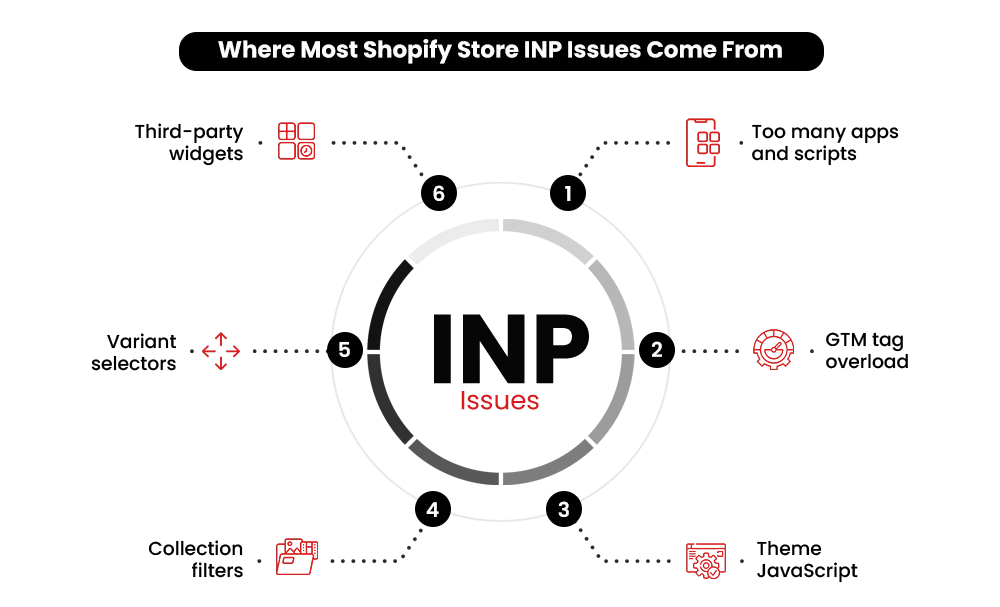
Shopify’s platform is usually not the problem. The slowdown often comes from what’s been added on top of it.
Many Shopify apps add JavaScript to your storefront. When a customer interacts with your store, the browser may need to execute that code before it can fully process and render the interaction. As more scripts compete for the main thread, interactions become slower. Merchants sending paid traffic to stores with 400–500ms INP may be adding friction at critical moments in the buying journey, increasing the risk of abandonment.
The usual suspects:
- Apps loading scripts on pages where they provide no value.
- Third-party tools — pixels, live chat, popups — all firing the moment the page opens.
- Theme effects like scroll animations and mega menus tying up the browser’s main thread.
- Variant selectors and collection filters triggering heavy JavaScript updates or page reloads on every interaction.
- Script tags left behind by apps you uninstalled months ago, still loading on every page.
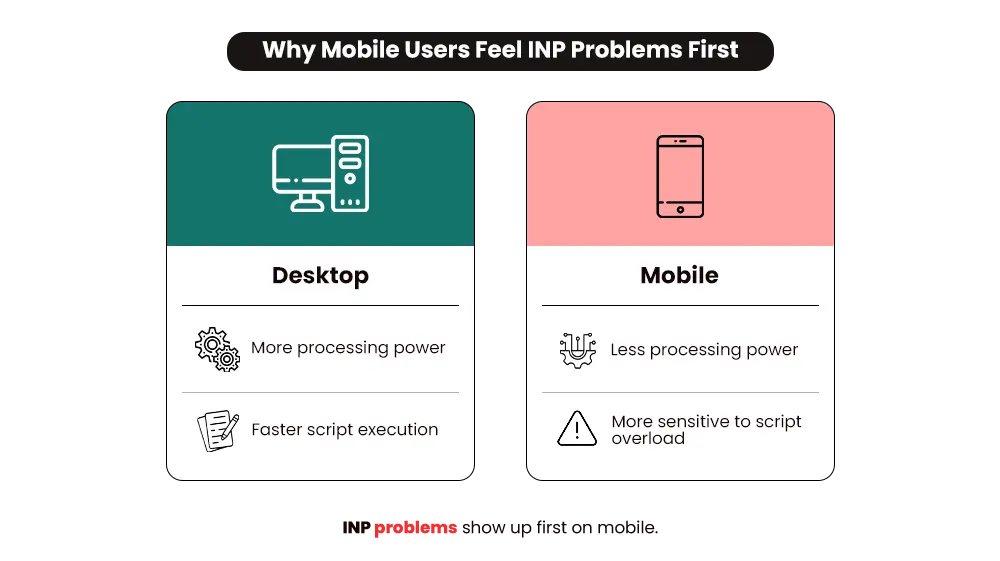
INP hits mobile hardest. Phones have far less processing power to work through all that JavaScript, and most Shopify traffic is mobile. That’s exactly where the impact is felt.
For a full breakdown of what drags Shopify stores down at the code level, this post on why a Shopify store loads slowly covers the related causes in detail.
Buyers Leave When Your Store Makes Them Wait
Slow responses at Add to Cart, filters, and variant selections create doubt at the worst moment. Mastroke’s Shopify Conversion Rate Optimization fixes the friction so more visitors actually buy.
How to Fix INP on Your Shopify Store
Most INP problems trace back to a small set of recurring issues. Here’s how to find and fix each one.
1. Remove Apps You’re Not Actively Using
Start here — it’s the fastest win and needs no developer. Open Chrome, go to your store, right-click → Inspect → Network tab → filter by JS, then reload. You’ll see every script loading and which app it belongs to.
Then go to Shopify Admin → Apps and run each one past a single question: is this actively making money or improving the shopping experience right now? If the answer is no, remove it. Don’t assume deactivating an app removes its impact. Some leave behind scripts or theme code that can still affect performance.
2. Clean Up Scripts Left Behind by Deleted Apps
Removing an app doesn’t always clean up all of its code. Older Shopify apps can leave behind unused script tags, snippets, or app assets that continue loading after the app is gone, creating unnecessary work for the browser.
Go to Shopify Admin → Online Store → Themes → Edit Code and open theme.liquid. Look for script tags or code references tied to apps you no longer use. If you’re unsure what something is, search the app name before removing it. Flag anything suspicious and have your developer verify it. Cleaning up leftover app code can reduce unnecessary page load overhead and improve store performance.
3. Audit Your GTM Container and Remove Dead Tags
Google Tag Manager sits on many Shopify stores, and tags tend to pile up over time—old campaign pixels, abandoned A/B tests, and tools you no longer use. Some fire as soon as a customer lands on the page, loading extra scripts before they’ve done anything.
Open your GTM account → Container → Tags and review every tag. Still needed? Keep it. If not, pause or remove it. For the tags you keep, check the trigger settings. Some non-essential tags can often be delayed or triggered by user interaction instead. In many cases, this requires no developer help and can reduce the amount of script execution happening during page load.
4. Stop Scripts From Loading on the Wrong Pages
A loyalty widget firing on your blog. A review app loading on your cart page. When tools load outside the pages where they serve a purpose, they add unnecessary script the browser has to process before it can respond to anything.
Run the Network → JS check from Fix 1, but this time on your homepage, a product page, and a collection page separately. When you spot a script with no business being on that page, flag it for your developer. The fix is scoping each script to only the pages where it’s actually needed. It’s a straightforward developer task, and the impact on product and collection pages — where buying decisions happen — is significant.
5. Defer Non-Essential Scripts So They Don’t Load First
Live chat widgets, review popups, and social proof tools often load as soon as the page opens, even though they aren’t needed for the customer’s first interaction. While these third-party scripts are loading and executing, they can compete with more important page tasks and delay responsiveness.
The fix: ask your developer to defer or delay non-essential third-party scripts until after the page becomes interactive, the browser is idle, or the customer engages with the page. The tools still load and work normally, but they no longer compete with the actions that matter most during the first few seconds of the visit.
6. Fix Long Tasks in Your Theme JavaScript
Scroll animations, sticky headers, and mega menus often add work to the browser’s main thread. When one takes too long to execute, customer interactions like clicks, taps, and filter selections can feel delayed.
To find them: open Chrome → Inspect → Performance, hit record, then interact with your store — select a variant, apply a filter, add to cart. Stop recording and look for red Long Tasks. Tasks over 50ms are worth investigating, especially if they occur during customer interactions. Send the recording to your developer. Large JavaScript tasks in the theme may need to be broken into smaller chunks so they don’t block the browser. This is one of the deeper fixes on the list, and often where the biggest INP gains are hiding.
7. Fix Variant Selectors and Filter Interactions
If tapping a colour swatch or selecting a size triggers heavy JavaScript processing, customers feel it immediately. The interaction hesitates, images update slowly, and the experience starts to feel less responsive.
Ask your developer to review how variant selections and collection filters are handled in the theme JavaScript. Look for interactions that trigger unnecessary scripts or large page updates after a click. The fix is usually simplifying these processes so the browser can respond faster. On stores with complex product options, this can move the INP score substantially on its own.
What You Can Fix Today vs. What Needs a Developer
Not everything here requires developer time. Here’s exactly where the line sits:
If you’re working with a developer or a Shopify experts, this table maps the work clearly and cuts down the back-and-forth.
What Actually Changes When You Fix INP
The store feels different. “Add to Cart” responds the instant it’s tapped. Variant images swap without hesitation. Filters update without that half-second freeze that makes customers wonder if something went wrong.
Conversion rate changes tend to follow — not because of the number itself, but because slow response creates friction at the exact moment a customer is deciding to act. Remove the friction, and more of them do. Many stores see meaningful improvements from a handful of focused fixes rather than a full rebuild.
You’ll also be closer to Google’s Core Web Vitals expectations. INP is now one of Google’s Core Web Vitals, and poor responsiveness can put you at a disadvantage compared to stores that deliver a smoother experience.
One honest note: fixing INP won’t move your LCP or CLS scores on its own. Each Core Web Vital needs its own attention. Shopify’s guide on improving Core Web Vitals is a solid reference for tackling the other two once INP is handled.
Where to Start if Your INP Score Is Failing
Check your score first — PageSpeed Insights, TREO, or Google Search Console. Then work through the list in order: remove apps you’re not using, clear out leftover scripts, audit your GTM tags, defer what doesn’t need to load immediately, and scope scripts to the pages where they’re actually needed. Those five steps alone move most stores out of the red.
If theme-level fixes are needed on top of that, your developer has a clear brief in the table above.
INP is a customer experience problem and an SEO problem at the same time. Both improve with the same set of fixes. That’s a rare situation — most optimisations trade off one for the other.
Know Exactly What's Slowing Your Store Down
Guessing wastes time and budget. Mastroke’s Shopify Performance Audit pinpoints what’s hurting your store’s speed and responsiveness.
Frequently Asked Questions About INP Optimization for Shopify Stores
Real questions merchants ask about INP optimization — answered clearly, without the technical overload.
Q: Does INP affect my Shopify store’s Google ranking?
A: Yes. INP is one of the three Core Web Vitals Google uses as a direct ranking signal. When two stores are close on content quality, the faster-responding one has the edge — and a “Poor” INP score is a measurable disadvantage in mobile search, not just a minor factor.
Q: My PageSpeed score is above 80. Do I still need to check INP?
A: Yes — they measure different things. PageSpeed Insights runs a lab test and scores how your store loads. INP comes from real Chrome user data and measures how your store responds to interactions. A store can score 90 on PageSpeed and still have poor INP. Always check it separately in PageSpeed Insights or Google Search Console.
Q: Can I improve INP without hiring a developer?
A: Partly. Removing unused apps, auditing and clearing GTM tags, and reviewing leftover scripts are all things you can do yourself — and they often move the score on their own. Fixing long tasks in theme code, deferring scripts, or scoping JavaScript by page type will need developer involvement. The quick wins in the table above are a good starting point before going further.
Q: Will fixing INP improve my conversion rate?
A: There’s no guarantee, but the mechanism is clear. Slow interaction response creates hesitation right when a customer is deciding to buy — tapping Add to Cart and waiting half a second is the kind of friction that makes people second-guess. Removing that tends to reduce drop-off at those moments. The improvement varies by store, but it’s worth doing regardless of the conversion lift.
Q: How long does it take to fix INP on a Shopify store?
A: The high-impact work — removing unused apps, auditing GTM, deferring non-essential scripts — fits into one to two focused days. Theme-level fixes take longer depending on how customised your store is. The table in this blog maps the time for each fix specifically.
Q: Is INP harder to fix than LCP or CLS?
A: Usually, yes. LCP and CLS fixes tend to follow a more predictable checklist. INP takes more diagnostic work upfront — finding which specific interactions are slow and what’s causing the delay in each case. Once you know where to look, the fixes themselves are well-defined, but the investigation step takes time and usually requires Chrome DevTools access.
Q: Does INP affect desktop and mobile differently?
A: Both matter, but mobile is where poor INP does the most damage. Phones have less processing power than desktops, so JavaScript-heavy pages hit harder on mobile — and that’s where most Shopify traffic is. If your store’s INP is borderline on desktop, it’s almost certainly worse on mobile. Always check both in TREO or PageSpeed Insights.
Ready to Fix Your Store’s INP Score?
Poor INP creates noticeable lag during the moments that matter most for conversions. It affects how your store feels to use and where it ranks in mobile search. The two are connected — and both are fixable.
If your store is showing “Needs Improvement” or “Poor” on INP, getting it resolved doesn’t have to mean months of back-and-forth with developers. Shopify Core Web Vitals optimization gets it handled end-to-end.