
This blog post explains that Shopify performance optimization goes beyond just page loading speed to encompass the entire user experience journey. It outlines how many fast-loading stores still struggle with conversions due to deeper performance issues related to user navigation, clarity, and interaction flow.
Your store loads in under three seconds. PageSpeed gives you a green score. And yet — users browse, hesitate, and leave without buying. You change the price. You tweak the ads. Nothing shifts.
The problem isn’t speed. Speed is the entry fee. Once you’ve cleared that threshold, it stops being the lever. What drives conversions after that is everything else — how fast users can understand your product, navigate between pages, and complete their purchase without unnecessary effort. That’s what Shopify performance optimization actually covers. Not just load time. The entire journey from landing to checkout.
This guide covers 10 specific things you can change inside your Shopify store — with the tools, settings, and admin paths to do it.
What Is Shopify Performance Optimization?
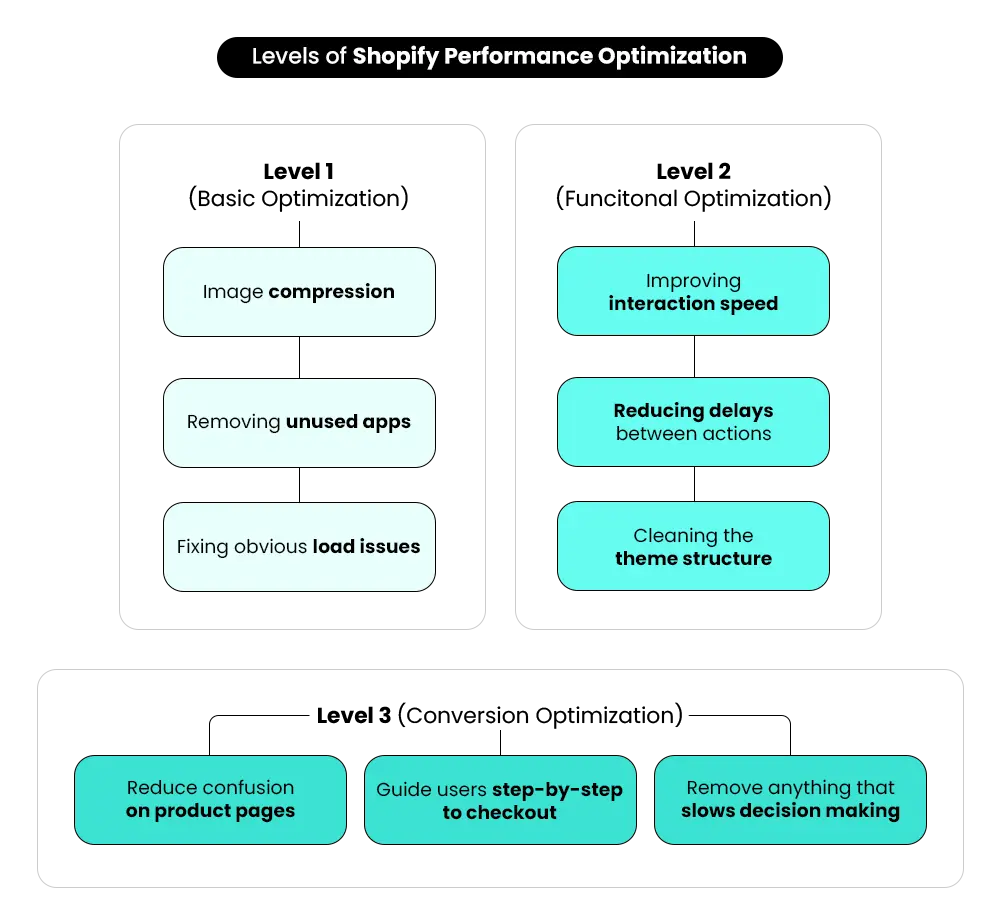
Shopify performance optimization means making your store easy and quick to use at every step. It starts with how fast a page opens, but what matters next is how smoothly users can move, understand, and complete actions.
Performance optimization connects directly with user behavior. A store that still creates hesitation or confusion is not fully optimized, even if the Shopify page speed looks good. When someone visits your store, they should be able to understand the product, move around easily, and complete their purchase without confusion or delay. In simple terms, good performance means a customer can go from browsing to buying without effort.
How Do Performance Problems Show Up in Real Stores?
The easiest way to identify performance issues is by following what a user actually does in your store. You’ll see it in situations like:
- A visitor looks through several products, seems interested, but stops on the product page without moving ahead.
- A user selects size or variant options but waits before adding the product to the cart.
- Someone adds an item to the cart but leaves before reaching checkout.
- A user reaches checkout but slows down when steps feel longer or more complicated than expected.
- Mobile users start exploring but leave before completing the journey
In all these cases, the store is working. Users are also interested. But something in the experience makes them stop instead of continuing. Looking at these moments helps identify where users stop moving forward and why.
Shopify Performance
What Actually Impacts Conversions
Most Shopify stores only optimize load speed. But performance problems usually happen across four different layers of the buying journey.
Technical Load
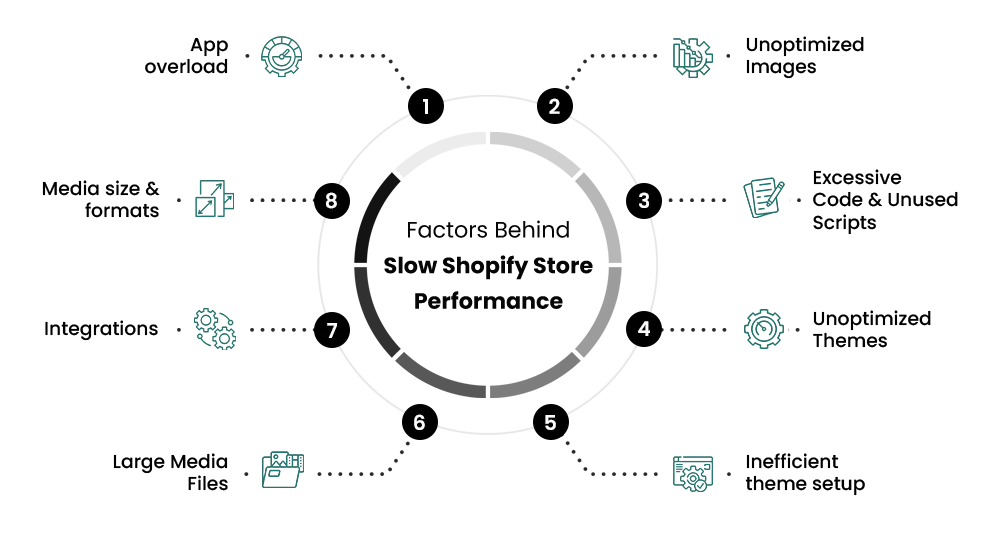
Store speed is influenced by scripts, apps, and images loading in the background. Every extra app increases the amount of JavaScript running on page load.
Interaction Delays
Even after a page appears loaded, delayed interactions can break momentum. Small pauses during variant selection or cart actions create hesitation.
Decision Friction
Too many competing actions or unclear choices slow down buying decisions. Users pause when the next step does not feel obvious.
Journey Breaks
Unexpected interruptions between the product page, cart, and checkout are often where the customer journey ends completely.
Fixing the load speed only solves the first layer. The other three are where many “fast” Shopify stores still lose conversions.
Shopify Performance Optimization: 10 Strategies That Improve Speed & Conversions
1. Remove Unnecessary Shopify Apps to Reduce Load and Improve Speed
Apps get added to solve problems. Then the problem changes, the app stays, and it keeps running in the background. A store running three to five apps that either overlap with something else or haven’t been actively used in months is carrying dead weight on every page load.
Every app adds JavaScript that loads on your pages — sometimes on every page, even ones where the app does nothing. That weight accumulates. The store feels slower to respond, clicks feel less crisp, and interactions that should feel instant start carrying a half-second lag. And according to Yottaa’s 2025 Web Performance Index, 63% of visitors abandon a store that takes over 4 seconds to load.
Where to check: Go to Apps → App and sales channel settings in your Shopify admin. Look through what’s installed and ask: Is this directly contributing to revenue? If not, uninstall it — not just deactivate, because deactivated apps can still inject code.
Then run your store URL through Google PageSpeed Insights. Under the “Opportunities” section, you’ll see third-party scripts flagged by name or domain — helping you identify which apps and external tools are slowing your pages down.
2. Use a Lightweight Shopify Theme to Improve Page Speed
Most theme choices are made for looks, not load speed. Over time, the gap between the original theme and the live version widens — more sections added, more animations, banners stacked on banners. The theme gets heavier with every update.
A cluttered theme doesn’t just load slowly. It distracts. When a user lands on a homepage with five sliders, a countdown, a pop-up, and a sticky announcement bar, they spend cognitive energy orienting instead of buying.
Shopify’s free themes — particularly Dawn, Sense, and Craft — are built with performance in mind and tend to perform well on Core Web Vitals when kept lean. If you’ve been building on a premium theme that’s aged into a slow one, a structured migration to a faster base is worth the effort.
What to do first: In your Shopify admin, go to Online Store → Themes and review your current theme setup. Look for unused sections, app blocks, scripts, or features that are still loading on live pages, even if customers aren’t actively using them. Those extra assets still add weight for the browser to process.
A theme built for looks often trades off speed — and every section, animation, and app block added over time makes that worse. Before redesigning, the first step is understanding what your theme is actually doing and which parts are worth keeping. The guide on customising your Shopify store for better conversions covers the right order: structure first, function second, visuals last.
3. Prioritize Above-the-Fold Content to Improve Perceived Speed
When a user lands on your store, the most important thing they need is the content directly in front of them: the product, the price, the primary action. Everything else — reviews, recommendations, footers, chat widgets — can wait.
The problem most Shopify stores have is that everything tries to load at once. The banner competes with the product title for load priority. The sticky cart loads before the above-the-fold image has finished rendering.
What to do in your theme: Open your homepage and product page in Shopify’s theme editor and look at what’s loading before a customer even starts scrolling. Large image banners, Instagram feeds, video sections, review widgets, and “featured collection” carousels below the fold are common performance offenders. These sections don’t need to load first. Ask your developer to lazy-load or defer them so the browser prioritises the content customers see immediately.
The result is that users see a fast, usable first screen immediately. The rest of the page loads around them as they start reading, without creating the perception of a slow page.
4. Optimize Images and Media to Reduce Load Time
Images account for more page weight than any other element on a typical product page. A merchant uploads a 4MB JPEG straight from their camera, crops it inside Shopify, and assumes the problem is solved. But oversized source images still create unnecessary weight if the theme or app setup isn’t serving properly optimized versions.
Google and Deloitte found that even a 0.1-second improvement in mobile site speed can lift conversions by 8.4%. Since images are often one of the heaviest elements on ecommerce pages, image optimisation is usually one of the fastest ways to improve load times.
What to fix specifically:
- Resize images to match how they actually display. A 4,000px image shown in a small product container can still add unnecessary page weight if optimized sizes aren’t being served.
- Convert product images to WebP format. It’s supported by modern browsers and often produces much smaller file sizes than JPEG at similar visual quality.
- Use lazy loading so below-the-fold images only load when users scroll to them. Shopify’s Dawn theme already includes this by default, but older or heavily customised themes may not.
Shopify’s built-in image CDN serves optimised versions automatically, but it can only work with what you upload. Give it smaller, better-formatted source files.
5. Simplify Product Pages to Reduce Decision Friction
Product pages accumulate. A new badge here, a trust signal there, a cross-sell block, a longer description. Each addition felt useful when it was added. Together, they slow down the decision a user is trying to make.
When someone lands on a product page, they have one question: Is this the right product for me right now? Everything on the page should answer that question faster, not add more questions to evaluate.
What to change:
- Keep the price, main product benefit, variant selector, and add-to-cart button visible without scrolling
- Push secondary content lower down — detailed specs, shipping policies, FAQs, and long size charts can come after the buying decision starts
- Remove sections that add visual weight without helping conversion: oversized banners, autoplay videos, generic “our story” blocks, repetitive trust badges, or lifestyle photos that barely show the product.
6. Optimize Shopify Checkout to Reduce Cart Abandonment
By the time a user reaches checkout, they’ve already decided to buy. The decision at that stage isn’t “do I want this?” — it’s “is completing this worth the effort?” That’s a completely different question, and most checkout flows create unnecessary friction around it.
The most common issues: hidden shipping costs that appear only at the final step, guest checkout buried behind an account creation prompt, and checkout forms that ask for more information than completing the order actually requires.
Shopify-specific fixes:
- Enable Shopify’s one-page checkout (available for eligible stores). It reduces friction by condensing the checkout process into a single view.
- Turn On Shop Pay. It pre-fills payment and address details for returning users, helping customers complete checkout faster.
- Surface shipping costs earlier. If you can show estimated shipping on the cart page, do it. Unexpected costs at checkout remain one of the biggest reasons customers abandon carts.
In your admin, go to Settings → Checkout to review your current setup and what options are enabled.
7. Improve Mobile Experience to Match Real User Behavior
Google research found that mobile users are 5 times more likely to abandon a task if a site isn’t optimised for mobile. Mobile performance isn’t only about speed — it’s about how the layout actually works for someone using one thumb on a 6-inch screen.
Most Shopify stores are designed and tested on desktop. Mobile is treated as a responsive version of the same thing. What works on a 1440px screen often creates real friction on a 390px one: buttons that are hard to tap, text that requires pinching, product images that dominate the screen and push the add-to-cart button off the fold.
How to check properly: Go to Online Store → Themes → Customize in your Shopify admin and switch to mobile preview. Don’t just look at it — interact with it. Tap through a real product to checkout and see what a mobile buyer actually experiences.
Specifically look for: button sizes (a minimum of 44×44 pixels is the standard for comfortable mobile tapping), text size on product descriptions, and whether the add-to-cart button stays easy to find and tap without excessive scrolling.
8. Reduce Background Scripts and Third-Party Integrations
Even after removing unused apps, many Shopify stores still load too many scripts at once. Review widgets, chat tools, analytics scripts, heatmaps, and tracking pixels often run across the entire store — including pages where they aren’t needed.
The result is a store that looks loaded but still feels slow to interact with. Buttons hesitate before responding, menus feel less smooth, and add-to-cart actions lose that instant feel because JavaScript is still processing in the background.
What to do: Run your homepage and one product page through PageSpeed Insights. In the “Reduce JavaScript execution time” section, look for scripts appearing on both pages even when they only serve one purpose. If a review widget loads on the homepage, or a size-chart tool loads on collection pages, that’s unnecessary JavaScript your store is processing on every visit.
Keep scripts limited to the pages where they actually matter. The less unnecessary JavaScript the browser processes upfront, the faster the store feels to use.
Every user who leaves without buying is revenue lost.
Interested users don’t convert when the journey has too much friction. Mastroke’s Shopify CRO service maps how users move through your store and removes what stops them from completing their purchase.
9. Use Shopify Performance Tools to Identify Real Bottlenecks
A lot of performance decisions get made by feel rather than data. Something feels slow, so the images get compressed. But the delay was coming from a script. Nothing improves, and the next change is equally misdirected.
The right starting point:
- In your Shopify admin, go to Analytics → Online Store Speed. This gives you a speed score over time and shows how your store compares to similar Shopify stores.If your score drops noticeably after adding a new app, script, or theme change, that’s usually a strong signal worth investigating.
- Run your key pages (homepage, a product page, and the cart) through Google PageSpeed Insights separately. The Opportunities and Diagnostics sections tell you exactly what’s causing delays and in what order to address them.
Fix one thing. Run the test again. This approach takes longer but produces improvements you can actually verify — rather than making five changes at once and not knowing which one helped.
10. Use Heatmaps to Find Where Users Actually Stop
Analytics can show where traffic drops. But they rarely explain why users hesitate, stop interacting, or abandon the page altogether. That’s where behavioral data becomes useful.
Baymard Institute research shows the average ecommerce cart abandonment rate is nearly 70%. In many cases, the problem isn’t the product — it’s friction inside the experience itself: size selectors that interrupt flow, shipping details buried too deep, or product images that still leave basic questions unanswered.
What to install: Microsoft Clarity is free, integrates directly with Shopify, and shows you scroll maps, click maps, and session recordings. Hotjar offers similar functionality with a free tier.
How to use it: Look at your highest-traffic product pages with the lowest add-to-cart rates. Watch three to five session recordings. You’ll almost always find a single moment — a specific element — where users consistently stop. Fix that element before touching anything else.
How Performance Shapes Customer Decisions
Performance shapes how users feel, move, and decide from the moment they land. Each part of performance affects behavior in a different way. When these elements work well together, users move forward without hesitation.
When these elements don’t align, users start second-guessing small actions, even when they are ready to move ahead.
📌Related Video
Common Shopify Performance Mistakes to Avoid
Most performance issues don’t come from lack of effort, but from focusing on the wrong things. Merchants improve isolated parts of the store, but the impact doesn’t show where users actually slow down. Some common mistakes that lead to this:
- Chasing speed scores without checking how users actually behave on the store.
- Adding apps to solve problems without reviewing their combined impact.
- Designing pages to look better, even if it adds more steps or distractions.
- Ignoring mobile experience while optimizing primarily for desktop.
- Trying to fix everything at once instead of identifying real Shopify speed bottlenecks.
Each of these decisions seems reasonable in isolation. Together, they create a store that feels heavier, slower, and harder to navigate. Most of these mistakes don’t come from a lack of effort. They come from making changes without seeing how each decision affects the rest of the store.
Make One Change at a Time — Not Ten
The most common performance mistake isn’t ignoring these strategies. It’s applying too many at once and losing track of what actually helped.
Start with the step in your store where users leave most frequently. Look at your Analytics → Reports → Sales by traffic source to find where conversions are lowest. Pick one fix. Measure. Then move to the next. This isn’t slower — it’s more accurate. You’ll know what worked, which means you can apply the same logic to the next problem with confidence.
Final Thought
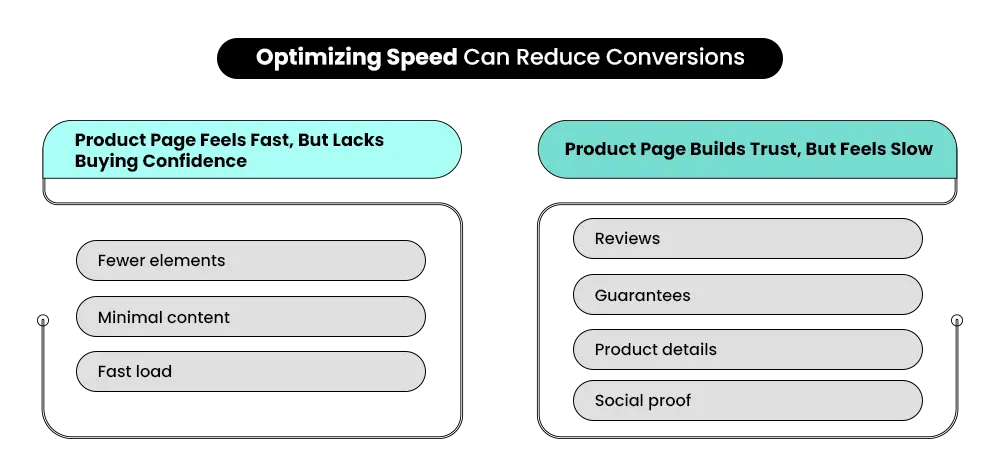
Some stores reach a point where individual fixes stop producing results. Every page gets improved, but the overall performance doesn’t move. At that point, the problem isn’t the pages — it’s the foundation they sit on. A theme that’s accumulated too many changes, a catalog structure that wasn’t built for how the business actually works now, or a checkout flow that’s been extended rather than rebuilt.
If your store has been through multiple rounds of changes and still underperforms, running a structured audit first gives you a clear picture of what’s worth fixing and what needs to be rebuilt.
FAQ – Questions on Shopify Performance Optimization
Real questions that reveal why users don’t always convert—even when your store “works.”
Q: My store loads fast. Why are conversions still low?
A: Load speed only covers the first layer of performance. After the page appears, users still need to understand the product quickly, navigate without confusion, and complete checkout without unexpected friction. Any one of those steps can cause a drop-off, even when the load time is fine. Use a heatmap tool like Microsoft Clarity to see where users actually stop.
Q: Will removing apps actually improve my conversion rate?
A:It often does, but the reason is indirect. Fewer apps mean faster interaction response times — clicks register more quickly, variant selectors update without lag, and the cart functions more smoothly. That reduction in micro-friction adds up across a session and reduces the likelihood of someone abandoning before checkout.
Q: What Shopify themes are best for performance?
A: Shopify’s own free themes — particularly Dawn, Sense, and Craft — consistently score well on Core Web Vitals because they’re maintained by Shopify and built without unnecessary code. If you’re on a premium theme that’s been heavily modified, benchmark it in PageSpeed Insights and compare it to a fresh install of Dawn to understand the gap.
Q: Where in Shopify admin do I find my store’s speed score?
A: Go to Analytics → Online Store Speed in your Shopify admin. It shows your current speed score, a 90-day trend, and how your store compares to similar Shopify stores. It’s a useful baseline, but run individual pages through Google PageSpeed Insights as well — the admin score is an average and can hide specific page-level issues.
Q: Does improving Core Web Vitals actually affect sales?
A: Yes. Core Web Vitals directly affect how fast, stable, and responsive your store feels while someone is trying to browse or buy. Faster load times, quicker interactions, and stable layouts reduce friction during the buying process — which can improve both conversion rates and overall shopping experience. They also contribute to Google’s page experience signals, which can influence search visibility over time.
Q: How do I know which performance fix to prioritise first?
A: Start with whichever step in your funnel has the highest drop-off. In your Shopify analytics, look at the conversion funnel — specifically where the largest gap appears between sessions and purchases. If it’s the product page, focus on strategies 3, 4, and 5. If it’s checkout, start with strategy 6. Use PageSpeed Insights and a heatmap tool together to confirm what’s causing the drop-off before making changes.
When Fixes Stop Working, the Foundation Needs a Look
If your store has been through multiple rounds of changes and still underperforms, start with a structured Shopify performance audit — it gives you a clear picture of what’s worth fixing and what needs to be rebuilt. For stores that have grown too complex to fix one page at a time, a full Shopify store redesign rebuilds around how customers actually move through your store.
Stop patching. Start with what the store is actually built to do.
Not sure where to start? Let's figure it out together.
Every store has different problems. Tell us where yours is struggling and we’ll point you in the right direction — no pressure, just clarity.