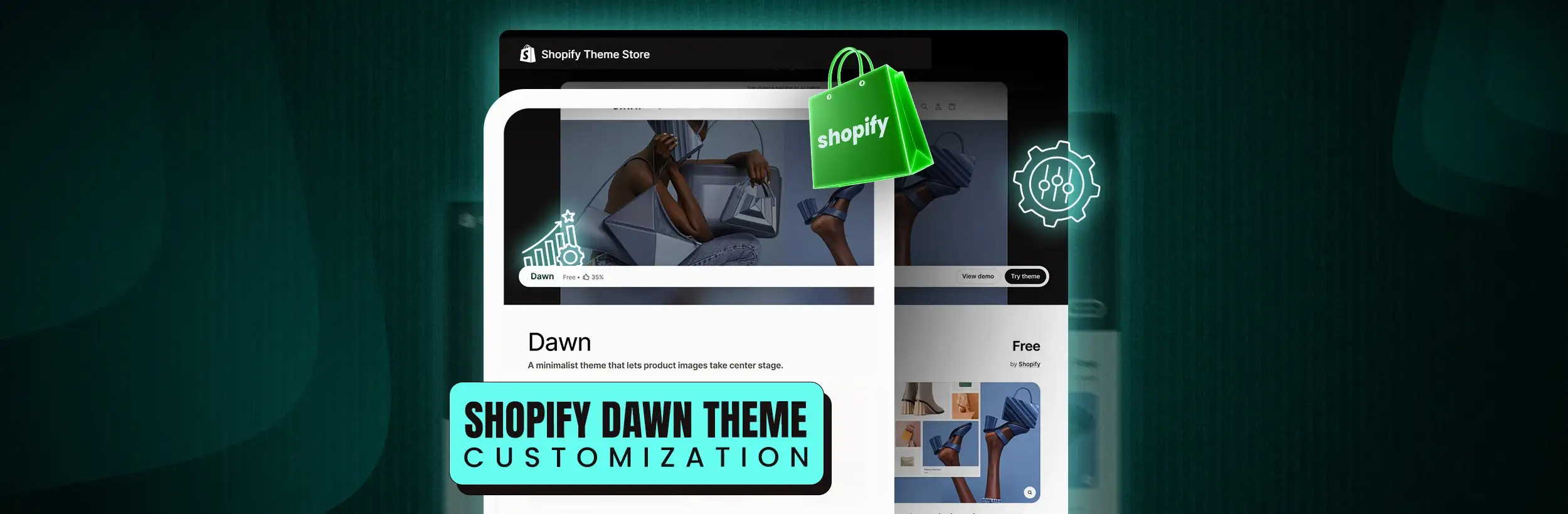
This blog post explains how to customize the Dawn Shopify theme while maintaining its fast loading performance. It provides specific guidance on which customizations preserve speed and which ones can harm PageSpeed scores.
A clean Dawn install scores around 92 on PageSpeed Insights. By the time most merchants are done customizing, that number sits closer to 55. The theme didn’t change. Their decisions did.
Dawn is one of the fastest free Shopify themes available, and it stays fast because it’s deliberately minimal. But minimal doesn’t mean plain. You can make it look like your brand without destroying its speed — you just need to know which changes cost you nothing and which ones quietly break your score.
This guide walks you through exactly what to change, how to change it, and what to leave alone.
Before You Customize
Two Smart Steps Before Editing Dawn
Most Dawn problems happen because stores skip these two habits before making changes.
Duplicate the Theme Before Editing Anything
Never customize the live version of your store directly. Always duplicate the theme first before touching CSS, Liquid, fonts, layouts, or app blocks.
Go to Online Store → Themes, open the three-dot menu beside your active theme, and select Duplicate.
Dawn — May 2026 — Working Copy
One broken Liquid file or conflicting CSS rule can take a live storefront offline instantly. A duplicate theme gives you a safe rollback without affecting customers.
Track Performance After Every Major Change
Before making changes, run a PageSpeed test and record both your mobile and desktop scores.
Test again after adding anything important — fonts, images, video sections, homepage layouts, or third-party apps.
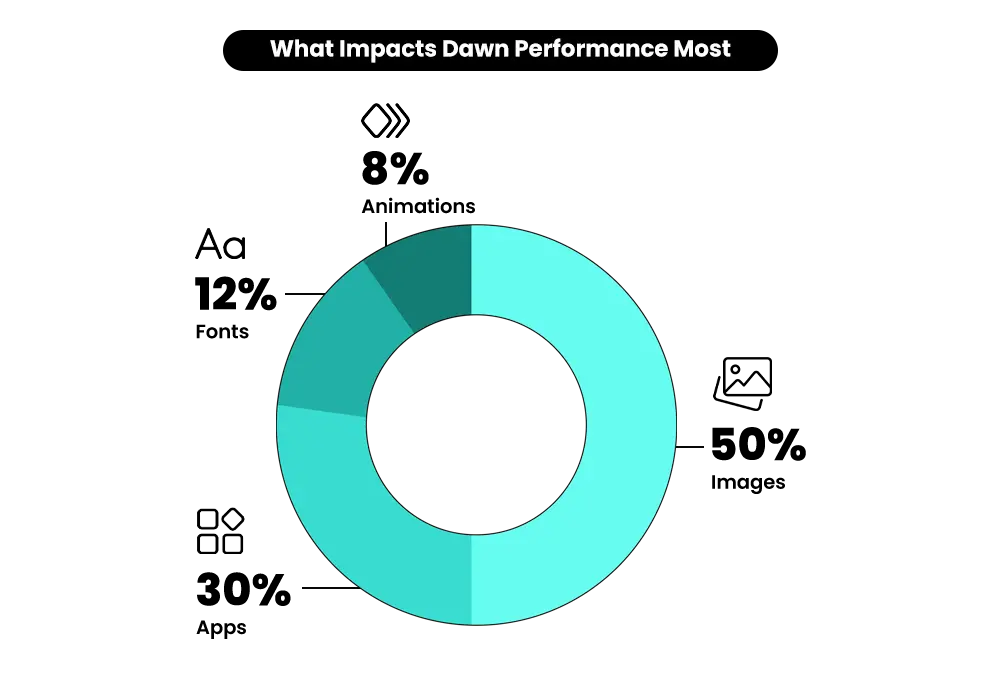
Large hero images, external fonts, autoplay videos, and app scripts are usually the biggest causes of performance drops.
Measuring before and after every significant update helps you identify performance problems early — before they affect user experience or conversions.
Dawn Theme Customization
How to Customize Dawn Theme Colors and Typography
Color and typography are the safest places to customize Dawn. Done properly, they give your store a completely different look without damaging performance. The key is understanding which changes are visual only — and which ones quietly add load time behind the scenes.
Changing Colors in Dawn
Path: Online Store > Themes > Customize > Theme Settings > Colors
Dawn uses a flexible color scheme system. Instead of manually styling each section, you create reusable color palettes and assign them across your store.
Each scheme includes:
- Background color
- Text color
- Primary and secondary button colors
- Borders, outlines, and shadow styling
A simple structure works best:
Scheme 1: Primary brand colors for most sections
Scheme 2: Contrast colors for featured sections and CTAs
Scheme 3: Footer, announcement bars, or darker sections
Performance cost: essentially zero. Colors are handled through CSS variables, which means no added scripts, no extra HTTP requests, and no increase in page weight.
One thing many merchants overlook: contrast ratios. If your brand palette uses light pastel tones with white text, readability drops fast — especially on mobile. Poor contrast also creates accessibility issues that search engines can detect. Before publishing, run your palette through WebAIM’s free contrast checker.
Shopify Conversion Rate Optimization Services
A fast Shopify theme means nothing if visitors still don’t convert. Mastroke helps optimize layouts, product pages, and user flows to turn more traffic into sales.
Changing Fonts in Dawn — Without Slowing It Down
Path: Theme Settings > Typography
Dawn’s default typography uses a system font stack — fonts that already exist on the user’s device. That means the browser doesn’t need to download anything before text appears. No external request. No render delay. That’s one of the biggest reasons Dawn loads so quickly out of the box.
When you switch to a custom font, the browser has to download font files before rendering text. Depending on the connection speed and file size, that usually adds anywhere from 100–300ms to your load time. That doesn’t mean custom fonts are bad. It means they need to be chosen carefully.
Use Shopify’s Hosted Font Library
Fonts served through Shopify’s own CDN are generally faster and more stable than pulling files directly from third-party sources like Google Fonts.
Limit Yourself to Two Font Families
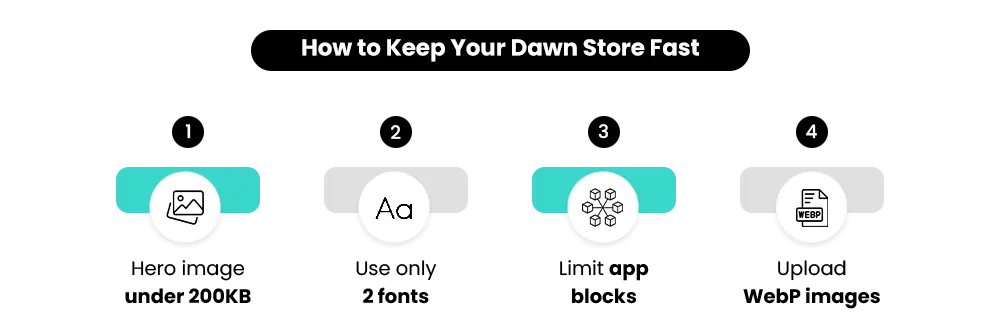
A clean setup usually means one heading font and one body font. More than that creates unnecessary requests, visual inconsistency, and slower rendering on mobile devices.
Only Load the Font Weights You Actually Use
Every font weight is a separate file request. If your store only uses Regular and Bold, don’t load Medium, Light, SemiBold, and Italic versions just because they’re available.
Loading four font weights instead of two adds measurable time on mobile — especially for shoppers browsing on slower networks where performance matters most.
Layout Customization
Customizing Dawn Sections and Page Layouts
This is where Dawn’s Online Store 2.0 architecture gives you the most control — and where the most damage happens when things go sideways. Done properly, section customization gives you a flexible, high-converting storefront without touching code.
How Sections and Blocks Work in Dawn
Path: Online Store > Themes > Customize > Select a Page Type
Dawn’s sections-everywhere architecture means you can add, remove, and reorder sections on your homepage, product pages, collection pages, blog pages, and custom templates — all directly from the theme editor. No code needed.
Sections are full-width layout containers like image banners, featured collections, videos, and rich text areas.
Blocks are the individual elements inside those sections — product titles, prices, buttons, ratings, descriptions, and icons.
You can drag sections using the six-dot handle in the left sidebar. Blocks reorder the same way inside each section.
One important detail: hiding a section is not the same as removing it. Hidden sections still remain inside the template structure. Over time, unused hidden sections pile up and make templates messy and harder to manage. If you’re not using a section, delete it completely.
Homepage Sections — What to Add and What to Skip
Dawn ships with built-in sections like:
- Announcement bar
- Image banner
- Featured collection
- Featured product
- Image with text
- Testimonials
- Video sections
- Newsletter and footer blocks
Most high-converting homepages are much simpler than merchants expect.
A strong homepage structure for most stores:
Announcement bar → Hero banner → Featured collection → One supporting section → Footer
A store selling five premium products needs a very different homepage from one selling 500 accessories. Start lean. Only add sections if they’re doing real work — building trust, driving clicks, or helping buyers understand the product faster.
The Biggest Homepage Speed Killers
Autoplay Video Banners
Autoplay video forces browsers to load large media assets before the page becomes interactive — especially painful on mobile connections. A strong static image with a play button usually performs similarly while loading dramatically faster. If you want video, place it below the fold where lazy loading can delay the request.
Large Uncompressed Hero Images
Dawn supports hero images up to 4500px wide, but most stores don’t need anything close to that. Many merchants upload 4MB images directly into the banner section. Because the hero image sits above the fold, it loads immediately — it doesn’t benefit from lazy loading.
Keep hero images under 200KB in WebP format. That single optimization often recovers more PageSpeed points than anything else.
Too Many Image-Based Sections
Every image becomes another HTTP request. Five or six heavy sections stacked together adds up quickly — especially on mobile.
Shopify Speed Optimization Services
Fix slow load times, heavy scripts, poor Core Web Vitals, and performance bottlenecks that quietly hurt SEO, mobile experience, and conversions.
Product Page Customization in Dawn
Path: Customize > Navigate to Any Product Page
Dawn gives you direct control over every major product page block:
- Product title
- Price
- Variant picker
- Quantity selector
- Buy buttons
- Description blocks
- Trust and shipping information
Structure the page around how buyers actually make decisions.
Price near the top. Product description below the buy button. Shipping, returns, and size guides inside collapsible rows to keep mobile layouts clean.
Review apps like Judge.me, Okendo, and Loox integrate cleanly into Dawn as app blocks — no manual code injection needed. Add them directly from the product page template under Add Block.
Avoid stacking more than three app blocks on one product template. Every app loads additional JavaScript, and performance drops quickly once multiple scripts start competing on mobile.
Also compress product images properly. Upload images at a maximum width of 2048px in WebP format for the best balance between sharpness and speed.
Collection Page Customization
Path: Customize > Collections > Default Collection
Products Per Row
Dawn supports two, three, or four columns. Square product images usually work best in three or four columns. Portrait-oriented products often look cleaner in two or three.
Filtering
Dawn already supports native filtering through Shopify’s free Search and Discovery app. Configure filters there and they automatically appear in your collection sidebar. Most stores do not need a paid filtering app on top of this.
Quick Add Buttons
Quick Add works well for low-consideration products like accessories or consumables. For apparel, technical products, or anything buyers typically research before purchasing, Quick Add can reduce average order value by skipping the product page entirely. Test it against your own catalog before leaving it enabled.
How to Add Custom CSS to Dawn Without Creating Problems
When the theme editor settings don’t reach far enough, CSS becomes the right next step. Done properly, small CSS customizations give you more design flexibility without slowing Dawn down or creating upgrade problems later.
For Small Changes — Use Dawn’s Built-In CSS Field
Path: Customize > CSS Icon (Bottom-Left Corner)
For lightweight styling changes under 10–15 lines, Dawn already includes a built-in custom CSS field directly inside the theme editor.
This is the safest place for quick visual tweaks because your edits stay separated from Dawn’s core files.
Use it for spacing adjustments, font-size tweaks, mobile fixes, button styling, and small layout refinements.
For Larger Changes — Create a Separate CSS File
If your custom CSS grows beyond small tweaks, create a dedicated file inside Dawn’s assets folder named:
custom.css
Then include it through a Liquid snippet rather than editing Dawn’s main stylesheet directly.
This keeps your customizations separate from Dawn’s core architecture — which matters when Shopify releases future Dawn updates.
Avoid editing Dawn’s core base.css file whenever possible.
What CSS Handles Well
- Spacing and padding adjustments
- Typography overrides and font-size changes
- Button border-radius and hover effects
- Link colors and minor visual refinements
- Desktop and mobile layout fine-tuning
Simple CSS Example
A clean button border-radius override:
.button { border-radius: 4px;}Clean, targeted, and essentially zero performance impact.
What CSS Cannot Do Alone
CSS handles visual styling only.
- Add entirely new structural elements to the page
- Change the actual DOM order of content
- Create conditional logic based on customer or product data
- Handle advanced storefront functionality
That’s where Liquid customization becomes necessary.
Performance Notes for Custom CSS
Small CSS additions under 10KB usually have almost no noticeable performance impact. The problems start when large CSS files are added to the main stylesheet and begin blocking page rendering.
Keep custom CSS lean. Add only the styles you genuinely need on screen.
Apps & Performance
How to Add Apps to Dawn Without Slowing It Down
Apps cause more performance loss on Dawn stores than fonts, CSS, and layout changes combined. Not because they’re badly built — but because merchants add several without measuring the cost of each one.
Every app block loads JavaScript. Even a well-coded block adds to the page’s total script weight. At three separate app scripts loading on the same page, the combined weight becomes measurable on mobile — and at five or more, conflicts and rendering delays become common.
The issue usually isn’t one app. It’s the combined weight of multiple apps running together.
Run This Test Before Installing Any New App
Step 1
Check your current PageSpeed score on pagespeed.web.dev
Step 2
Install the app and activate its block on the relevant page
Step 3
Check your PageSpeed score again
The difference is your cost. If a review app drops your mobile score by four points but lifts your conversion rate by recovering social proof, that trade is worth it. If a live chat widget costs you 12 points and most visitors never open it, it isn’t.
Shopify Conversion Rate Optimization Services
A fast store still needs to convert. Mastroke helps optimize layouts, product pages, user flow, and shopping experience to improve conversion rates without unnecessary redesigns.
Apps That Integrate Cleanly With Dawn
Apps that integrate cleanly as OS 2.0 app blocks in Dawn:
Judge.me
Loox
Okendo
Rebuy
Smile.io
ReCharge
Apps to Evaluate Carefully
Live Chat Tools
These typically load JavaScript on every page — not just when a visitor opens the chat window.
Pop-Up and Email Capture Apps
Many pop-up tools load assets immediately on page entry regardless of when the pop-up actually appears.
Apps Injecting Scripts Into the <head>
Any app injecting scripts into the head can block rendering while the browser waits for those files to download.
Before Installing Any New App, Ask These Three Questions
- Does it support OS 2.0 app blocks?
- Does it load asynchronously?
- Can it be limited to specific templates only?
For a broader look at how performance compounds across your full store — beyond what’s visible in the theme editor — the Shopify performance optimization strategies guidecovers the layers underneath.
What Not to Change in Dawn
Knowing what to leave alone is as useful as knowing what to change.
Don’t Use Video as Your Homepage Hero
Autoplay video downloads before the page is interactive.
If you want video on your homepage, place it below the fold so lazy loading can defer it — and use a static image hero above it instead.
Don’t Load More Than Two Font Families
Keep it simple:
Two font families. Two weights each.
Beyond that, the visual improvement is small — but the performance cost is real.
Don’t Hide Unused Sections — Remove Them
Hidden sections still remain inside the theme structure.
A theme carrying old experiments from months ago becomes harder to manage over time.
Don’t Load Font Weights You Never Use
If your store only uses Regular and Bold, there’s no reason to load Medium, Italic, or extra weights that never appear on screen.
Don’t Edit Dawn’s Core Liquid Files Directly
Shopify updates Dawn regularly.
If you edit core section files directly, future updates may overwrite your changes. Add custom functionality through separate snippets or custom files instead.
Don’t Install a Paid Filter App Too Early
Shopify’s free Search and Discovery app covers filtering needs for most stores. Only move to a paid filtering solution if your catalog genuinely requires advanced filtering logic.
>
>
When Dawn Is No Longer the Right Foundation
Dawn is the right starting point for most stores. It’s not the right long-term home for every one.
Advanced Filtering Needs
Dawn’s native filtering handles most use cases well. But if your catalog needs faceted filtering across 15+ attributes or visual product comparisons, a catalog-focused theme is usually the better fit.
Large Catalogs With Complex Navigation
Dawn’s mega menu works for standard navigation. But stores with 50+ collections and layered subcategories often benefit from themes like Impulse or a custom OS 2.0 build.
A Brand Style Dawn Can’t Express Easily
Editorial layouts, asymmetric grids, and highly visual storytelling sometimes push beyond Dawn’s section structure. That’s usually a sign you need a more flexible visual framework.
Features Dawn Doesn’t Include Natively
If you’re adding multiple apps just to support wishlists, subscription-first layouts, comparison tables, or advanced upsells, a more feature-rich OS 2.0 theme may be cleaner and faster long-term.
If you’re already thinking about moving to a different theme, this guide on how to choose the right Shopify theme for your store helps you work through the decision before you commit to anything.
Moving to another OS 2.0 theme doesn’t mean starting over. The section architecture, JSON templates, and app block system all carry forward with you.
Dawn Customization Checklist — Before You Publish
Run through this before any significant change goes live.
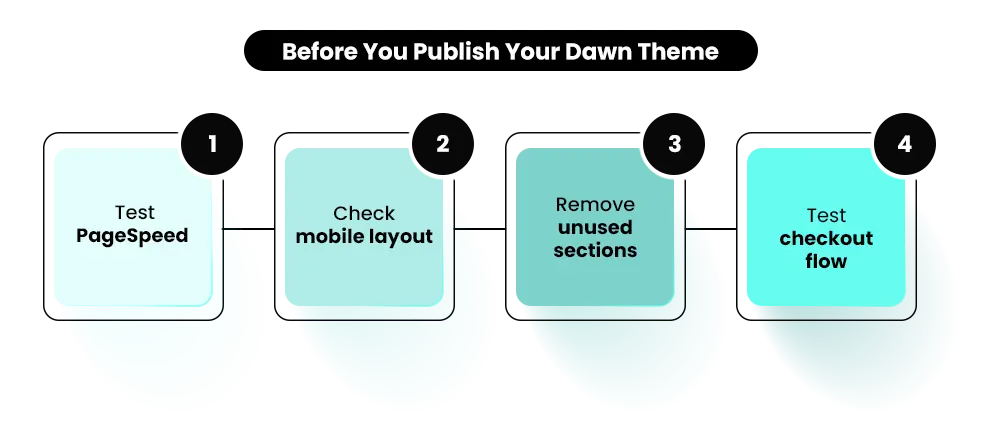
Duplicate the theme — edit the copy, never the live version
Record a baseline PageSpeed score: mobile and desktop
Set brand colors using Dawn’s color scheme system
Use a maximum of two font families and two weights each
Compress hero images under 200KB in WebP format
Compress all product images before uploading
Remove unused sections instead of hiding them
Test each app block individually and measure PageSpeed after every install
Check the mobile layout on a real device — not just the theme editor preview
Re-run PageSpeed after all changes
Confirm all navigation links, footer links, and CTAs resolve correctly
Test the full checkout flow on mobile before publishing
Keep Dawn Fast by Customizing It Carefully
Dawn is fast by default — but keeping it fast depends on the decisions you make while customizing it. Optimized images, lightweight apps, clean CSS, and careful theme edits all help your store stay faster, cleaner, and easier to scale over time.
Most performance problems don’t come from Dawn itself. They usually come from oversized assets, unnecessary scripts, and too many unmanaged customizations added over time.
A clean Dawn setup will almost always outperform a heavily modified store filled with unnecessary features and apps.
If your store needs deeper Dawn customization or a more advanced OS 2.0 setup, Mastroke’s Shopify Theme Developmentservice can help you build a storefront designed for both performance and conversion from the start.
FAQs
1. Is the Shopify Dawn theme good for beginners?
Yes. Dawn is Shopify’s default theme and was built to be manageable without coding skills. The theme editor gives you drag-and-drop control over every page, and the color scheme and typography settings cover most common brand customization needs. For merchants starting out, Dawn is the right choice — it’s fast, well-supported, and free.
2. Does customizing the Dawn theme affect SEO?
It can, but only if you make changes that hurt performance. Dawn’s clean structure, semantic HTML, and fast load times are good for SEO by default. Adding large images, multiple custom fonts, or too many app scripts slows the page — and slower pages rank lower, particularly on mobile. Structural changes like editing page templates don’t hurt SEO as long as you preserve your URLs and don’t remove content that search engines are already indexing.
3. How do I add a custom font to Shopify Dawn without slowing it down?
Go to Theme Settings > Typography in the theme editor and choose a font from Shopify’s hosted font library. These load faster than raw Google Fonts requests because Shopify serves them from its own CDN. Limit yourself to two font families and two weights each — Regular and Bold cover almost all use cases. Every additional weight is a separate HTTP request, and loading four instead of two adds real time on mobile connections.
4. Can I add custom code to the Dawn theme without it getting overwritten?
Yes, with the right approach. For CSS, use the built-in CSS field in the theme editor for small additions, or create a separate custom.css file in the assets folder for anything larger. For Liquid or JavaScript, use the code editor at Online Store > Themes > Edit Code and add custom snippets rather than editing Dawn’s core Liquid files. Core files can be overwritten when Shopify releases a Dawn update — custom snippets and separate CSS files aren’t touched.
5. What PageSpeed score should I aim for after customizing Dawn?
A well-customized Dawn store should score 70 or above on mobile. A clean install scores around 92 — that drops as you add apps, fonts, and real product content. A score between 70 and 85 on mobile is a realistic target for a store with several apps and custom branding. If you’re below 60 on mobile, start with your images, then audit your app scripts, then look at font loading. In that order.
6. Does Dawn work well for stores with large product catalogs?
It depends on your catalog’s complexity. Dawn handles standard collections and filtering well through Shopify’s free Search and Discovery app. Where it starts to struggle is with very large catalogs that need faceted filtering across many attributes, or complex mega-menu navigation with 50+ collections. For those cases, a purpose-built catalog theme or a custom OS 2.0 build handles the structural load better.
7. Is Dawn better than paid Shopify themes?
It depends on what your store needs. Paid themes offer more built-in sections, more visual flexibility, and features Dawn doesn’t include natively — wishlists, advanced filtering, upsell layouts, comparison tables. If your store needs those, a paid OS 2.0 theme can be worth the investment. If speed is your primary concern and your feature requirements are straightforward, Dawn is the stronger foundation. The key is choosing based on what your store actually requires, not on what the theme demo looks like.
8. How do I reset the Dawn theme to its default settings?
If you only made changes in the theme editor (colors, fonts, sections, blocks), go to Online Store > Themes and download a fresh copy of Dawn from the Shopify Theme Store — it’s free and always available. This gives you a clean version alongside your customized one. If you edited code files directly, those changes live in the theme’s files and can’t be reversed through the editor. That’s exactly why duplicating before editing is the right starting habit — you always have a clean version to fall back on.