This blog post explains how choosing a Shopify theme based purely on visual appeal is a costly mistake that most merchants make. It provides a systematic guide for selecting themes based on functional requirements like catalog size, page speed, and mobile experience rather than just design aesthetics.
You’ve set up your Shopify account, added your products, and now you’re staring at 170+ themes. Some look clean. Some look bold. A few look exactly like what you had in mind. So you scroll, click, preview — and usually pick the one that looks the most impressive.
That’s the mistake most merchants make. And it’s an expensive one.
A Shopify theme isn’t just the look of your store. It controls how fast your pages load, how customers move from product to checkout, how your store performs on mobile, and how easy it is to manage as your catalog grows. Pick the wrong one, and you spend months fixing problems that didn’t need to exist. Pick the right one and everything that comes after — ads, SEO, conversions — has a solid foundation to build on.
This guide covers exactly what to look for, what to avoid, and how to make the decision with confidence.
What a Shopify Theme Actually Does — Beyond Design?
Most merchants treat the theme as the “look” of the store. In practice, it’s the functional infrastructure of the entire customer experience.
Your theme defines the structure of every page — homepage, collection pages, product pages, and cart. It controls the user journey: how someone moves from discovering a product to clicking “buy.” It determines how many steps it takes to reach checkout, whether filters work on collection pages, how images load on a mid-range phone, and whether the page responds quickly enough to hold attention before someone leaves.
What we see at Mastroke: Most stores don’t fail because of design. They fail because the theme slows down the buying process through heavy code, confusing navigation, or a mobile experience that wasn’t tested before launch.
Theme choice directly affects four things that matter to your revenue:
- Conversion rate- A poorly structured product page loses customers who were ready to buy. The theme controls that structure.
- Page speed- A theme carrying unnecessary JavaScript or heavy visual effects will silently slow your store and quietly drain your conversion rate.
- Mobile experience- Mobile accounts for the majority of ecommerce traffic. A theme that wasn’t built for it will hurt every channel you invest in.
- SEO- Clean code, fast load times, and proper heading hierarchy all come from the theme. These affect how well your store ranks and how Google reads your pages.
A theme is not decoration. It is the architecture of how your store works.
How to Choose the Right Shopify Theme: The Right Order to Do It
Most merchants open the Theme Store and start browsing design styles. That’s the wrong starting point. Here’s the order that actually works:
- Define your catalog size and product type: These two things determine what your theme needs to do. Everything else follows from here.
- Use the Shopify Theme Store filters: Filter by catalog size first, then by industry. Most merchants skip this step and browse by aesthetic instead — which is how you end up with the wrong theme.
- Check demo speed using PageSpeed Insights or Lighthouse: Run the live demo URL — not the screenshot. Look at both mobile and desktop scores before you go any further.
- Preview with your real products: Shopify lets you preview most themes with your own content before buying. Use this. Demo stores are styled to make every theme look polished. Your products won’t be.
- Test the mobile on a real phone: Browser resizing doesn’t replicate actual mobile performance. Load the preview on your phone, tap through navigation, and try to complete a purchase.
- Validate app compatibility: If you’re running review apps, loyalty programs, or upsell tools, check for known compatibility issues before committing.
- Compare free vs. paid based on where your store actually is right now. Not where you hope it will be in a year, where it is today.
Why Catalog Size Is the First Filter You Should Apply?
Before you look at a single design, ask: how many products does this store need to handle? This one filter eliminates most mismatches — and it’s the filter most merchants skip entirely.
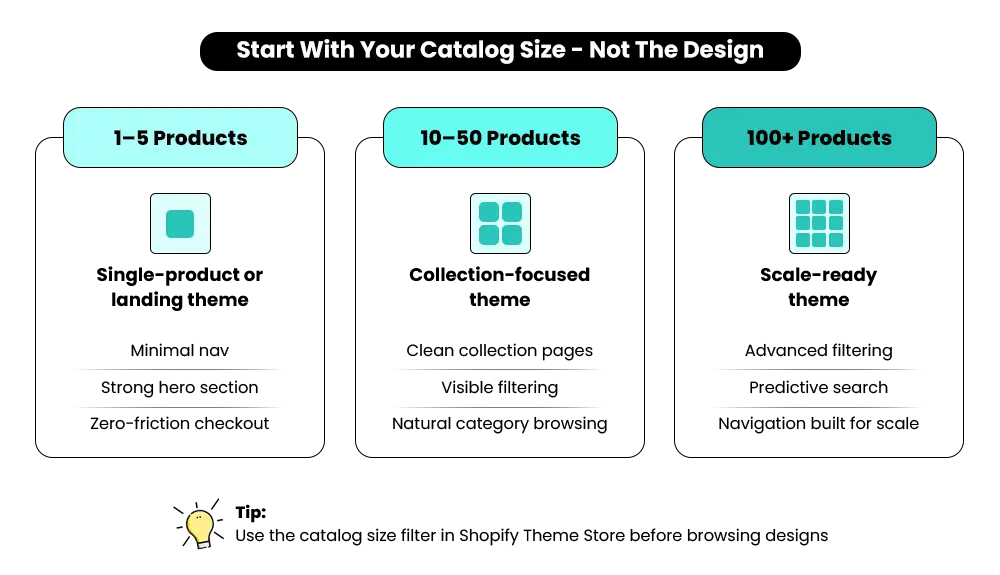
| Catalog Size | Theme Type That Fits | What You Actually Need |
| 1–5 products | Single-product or landing-style themes | One strong hero section, clear product details, zero-friction checkout path. Navigation should be minimal — the product is the page. |
| 10–50 products | Standard collection themes | Clean collection pages, visible filtering, category-level browsing that feels natural. Mega menus are unnecessary here — a clean top-level nav with two to three category links works better. |
| 100+ products | Scale-ready themes with | Predictive search, advanced filtering by attribute, and navigation built for scale. A theme that works beautifully at 20 products will feel broken at 200. This is not optional at this size. |
The Shopify Theme Store lets you filter by catalog size — most merchants never use this feature, and it’s one of the most useful filters available. Start here before you look at anything else.
What Your Product Type Actually Demands From a Theme?
The type of product you sell shapes what your pages need to do. A theme that converts well for a clothing brand can be completely wrong for a supplement store or a furniture retailer. Your product type is already telling you what the page needs — the theme either supports that or works against it.
Apparel and fashion
Size charts, multiple image angles, color swatches, and look-based galleries are structural requirements — not optional features. If a theme doesn’t support these cleanly out of the box, your product pages will feel incomplete regardless of how good your photography is. Don’t plan to solve this with apps. It should come from the theme itself.
Food, beauty, and supplements
Customers in these categories buy on trust before they buy on price. That means ingredient sections, storytelling blocks, and trust signals need to be visible above the fold — not buried. The theme has to accommodate this kind of content-heavy page without feeling cluttered or slow.
Furniture and home décor
Zoom capability, room-set imagery support, and dimension tables matter here. These are considered purchases — customers research before they buy. The page structure needs to support that process, not rush it toward checkout before the customer is ready.
Digital products
Minimal checkout friction and clear access cues are the priority. Typography and hierarchy matter more than image-heavy layouts. The theme should communicate value quickly and put zero obstacles between the visitor and the purchase button.
Before you open the Theme Store, write down what your product pages actually need to do. Use that list as your filter — not visual style preferences. For a deeper look at how product page structure affects conversions, the Shopify landing page optimization guide on the Mastroke blog covers the structural fixes that matter most.
Why Page Speed Should Be the Next Thing You Check?
This is where most merchants lose conversions without realizing it — and where the theme is usually the root cause.
According to Portent’s ecommerce speed research, a store that loads in one second has a conversion rate 2.5x higher than a store that loads in five seconds. And according to Think With Google, every second of delay in mobile load time can reduce conversions by up to 20%.
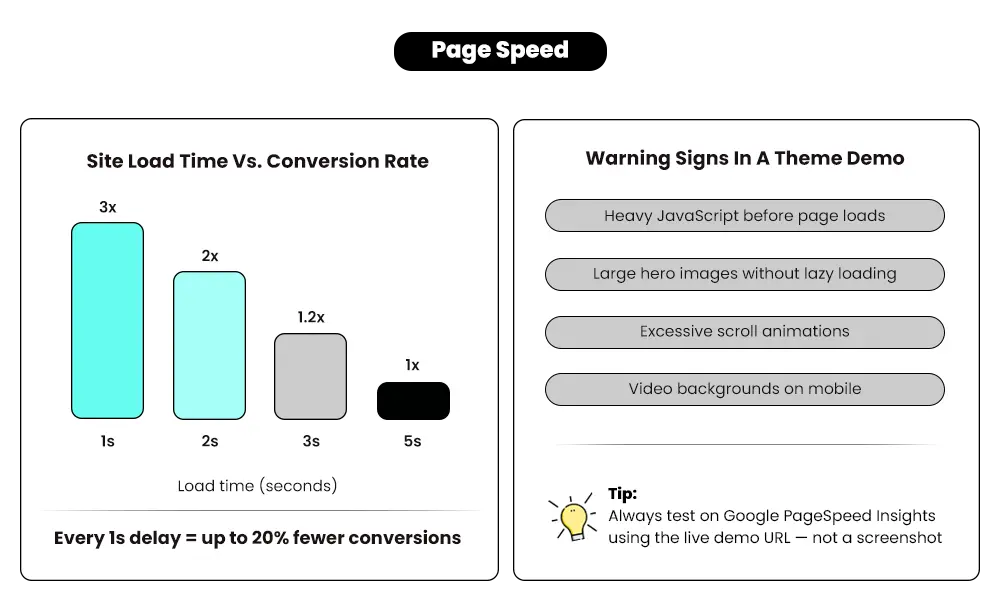
At even a modest revenue level, that is real money disappearing quietly — and the theme is often the root cause.
At even modest revenue levels, that’s real money disappearing quietly — and choosing a theme that carries unnecessary weight is how it starts.
How to check a theme’s speed before you commit?
- Run the theme’s live demo URL through Google PageSpeed Insights or Lighthouse.
- Check both mobile and desktop scores.
- Anything below 70 on mobile warrants caution — especially if you’re planning a content-heavy or image-rich store.
If you want help understanding what’s actually slowing a store down and how to fix it, Mastroke’s Shopify speed optimization service covers both the technical side and the real user experience impact.
Specific warning signs to look for in any theme demo:
- Heavy JavaScript that executes before the page visually loads — this delays the first thing a customer sees.
- Large hero images without lazy loading — on mobile, these block everything below the fold from loading.
- Excessive scroll animations or entrance effects — these look impressive on a fast device and create friction everywhere else.
- Video backgrounds that autoplay on mobile — these consume bandwidth and slow load time dramatically on 4G connections.
These things look great in a demo viewed on a fast laptop. On a mid-range phone on mobile data — which describes most of your customers — they create invisible friction that kills sales before the page even finishes loading.
Build a Shopify Theme That Performs as Well as It Looks
You’ve seen what goes into choosing the right Shopify theme. Now it’s time to build it the right way. Mastroke helps you design and develop high-converting, scalable Shopify stores with a clean theme and structure that grow with your business.
Mobile-first vs. mobile-friendly: what the difference actually means
A mobile-friendly theme resizes for smaller screens. A mobile-first theme is built for smaller screens and then adapted for desktop. The practical difference shows in how touch interactions work, how fast images load on 4G, and whether buttons are sized for fingers or for a cursor.
In 2026, mobile-first is the baseline standard — not a differentiating feature. If you want to understand how mobile-first design actually plays out in real Shopify stores, the mobile-first Shopify design guide on the Mastroke blog covers the specific mistakes that break mobile UX — and what to fix first.
When comparing themes, also confirm that the theme is built on Online Store 2.0. OS 2.0 themes render sections more efficiently, carry cleaner code, and avoid the technical debt that older theme architectures create as you customize and scale.
Free vs. Paid Shopify Themes: Where the Real Difference Shows Up
Most guides on this topic land in one of two places: “free is great for beginners” or “always go paid.” Neither is particularly useful. Here’s the honest breakdown.
When free themes are the right call
Free themes — particularly Shopify’s own themes like Dawn, Sense, and Craft — are well-maintained, fast by default, and fully capable of running a real store. Dawn in particular is built on OS 2.0 with a clean codebase, which means it loads quickly and won’t create compatibility issues as Shopify’s platform evolves.
If you’re in the early stages, testing a product idea, running a single-product store, or simply getting comfortable with Shopify before investing further, start with a free theme. The argument for going paid before you have proof of revenue is usually not a strong one.
When free themes start showing their limits
As your catalog grows and conversion rate becomes the priority, free themes hit walls that paid themes don’t. The gaps show up most in three places:
- Customization depth: Free themes have fewer layout options and section types. You hit structural limits faster when trying to build a distinctive brand experience — things you can’t solve with CSS tweaks alone.
- Built-in conversion features: Sticky add-to-cart buttons, upsell modules, trust badge blocks, countdown timers — paid themes often include these natively. On a free theme, each requires a separate app, which adds cost and additional load to the page.
- Developer support: Paid theme developers generally offer direct support. Free theme support is typically documentation and community forums — which is fine until something breaks at a critical moment.
A $300 theme that lifts conversion rate by even 1% pays for itself within a month at modest revenue levels. The question isn’t whether paid themes are better — it’s whether the timing is right for your specific store right now.
One thing worth stating directly: avoid third-party theme marketplaces
Themes bought from Theme Forest or other third-party marketplaces don’t go through Shopify’s review process. Support quality is inconsistent, update frequency varies, and compatibility issues with newer Shopify features are common. Unless you’ve thoroughly vetted the developer and can verify ongoing maintenance, stick to the official Shopify Theme Store.
If you’re between free and paid, use this test: can your current theme get you through the next six months without hitting a structural wall? For yes, start free. If not, the investment in a paid theme is probably justified now, not later.
How to Test a Theme Before You Commit?
This step is almost always skipped. It shouldn’t be. Shopify lets you preview most themes with your own products before purchasing — use that feature every time.
Preview with your real products, not the demo content
Demo stores are styled to make every theme look polished. The photography is professional, product titles are short and clean, and the collections are small. Your real store may have longer product names, mixed image dimensions, and more complex navigation. Load your actual content in, and you’ll see things the demo hides — fast.
Check mobile on a real phone, not a browser resize
Browser resizing doesn’t replicate actual mobile performance. Load the preview on your phone. Tap through the navigation. Try to complete a purchase. Specifically watch for: tap targets that are too small, images that load slowly before you scroll to them, and how long the checkout screen takes to appear after tapping “Add to Cart.”
Test navigation with your actual collection structure
If you have eight collections, try to build that navigation in the preview. Does the menu hold up? Does filtering work the way your customers would expect? A theme that handles three collections beautifully can feel chaotic with eight.
Walk through the checkout flow and count the steps
A theme can’t modify Shopify’s core checkout, but it directly affects how customers get there and how the cart page feels. Count the clicks from the product page to the payment screen. Notice where friction appears — even one unnecessary step at this stage loses sales.
Look at what themes your competitors are using
To identify a Shopify store’s theme, open the site in Chrome, go to View → Developer → View Source, and search for “.theme” in the code. The theme name is usually referenced in the source. Once you have it, you can find it in the Theme Store, check its reviews, and evaluate it directly. This is one of the most underused research techniques available to any merchant making this decision.
Give yourself 30 to 60 minutes of structured testing. That’s enough time to catch major issues without descending into overthinking every visual detail. If you want to see how this looks in practice, here’s a quick breakdown that walks through the key checks visually:
📌 Key Video
>
>
The Questions Most Merchants Don’t Think to Ask
Beyond speed, design, and product type — a few less obvious things matter a lot further down the road.
Is this theme actively maintained?
Check the last update date in the Shopify Theme Store listing. A theme that hasn’t been updated in 18 months or more may have compatibility issues with newer Shopify features or apps — technical debt that shows up later when you’re trying to grow, not now when you’re evaluating. Look for this directly in the listing: the date is shown under the theme name on the store page.
What does the developer’s review history actually say?
Don’t just look at the star rating — read what people are saying about support. Are responses helpful and timely? Is the documentation clear enough to solve common problems without waiting? A well-built theme from a developer who goes quiet after launch is a problem waiting to surface.
Does this theme work with the apps you’re already running?
Not all themes play cleanly with all apps. Review apps, loyalty programs, upsell tools, and email capture popups can behave unexpectedly depending on the theme’s code structure. If there are apps central to your store’s operation, check for known compatibility issues before buying — a quick search of the app’s support docs or community forum usually surfaces this quickly.
Will this theme hold up for the next 12 to 18 months?
A theme that fits today but forces a rebuild in six months is a short-term saving that becomes a long-term cost. Think one stage ahead — not ten years ahead, but at least to where you expect your catalog and brand to be in a year. If you’re planning significant catalog growth or a visual rebrand, factor that in now.
What happens if something breaks?
Developer support policies vary significantly. Some offer direct email or chat support with guaranteed response times. Others route everything through a help center or community forum. Know this before you commit, not after something breaks on a Friday evening before a sale.
Run through these five questions alongside the performance checks above before you finalize any decision. They take ten minutes and can save you a painful theme switch six months from now.
Mistakes That Are Easy to Make and Expensive to Fix Later
These come up regularly with merchants who chose their theme quickly and paid for it afterwards.
- Choosing based on the demo alone: Demo stores are styled to make every theme look polished. Your real products won’t come pre-optimized. Always preview with your actual content before deciding.
- Ignoring mobile performance until after launch: By that point, your store is live, customers are arriving, and fixing the issue means significant reconfiguration or switching themes entirely. Test the mobile before anything else.
- Picking a theme for where you want to be, not where you are: A feature-heavy theme built for a 500-product store creates unnecessary complexity when you have 12. Keep the current stage of your business front and center.
- Buying from outside the official Shopify Theme Store without vetting the developer: The official store has a review process. Third-party sources don’t. The risk is inconsistent support, outdated code, and themes that conflict with Shopify’s updates.
- Over-customizing before understanding the theme’s defaults: Most well-built themes are designed thoughtfully out of the box. Merchants often start changing colors, layouts, and sections within the first hour, before they’ve understood what the theme is actually doing well. Spend time with the defaults first. Most problems people try to fix with customization are actually non-problems when the theme is given room to work.
Most of these are avoidable with the structured approach in this guide. The checklist below gives you the decision filter to use before you commit.
When a Theme Is Enough — and When Custom Development Makes Sense?
For most stores, a well-chosen theme handles everything that matters. But there are specific points where themes reach their limits, and knowing when that line is approaching saves you from an expensive surprise.
When a theme is the right choice
- You’re building or growing a standard product catalog
- Your conversion needs can be addressed through theme settings and app integrations
- Your budget and timeline favor launching quickly over building something bespoke
When custom development starts making sense
- Your store needs functionality that no existing theme supports natively — custom configurators, complex subscription logic, or advanced filtering systems
- You’re at a scale where a 0.5% improvement in conversion rate represents real, significant revenue
- Theme limitations are actively costing you developer hours every month, as workarounds accumulate
Scaling stores on Shopify Plus often reaches a point where theme limitations affect speed and flexibility at the same time. When that happens, moving to a fully custom Shopify development approach — rather than continuing to patch a ready-made theme — is often what actually unblocks growth. The transition point isn’t a fixed revenue number. It’s when theme constraints start costing more than a proper solution would.
Shopify Theme Checklist: Your Decision Filter

Before you commit to any theme, run through all seven of these. If any one of them fails, keep looking.
- Catalog fit: Does the theme’s structure match your current product volume and navigation needs?
- Product type fit: Does the theme natively support the specific page elements your products require (swatches, zoom, ingredient blocks, etc.)?
- Mobile performance: Tested on a real phone — not a browser resize — and does it feel fast and easy to navigate?
- Speed score: PageSpeed Insights score checked on the live demo URL, mobile score above 70?
- Conversion layout: Are add-to-cart buttons, product images, and trust signals placed where they need to be — above the fold, easy to find?
- App compatibility: Does it work cleanly with the tools already in your stack?
- Developer reliability: Active maintenance within the last 12 months, clear documentation, and support that responds.
All seven check out? You have your theme. Does any one of them fail? The cost of switching later is always higher than the time it takes to keep looking now.
What to Do After You’ve Chosen the Theme?
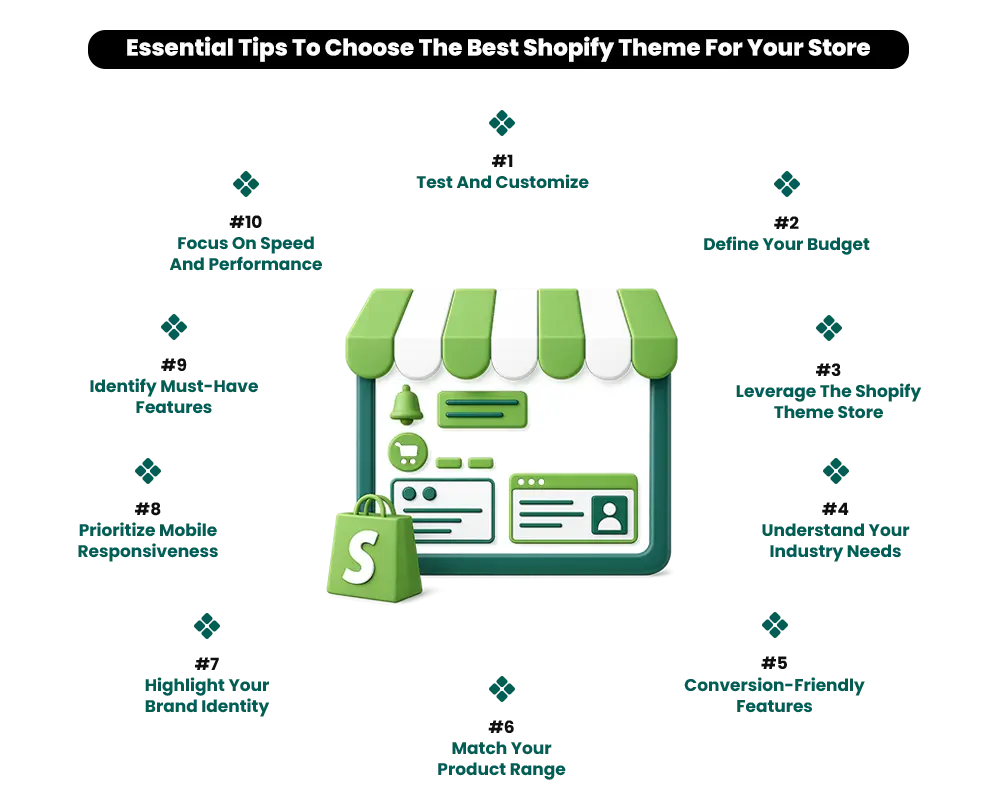 The theme is the foundation — not the finished store. Before you install and go live, have three things in place.
- Your product images. Theme quality can only do so much with inconsistent photography. Clean, consistent images on a white or neutral background make every theme look better, and every product page perform better. Sort this before you configure anything.
- Your brand colors and typography. Know your primary color, secondary color, and font choices before you start building sections. Changing these after you’ve built out the store creates rework across every page. Ten minutes of clarity here saves hours later.
- Your navigation structure. Map out your collections and category hierarchy before you touch the theme settings. A clear picture of how your navigation should work makes the setup process significantly faster. If you’re starting from scratch and want a step-by-step path through the full setup process, the Shopify store setup guide on the Mastroke blog covers everything from day one.
One thing worth saying clearly: no theme decision is permanent. Shopify makes it straightforward to switch themes while keeping your products, content, and store data intact. If you install a theme, work with it for a few weeks, and realize it’s not right, you can change it. The decision carries real consequences for speed and conversions — but it is not irreversible. Start with what fits your store today, and adjust as you grow.
Need Help Choosing or Building the Right Shopify Theme?
Choosing the theme is the start. Building it into a store that actually converts — with the right structure, speed, and product page setup — is where most merchants need support. Mastroke works with Shopify merchants to select, develop, and optimize themes that perform from day one.
Talk to a Shopify Theme Specialist!
Frequently Asked Questions About Shopify Theme-
Here are some of the answers to your queries about Shopify theme:
Q: What is the best Shopify theme in 2026?
A: There is no single best theme — the right choice depends on your catalog size, product type, and performance requirements. For beginners and early-stage stores, Shopify’s free themes (Dawn, Sense, Craft) are fast, maintained by Shopify, and built on OS 2.0. For growing stores that need more layout control and built-in conversion features, paid themes like Impulse or Prestige from the official Shopify Theme Store are worth evaluating. Always test with your real products before committing.
Q: How do I test a Shopify theme before buying?
A: Use Shopify’s built-in theme preview feature to load your real products into the theme before purchasing. Check mobile on an actual phone — not a browser resize. Run the demo URL through Google PageSpeed Insights and look at the mobile score. Walk through the checkout flow from the product page to the cart. And if you can identify what themes your competitors are using (via View Source in Chrome, searching for “.theme”), that gives you a useful real-world benchmark to evaluate against.
Q: Do Shopify themes affect conversion rates?
A: Directly and significantly. The theme controls how your product pages are structured, how fast they load, and how easy the path to checkout is — all of which determine whether a visitor buys. A theme with a poorly placed add-to-cart button, a slow mobile experience, or a confusing navigation structure can cost you conversions on every page, every day, regardless of how much you spend on traffic.
Q: What is a fast Shopify theme?
A: A fast Shopify theme loads in under three seconds on mobile, uses minimal JavaScript, lazy-loads images below the fold, and avoids heavy animations or autoplay video. Shopify’s own free themes — Dawn, Sense, and Craft — consistently score well on PageSpeed Insights because they’re built with performance as a design constraint, not an afterthought. Always test the live demo URL in PageSpeed Insights before you buy any theme, free or paid.
Q: Should beginners use free Shopify themes?
A: Yes — and there’s no need to apologize for it. Shopify’s free themes, particularly Dawn, are fast, well-maintained, built on the latest OS 2.0 architecture, and capable of running a real store. Start free, prove your revenue model, and invest in a paid theme when conversion rate optimization becomes the clear next priority. Paying for a theme before you have proof of revenue is rarely the right move.
Ready to Launch a Shopify Store That’s Built to Perform?
You’ve seen what goes into choosing the right Shopify theme. Now it’s time to build it the right way. Mastroke helps you design and develop high-converting, scalable Shopify stores with a clean structure and features that grow with your business.