This blog post explains why Shopify merchants' SEO problems often stem from technical issues rather than content problems, and provides a comprehensive checklist to identify and fix these underlying technical SEO issues. The post focuses on 15 specific technical problems that can cause Shopify stores to rank lower than competitors despite having good content and design.
Most Shopify merchants assume their SEO problems are content-related — wrong keywords, not enough blog posts, missing meta descriptions.
Those are surface-level fixes. The real performance killers sit underneath all of that, invisible to the naked eye, untouched by any amount of blog writing or meta tag editing.
A Shopify store can have polished product pages, well-written copy, and active paid campaigns — and still lose rankings to a less attractive competitor because their technical foundation is cleaner. Google reads your technical layer before it reads anything else. If that layer has problems, nothing else you do compounds the way it should.
This technical SEO audit checklist covers 15 specific issues that cause Shopify stores to rank lower than they should. For each one, you’ll find what it is, why it matters, and exactly what to do about it — no guesswork, no generic advice.
Two tools you’ll need throughout: Google Search Console and one crawling tool (Screaming Frog, Ahrefs, or Semrush).
What Is a Technical SEO Audit — and Why Shopify Stores Need One Specifically?
A technical SEO audit is a systematic review of the backend elements that determine whether Google can find, crawl, understand, and rank your store’s pages. None of these elements show up in your Shopify dashboard by default, which is exactly why most merchants have no idea whether they’re working correctly.
Shopify handles some technical SEO automatically — HTTPS, XML sitemaps, and canonical tags are generated out of the box. But the platform also introduces specific problems that most merchants never discover: duplicate URLs from collection paths, app-generated code bloat that tanks Core Web Vitals, faceted navigation that creates thousands of thin pages, and sitemap hygiene issues that quietly eat crawl budget. These are Shopify-specific problems. A generic SEO guide won’t address them. This checklist does.
Run a full Shopify technical SEO audit every six months, after any major store change, and any time rankings drop without a clear cause.
Related read: 10 Shopify Performance Optimization Strategies (That Improve Speed & Conversions) — performance and technical SEO are closely linked. If you’re starting here, that guide covers the speed side of this picture in detail.
The Technical SEO Audit Checklist — 15 Issues That Kill Shopify Rankings
Issue 1: Duplicate URLs from Shopify’s Collection Path Structure
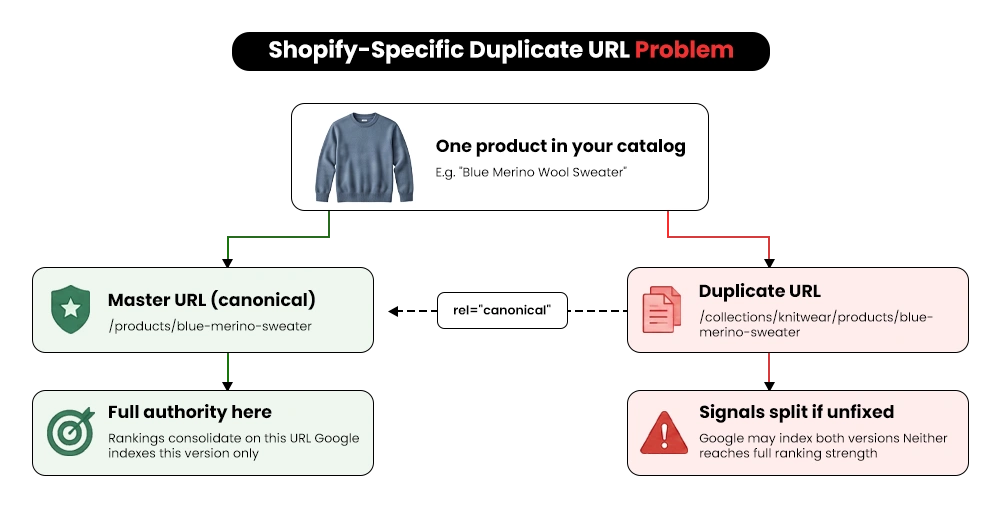
What it is: Shopify creates two accessible URLs for every product — one at /products/product-name and another at /collections/collection-name/products/product-name. Both are crawlable. Both can be indexed. And both often are.
Why it suppresses rankings: Google sees two pages competing for the same search terms. Neither accumulates full authority. Ranking signals are split across both URLs, and neither gets as strong as it should. This is one of the most common indexation problems specific to Shopify.
Where to look: Crawl your store with Screaming Frog and filter for duplicate page titles or near-duplicate content. Compare /products/ and /collections/ paths for the same product manually.
The fix: Verify your theme generates proper self-referencing canonical tags on collection-path product URLs pointing back to the /products/ master URL. Shopify creates these by default, but theme customizations and app installations break them. Check every product page in the Canonicals tab of your crawl.
Issue 2: Crawl Budget Waste from Faceted Navigation
What it is: Every filter and sorting option on your collection pages generates a unique URL. A store with 200 products and 8 filter options can produce thousands of crawlable URLs — most containing near-identical content. These filter pages typically appear as query strings like? filter.p.m.tag=red.
Why it suppresses rankings: Google’s crawl budget is finite. Wasting it on low-value filter pages means your important product and collection pages get crawled less frequently. Pages crawled less often lose freshness signals. Some fall out of the index entirely.
Where to look: Check your URL structure for query string patterns. Google Search Console will show whether filter pages are being indexed under Coverage.
The fix: Add noindex tags to filter-generated URLs, or use rel=”canonical” pointing to the parent collection page. For complex stores, consider AJAX-based filtering where selections don’t generate unique URLs at all.
Issue 3: Why Slow Load Times Are Quietly Killing Your Shopify Rankings
What it is: Page load time that exceeds Google’s recommended threshold of 2.5 seconds for LCP (Largest Contentful Paint) — the point at which a page’s main content has fully loaded.
Why it suppresses rankings: Page speed is a confirmed Google ranking factor. According to Google’s own research, a one-second delay in mobile page load time reduces conversions by up to 20%. Most Shopify stores are already behind on this — and most merchants don’t know it until rankings slip.
Where to look: Google PageSpeed Insights for individual pages. Shopify’s built-in Online Store Speed Report for a broader view. Google Search Console’s Core Web Vitals report for site-wide data across all important pages.
The fix: The most common culprits on Shopify are uncompressed hero images, render-blocking JavaScript from apps, and heavy theme code. Start with three things: compress images to WebP format under 300KB, implement lazy loading for below-the-fold images, and audit which apps are injecting scripts on every page load regardless of whether that page uses the app.
Issue 4: Core Web Vitals Failures — INP Is the One Most Stores Miss
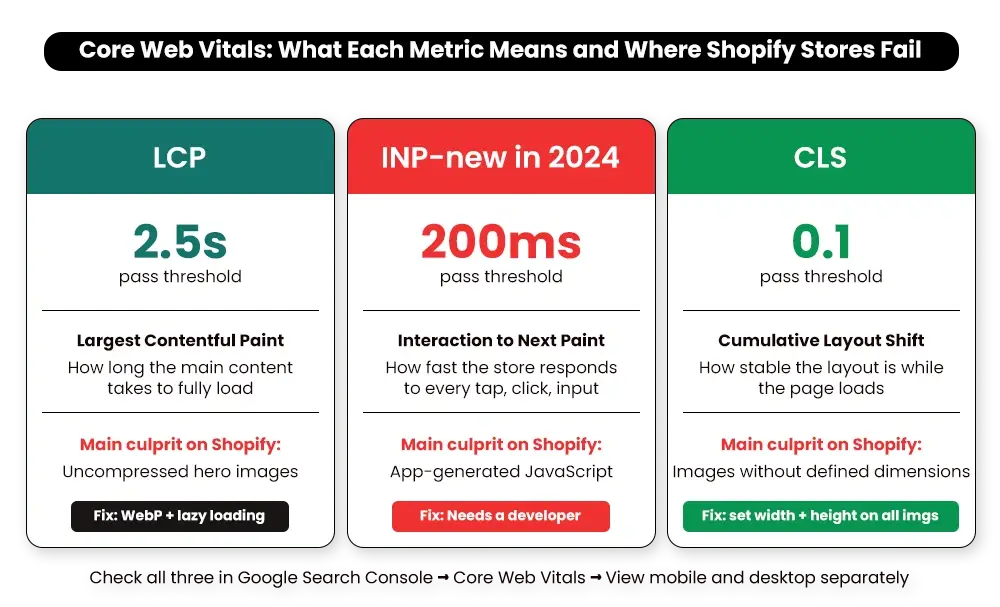
What it is: Core Web Vitals (CWV) are three metrics Google uses to measure user experience — LCP (loading), INP (Interaction to Next Paint, which replaced FID in 2024), and CLS (Cumulative Layout Shift). INP measures how quickly your store responds to every user interaction: taps, clicks, form inputs.
Why it suppresses rankings: Google has confirmed that Core Web Vitals are a ranking factor. Pages with poor CWV scores show up in Google Search Console under “Poor URLs.” INP is the newest and least-understood metric — and the one most Shopify stores fail on, because every installed app contributes to it.
Core Web Vitals can feel technical. Their impact isn’t: a slow, frustrating experience costs rankings and sales, and the two compound each other.
>
>
Where to look: Google Search Console → Core Web Vitals report → view mobile and desktop separately. Pages failing INP are almost always JavaScript-heavy.
The fix: LCP and CLS are often fixable with image optimization and defined image dimensions. INP is almost always a JavaScript problem that needs a developer. Fixing it requires a systematic app code review — each installed app is a potential contributor, and there’s no shortcut around that.
Related service: Mastroke’s Shopify Core Web Vitals optimization service is built for resolving INP and LCP failures on Shopify stores — including the JavaScript audits most merchants can’t run without developer support.
Issue 5: App-Generated Code Bloat
What it is: Every app you install adds JavaScript and CSS to your store, often injecting code on every page regardless of whether that app is relevant there. An app for your cart page loads on your homepage. An app for your blog loads on your product pages.
The average store with 10–15 apps carries a real speed penalty. Most merchants have never measured it.
Why it suppresses rankings: Cumulative app code is the single biggest cause of poor Core Web Vitals on Shopify stores. The penalty compounds with every additional install — and it compounds silently.
Where to look: Run PageSpeed Insights on your homepage and a product page. Under “Reduce unused JavaScript,” check which files are loading. Most will be traceable to specific apps by filename.
The fix: Run a quarterly app audit. For every app, ask two questions: is it actively being used, and does its revenue contribution justify its speed cost? Cut anything that fails. For essential apps, a developer can scope their code to load only on the pages where the app actually functions.
Issue 6: Missing or Broken Canonical Tags
What it is: Canonical tags tell Google which version of a page is the authoritative one when similar or duplicate pages exist. Shopify generates them by default — but theme edits, app installations, and developer changes break them regularly, with no visible warning.
Why it suppresses rankings: Without a correct canonical, Google has to guess which URL to rank. It often guesses wrong or splits ranking signals between versions. Broken canonicals suppress rankings for months before anyone notices.
Where to look: Screaming Frog → Canonicals tab → filter for “Missing” and “Non-indexable.” Non-indexable canonicals mean the tag is pointing to a page that can’t be indexed — a common pattern after URL changes.
The fix: Every page needs a self-referencing canonical tag. For product pages accessible via multiple collection paths, the canonical should always point to the /products/ URL. Verify this across your full product catalog after any theme update — not just a spot check.
Issue 7: Orphan Pages With No Internal Links
What it is: Pages that exist on your store but have zero internal links pointing to them. Old blog posts, discontinued collection pages, seasonal landing pages, pages created during a theme migration, and never properly connected to navigation — all common culprits.
Why it suppresses rankings: Google discovers pages through internal links. Orphan pages don’t get crawled regularly, don’t accumulate link equity from the rest of the site, and often drop out of the index. A page that earns no internal links earns no ranking signals from the pages that could pass them.
Where to look: Screaming Frog → Sitemaps → Orphan URLs. This cross-references your submitted sitemap against your internal link structure and surfaces every page in the sitemap with no inbound links.
The fix: Add internal links to valuable orphan pages from related products, blog posts, or collection pages. If a page has no real value, remove it and 301-redirect it to something relevant. Don’t leave orphan pages sitting there collecting nothing.
Issue 8: 4xx Errors on Previously Indexed Pages
What it is: Pages that return a 404 or other 4xx status code — most often from products being deleted, URLs being changed, or collections being restructured without redirect rules being set up first.
Why it suppresses rankings: 4xx errors on indexed pages mean Google hits dead ends where content used to exist. Any backlinks or internal links pointing to those broken URLs lose their value immediately. Pages that used to pass authority pass nothing.
Where to look: Google Search Console → Coverage → “Not found (404)” report. Also Screaming Frog → Response Codes → 4xx. Cross-reference against your list of deleted or moved products.
The fix: 301-redirect broken URLs to the most relevant live equivalent. In Shopify, manage these under Online Store → Navigation → URL Redirects. If a product is being reinstated, restore it at the exact original URL rather than creating a new one.
Issue 9: Missing or Incomplete Product Schema (Structured Data)
What it is: Product schema markup is the code that enables Google to display rich snippets — star ratings, price, availability — directly in search results. Many Shopify themes implement it incompletely, or with errors that prevent rich results from appearing.
Why it suppresses rankings: Without a complete schema, product pages miss the rich snippets that improve click-through rates from search. In 2026, structured data also affects AI shopping visibility — tools like ChatGPT Shopping and Microsoft Copilot use Product schema to surface and recommend products. An incomplete schema means your products don’t show up in those channels.
Where to look: Google’s Rich Results Test → paste your product URL → check what schema is detected and whether it passes validation. Google Search Console → Enhancements → Shopping for site-wide schema errors.
The fix: Make sure Product schema includes: name, description, price, currency, availability, SKU, brand, and review/rating data where applicable. Many Shopify themes handle this automatically — verify your theme’s schema is complete and error-free, particularly after theme updates.
Related read: GEO for Shopify Stores: What Is Generative Engine Optimization & How to Optimize Your Shopify Store for AI Search — structured data is foundational for both traditional SEO and AI search visibility. This guide covers how to make your store discoverable in AI-driven search.
Issue 10: Non-Descriptive or Duplicate Title Tags
What it is: Title tags that are identical across multiple pages, over 58 characters, or built from generic templates like “Product Name — Store Name” with no meaningful keyword context. Duplicate title tags are extremely common on Shopify stores using theme-generated templates without customization.
Why it suppresses rankings: Title tags are one of the most direct on-page signals Google uses to understand a page’s topic. Duplicates create ranking ambiguity between pages. Over-long titles get truncated in search results, reducing click-through rates. Generic templates miss keyword opportunities that competitors are capturing right now.
Where to look: Screaming Frog → Page Titles → filter for “Duplicate,” “Over 58 Characters,” and “Missing.”
The fix: Every page needs a unique, descriptive title tag under 58 characters that includes the primary keyword naturally. In Shopify, edit these directly in the SEO section of each product, collection, or page. Don’t use the product name alone — use searchable, descriptive language that matches what a merchant would actually type.
Issue 11: Missing H1 Tags or Multiple H1s on the Same Page
What it is: H1 tags are the primary heading of a page — the clearest signal Google uses to understand the page’s topic. Pages with no H1 force Google to infer the topic from weaker signals. Pages with multiple H1s dilute that signal across competing declarations.
Why it suppresses rankings: Without a clear, unique H1, Google’s understanding of your page’s primary topic is weaker than it needs to be. This hits hardest on product and collection pages, where the H1 should match what the searcher actually typed.
Where to look: Screaming Frog → H1 → filter for “Missing” and “Multiple.” Both are common in stores using complex page builder themes or that have gone through multiple rounds of design changes.
The fix: Every page gets exactly one H1 that matches the page’s primary search intent. On product pages, this is typically the product name. On collection pages, it should reflect what someone would actually search to find that collection — not just a label.
Issue 12: Unoptimized Images — Size, Alt Text, and Format
What it is: Product images over 300KB, served in JPEG or PNG instead of next-gen formats like WebP, or missing alt text. All three show up constantly on Shopify stores where images are uploaded without any optimization workflow in place.
Why it suppresses rankings: Oversized images are the single biggest cause of slow LCP on Shopify stores. Missing alt text removes an important on-page relevance signal and creates accessibility issues. Every unoptimized image hurts load time for every visitor, on every device.
Where to look: Screaming Frog → Images → “Over 300KB” for size issues. Screaming Frog → Images → “Missing Alt Text” for coverage gaps.
The fix: Compress all product images to WebP format under 300KB before upload using TinyPNG or Squoosh. On Shopify, apps like Tiny: SEO can automate this across existing images. Write descriptive, natural alt text for every image — accurate to what the image actually shows, not keyword-stuffed.
Issue 13: Robots.txt Blocking Important Pages
What it is: The robots.txt file tells Google which pages to crawl and which to skip. Misconfigured rules — especially broad disallow directives added by developers or apps — accidentally block product pages, collection pages, or image directories from being crawled at all.
Why it suppresses rankings: If Google can’t crawl a page, it can’t index it. Robots.txt errors are completely silent. No dashboard warning. No alert. Pages just quietly disappear from search results — and merchants often have no idea why until rankings have already dropped hard.
Where to look: Type yourstore.com/robots.txt into your browser and review every Disallow rule. Cross-reference with Google Search Console → URL Inspection for any pages you suspect may be blocked.
The fix: Shopify generates robots.txt automatically and allows limited customization. Review any custom Disallow rules added by developers or apps. Test specific URLs in Google Search Console’s URL Inspection tool if you’re unsure. Never add a broad Disallow rule without knowing exactly which pages it blocks.
Issue 14: Redirect Chains and Redirect Loops
What it is: A redirect chain is when URL A redirects to URL B, which redirects to URL C. A redirect loop circles back on itself. Both are common after theme changes, URL restructures, or multiple rounds of SEO work where old redirects were never cleaned up.
Why it suppresses rankings: Each redirect hop loses a portion of link equity. Chains also slow load time. With three or more hops, Google sometimes stops following the chain entirely — leaving the final destination unindexed from that path.
Where to look: Screaming Frog → Response Codes → 3xx → look for chains with more than one hop. Any URL that requires multiple redirects to reach a live page is a chain that needs fixing.
The fix: Update redirect rules to point directly from the original URL to the final live destination, cutting out the middle hops. In Shopify, manage these under Online Store → Navigation → URL Redirects. After any URL restructure, audit all existing redirects to remove chains before they compound.
Issue 15: Sitemap Errors — Wrong URLs and Non-200 Status Codes
What it is: A sitemap containing URLs that return 3xx redirects, 4xx errors, or non-canonical page versions. Shopify generates your sitemap automatically, but deleted products, URL changes, and app-created pages introduce errors over time.
Why it suppresses rankings: A sitemap with errors signals a poorly maintained site. More practically, it wastes crawl budget on URLs that either redirect or return errors — reducing how often your important pages get re-crawled and re-indexed.
Where to look: Google Search Console → Index → Sitemaps → view your submitted sitemap → check for errors and warnings. Screaming Frog can also crawl your sitemap directly.
The fix: Your sitemap should contain only live, canonical, indexable pages returning a 200 status code. Remove redirect URLs, 404 pages, and non-canonical variants. On Shopify, your sitemap reflects your active products, collections, and pages — keep those clean and your sitemap stays clean automatically.
Finding SEO Issues but Not Sure How to Fix Them?
Technical SEO problems quietly hurt rankings, traffic, and revenue. Mastroke helps Shopify merchants identify crawl issues, fix site architecture, improve indexing, and build SEO strategies that support long-term organic growth.
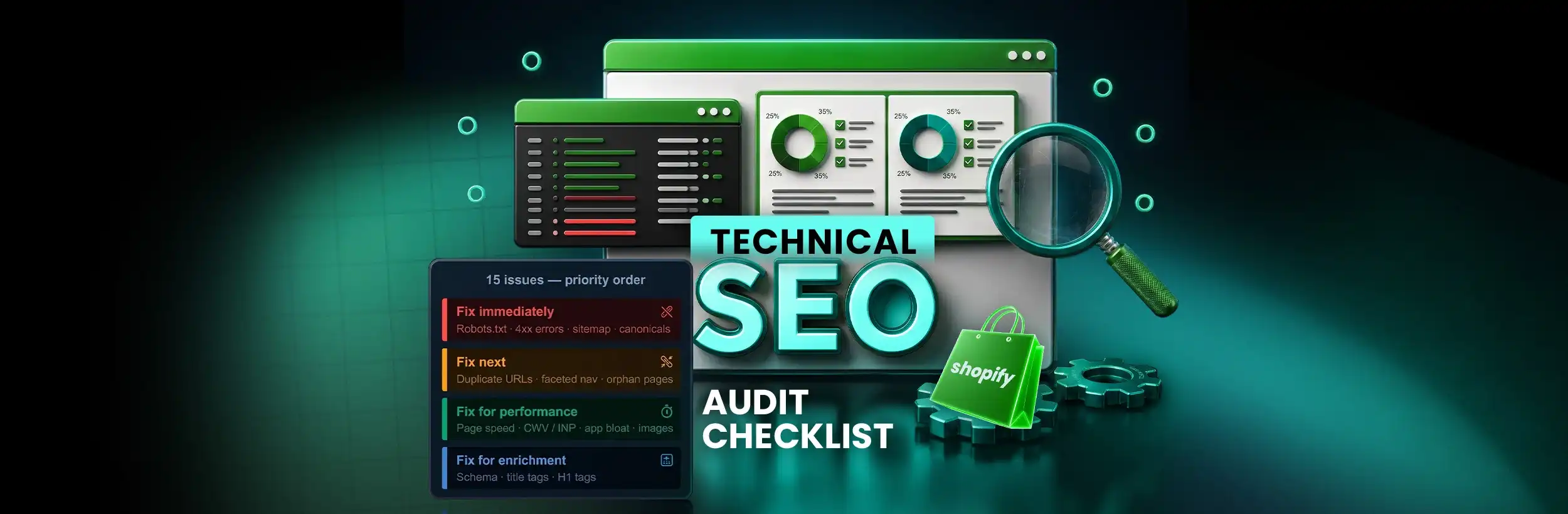
How to Prioritize These 15 Issues?
Not everything in this checklist is equally urgent. Here’s the order that consistently delivers the most visible ranking improvements in the shortest time.
- Fix immediately — ranking blockers: Robots.txt errors (Issue 13), 4xx errors on indexed pages (Issue 8), sitemap errors (Issue 15), broken canonical tags (Issue 6). These prevent pages from being crawled or indexed at all. Nothing else you do matters until these are resolved.
- Fix next — ranking confusers: Duplicate URLs from collection paths (Issue 1), faceted navigation crawl waste (Issue 2), orphan pages (Issue 7), redirect chains (Issue 14). These split or dilute ranking signals across URLs, suppressing performance without blocking it completely.
- Fix for performance — ranking improvers: Page speed (Issue 3), Core Web Vitals including INP (Issue 4), app code bloat (Issue 5), image optimization (Issue 12). These improve how Google evaluates user experience — a weighting that gets heavier with every algorithm update.
- Fix for enrichment — ranking amplifiers: Product schema (Issue 9), title tags (Issue 10), H1 tags (Issue 11). These improve how accurately Google understands and represents your pages in search results — and how AI shopping tools discover and recommend your products.
Related read: The Shopify Store Audit Checklist Every Brand Should Do in Q1 2026 — this broader audit framework pairs well with this technical SEO checklist. Once the technical layer is clean, use this guide to evaluate everything else.
Tools You Need to Run This Audit
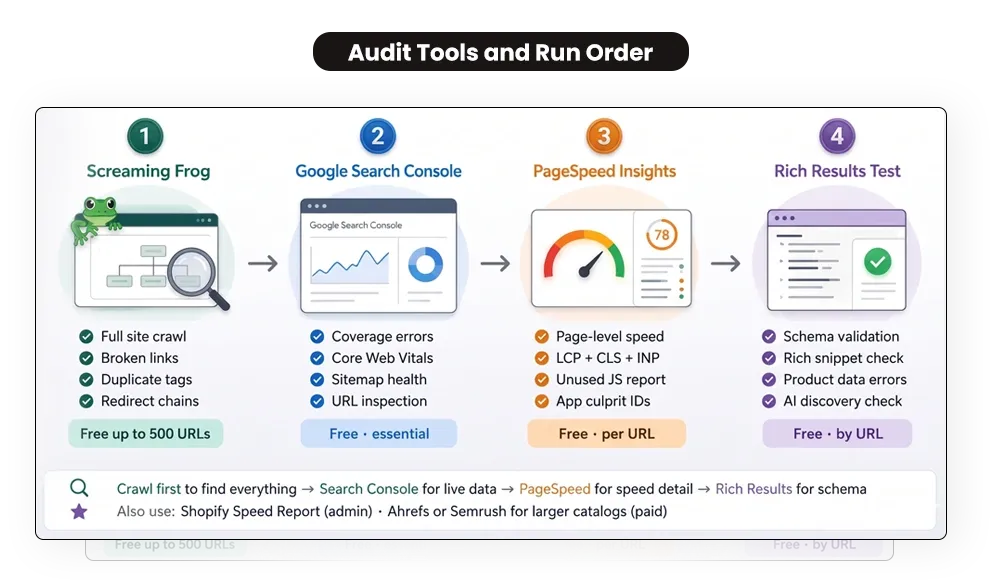
- Google Search Console (free) — crawl errors, indexing status, Core Web Vitals, sitemap health, URL inspection for any specific page
- Google PageSpeed Insights (free) — page speed and Core Web Vitals scores for individual URLs
- Screaming Frog SEO Spider (free up to 500 URLs, paid beyond) — the primary crawling tool for finding broken links, duplicate tags, missing elements, and redirect chains; start here before moving to any other tool
- Ahrefs or Semrush (paid) — crawl at scale, backlink analysis, organic keyword tracking, broader site audit features for larger catalogs
- Google’s Rich Results Test (free) — validate Product schema and structured data before and after changes
- Shopify’s Speed Report — built into your admin under Online Store → Themes → View Report
Run the audit in this order: crawl first with Screaming Frog, then review Search Console data, then validate specific pages with PageSpeed Insights and the Rich Results Test.
How Often to Run a Technical SEO Audit?
- Full Shopify technical SEO audit: Every six months, or immediately after any major change — theme update, URL restructure, new app installation, or platform migration.
- Monthly mini-audit: Check Search Console for new crawl errors, review the Core Web Vitals report, fix any new 4xx errors, and monitor sitemap health. This takes 30–60 minutes and catches issues before they compound.
- After any developer changes: Any modification to your theme or app configuration can introduce new technical issues. At a minimum, run a spot-check using URL Inspection in Search Console after every deployment.
Related read: Design, Speed, or Marketing: What Should Come First in Your Shopify Store Growth Plan for 2026? — Before deciding what to fix next, this framework helps you sequence store improvements correctly.
What Mastroke Does Differently in a Shopify Technical SEO Audit?
Running through a checklist manually is a start. Knowing which of these 15 issues are actually hurting your specific store — and in what order to fix them based on your catalog size, traffic patterns, and competitive landscape — is where the real performance gain happens.
These issues don’t affect every store equally. A large catalog with faceted navigation has a completely different priority order than a single-collection DTC store with 20 products. A store that’s been migrated multiple times has different redirect chain exposure than one that’s been on Shopify from day one.
At Mastroke, a technical SEO audit is the starting point for every SEO engagement we run — because fixing the foundation is what makes everything else compound. Content improvements, link building, and on-page optimization all perform better when the technical layer is clean first.
Our Shopify performance audit service covers all 15 of these issues with prioritized recommendations specific to your store’s architecture, catalog size, and current traffic patterns. For stores that need ongoing support beyond the initial audit, our Shopify SEO services combine technical auditing with on-page optimization, content strategy, and monthly monitoring.
Related read: How to Plan Your Shopify Store Growth in 2026 — once your technical foundation is clean, this guide helps you build the SEO and growth strategy on top of it.
Conclusion
Technical SEO is invisible until something breaks — and by then, rankings have usually already slipped. The 15 issues in this checklist don’t all apply to every store equally, but working through each one will surface wherever your store’s crawlability, indexability, or performance is costing you rankings you should already have.
The merchants who treat technical SEO as a recurring process rather than a one-time fix are the ones who hold rankings as Google’s algorithm evolves. Each update rewards cleaner technical foundations and punishes accumulated debt more aggressively. The debt compounds quietly. So does the cleanup, once you start.
Start with the blockers. Clear the confusers. Work through performance and enrichment in order. That sequence delivers the most visible results in the shortest timeframe — and sets the foundation for every other SEO investment to build on top of it.
Ready to Future-Proof Your Shopify Store for Search?
Your technical SEO foundation determines how well everything else performs — content, links, and on-page optimization. Mastroke’s Shopify performance audit identifies exactly which of these 15 issues are affecting your store, in what order to fix them, and what each fix is worth to your rankings and revenue.
Frequently Asked Questions-
Q: How long does a technical SEO audit take for a Shopify store?
A: A basic audit using Google Search Console and Screaming Frog typically takes 3–5 hours for a store with under 500 URLs. Larger stores — especially those with complex catalogs, faceted navigation, or many apps — can take significantly longer, particularly when redirect chain analysis and structured data validation are included. Budget a full day for a thorough audit on a catalog of 1,000+ products.
Q: Does Shopify handle technical SEO automatically?
A: Shopify covers some basics by default — HTTPS, XML sitemaps, and canonical tags are generated automatically. But the platform doesn’t prevent the 15 issues in this checklist from occurring. Duplicate URL structures from collection paths, app code bloat, and incomplete product schema are all platform-specific problems that Shopify doesn’t flag or fix on its own. The platform gives you a foundation; the audit confirms whether that foundation is still intact.
Q: What is the most common technical SEO issue on Shopify stores?
A: Duplicate content from collection path URLs and slow page speeds caused by app-generated JavaScript are the most frequent issues found in initial Shopify SEO audits. Both are platform-specific, both are invisible without active investigation, and both directly suppress rankings. Neither requires rebuilding the store to fix.
Q: How soon will rankings improve after fixing technical SEO issues?
A: Google typically re-crawls and re-indexes pages within weeks of a fix going live. Ranking improvements usually follow within 30–90 days — faster in less competitive niches, slower where the keyword landscape is tight. Fixes that remove indexation blockers, like robots.txt errors or broken canonicals, tend to show impact first. Performance improvements like Core Web Vitals take longer, typically 60–90 days after the fix goes live.