
This blog post is a comprehensive guide on protecting SEO rankings during Shopify migrations, addressing the common mistakes that can destroy organic traffic built up over months. It provides a detailed checklist covering pre-migration audits, critical mistakes to avoid, and systematic steps to preserve search engine rankings throughout the migration process.
Your rankings took months to build. A poorly handled Shopify migration can wipe them out in days.
Old URLs turning into 404 errors, metadata blank on launch day, a staging site accidentally indexed by Google — any one of these will send your organic traffic into freefall, and most merchants don’t catch it until the damage is already done.
This Shopify migration SEO checklist walks through every phase that actually protects your rankings: what to do before the build starts, what to lock in before you go live, and what to watch in the first 30 days after launch. Follow it in order.
Why Shopify Migration SEO Goes Wrong — and What It Costs
Before the checklist, it helps to understand the specific mistakes that destroy rankings. These aren’t edge cases. They happen on almost every migration where SEO isn’t treated as a dedicated workstream from day one.
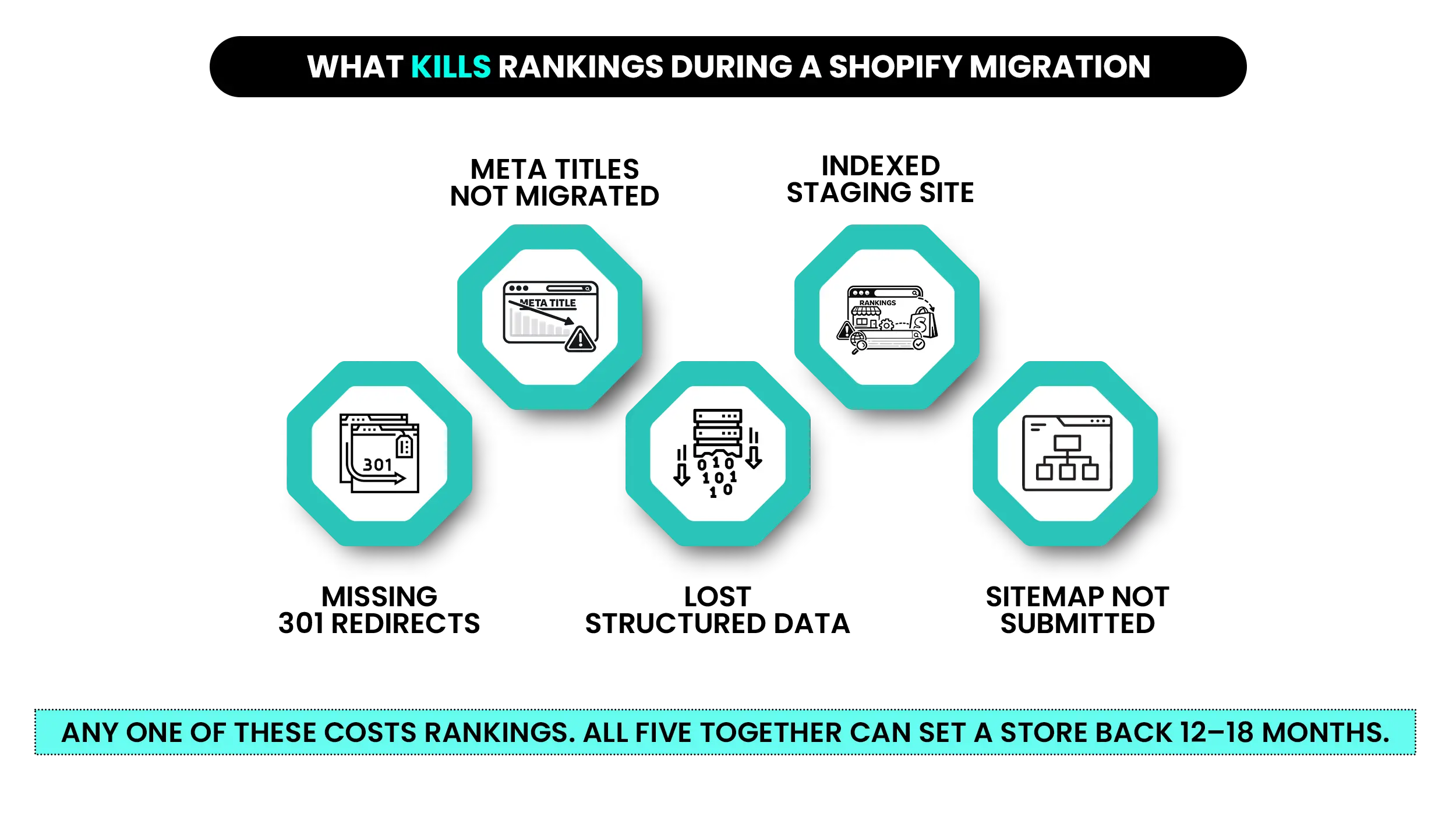
The Five Mistakes That Kill Rankings
URLs change without 301 redirects
When your old URLs disappear and new Shopify URLs appear without redirects pointing between them, Google treats your store as a brand-new website. Every ranking built on the old URLs resets to zero.
Metadata doesn’t migrate automatically
Most platforms don’t export meta titles and descriptions in a format Shopify can import directly. Teams that skip this step launch with Shopify’s auto-generated titles — which strip keywords and years of work in one go.
Structured data gets lost in transit
Product schema, breadcrumb schema, and review markup don’t carry across between platforms. Without them, your products lose eligibility for rich snippets — which hurts click-through rates even when rankings hold.
The staging site gets indexed
A development store left open to Google during the build phase can get partially indexed. When the live store launches, two versions of your site compete in Google’s index at the same time.
The sitemap isn’t submitted after launch
Shopify creates a sitemap on its own, but Google doesn’t receive it automatically. Without submission, crawling the new store can take weeks instead of days.
Any one of these alone causes ranking damage. All five together? Recovery can take the better part of a year — and that’s if you catch everything quickly. The worst part is that merchants who skipped the SEO planning usually don’t realise anything is wrong until Google Search Console starts showing 404 errors everywhere. By then, the link equity is already gone.
| Mistake | SEO Impact | Priority |
|---|---|---|
| Missing redirects | Ranking loss | Critical |
| Missing metadata | Lower CTR | High |
| Missing schema | Lost rich results | High |
| Indexed staging site | Duplicate content | Critical |
| Missing sitemap submission | Slow indexing | Medium |
Of these five, missing redirects and an indexed staging site are the most damaging. Both need to be dealt with before any development begins.
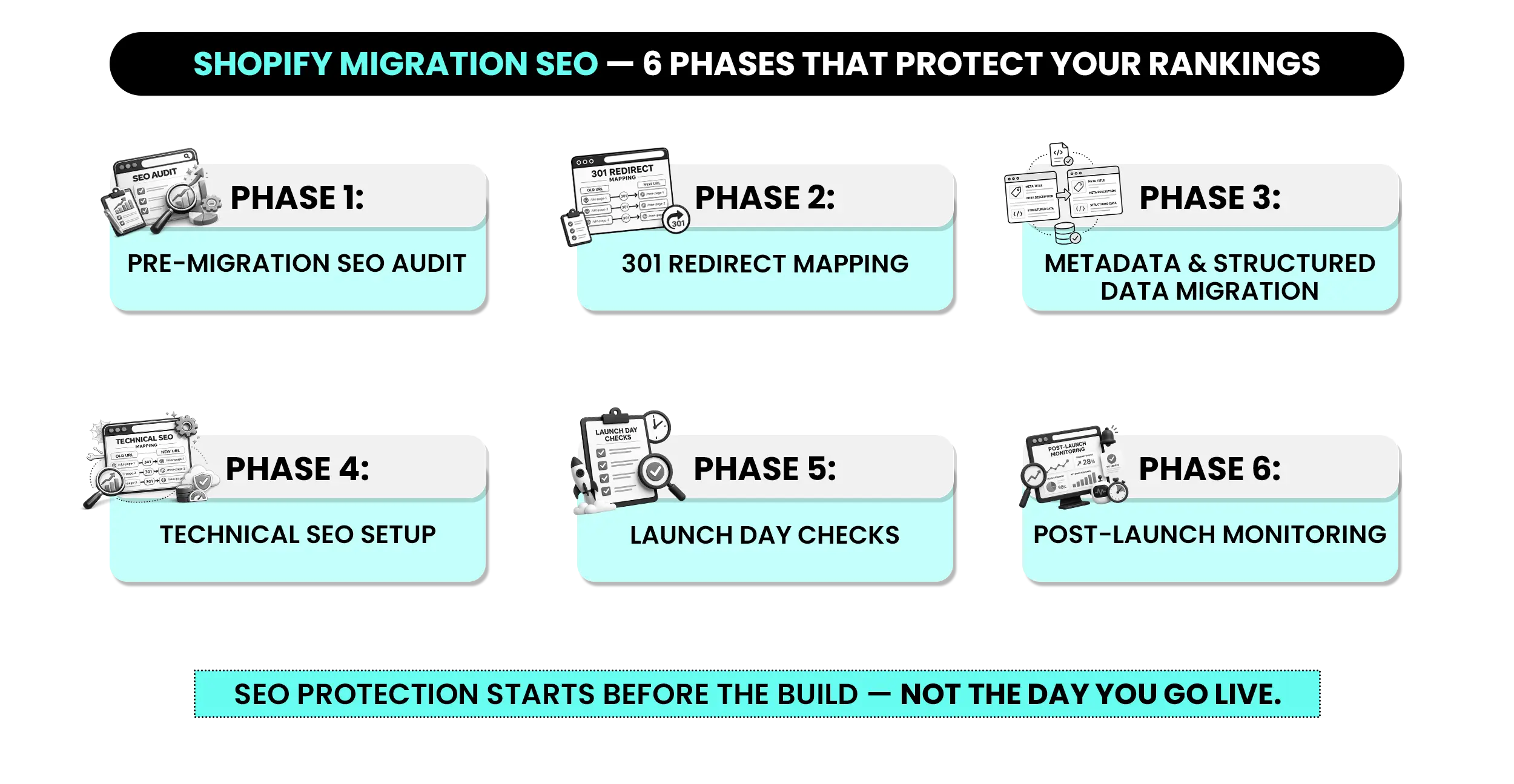
PHASE 1 — PRE-MIGRATION SEO AUDIT
Do This Before the Build Starts
This phase is the most skipped and the most important. Everything that protects your rankings during and after the migration gets built here.
For a broader look at what the full migration project involves — data, integrations, and platform setup — the complete guide to migrating to Shopify covers each workstream in detail.
Crawl and Document Your Current Site
Export every indexed URL from your current platform. Use Screaming Frog for a full crawl, or pull your indexed pages from the Coverage report in Google Search Console.
From that export, identify your top 200 URLs by organic traffic. Every one of them needs a confirmed 301 redirect before launch day.
Also flag any pages with strong external backlinks — even if their organic traffic is low, those pages carry link equity worth preserving.
While crawling, document for each priority URL:
- Current meta title and meta description
- H1 heading
- Canonical tag
- Structured data types in use (product schema, review schema, breadcrumb schema)
Record Your Baseline Metrics Now
Before any work begins, capture your starting point:
- Monthly organic traffic from Google Analytics
- Keyword rankings for your top 20–30 priority terms
- Your backlink profile — particularly pages with strong external links
You need this baseline to measure recovery after launch. Without it, a post-launch traffic dip looks identical to normal fluctuation, and you lose the ability to tell whether something is actually broken.
Map Every URL Structure Change
Every platform handles URLs differently. Shopify’s structure is fixed: products live at /products/handle, collections at /collections/handle, and pages at /pages/handle.
If you’re coming from Magento, WooCommerce, SFCC, BigCommerce, or a custom build, your URL structure will change.
Document every change in a spreadsheet with two columns — old URL and new Shopify URL. This is your redirect map. It’s the single most important document in the entire migration.
Before any development starts, you need: a complete crawl export, a list of your top 200 priority URLs, and a redirect mapping spreadsheet already in progress.
Nothing else can be planned correctly without these three in place.
PHASE 2 — 301 REDIRECTS
The Step You Cannot Skip
This is the most important SEO action in any Shopify migration. Shopify’s own SEO migration guidance, written by Shopify’s senior SEO lead, recommends keeping 301 redirects live for at least one year — ideally forever — to preserve SEO equity from old links.
What 301 Redirects Actually Do
A 301 is a permanent redirect. It tells Google that a URL has moved to a new location and passes the ranking power from the old URL to the new one.
According to Google’s own site move documentation, permanent 301 redirects don’t cause a loss in PageRank — which is exactly why they’re non-negotiable during a migration.
Without them, every old URL returns a 404 error. Google reads that as the page being gone. The link equity built over months or years drains away. Rankings drop right away, and there’s no automatic recovery path.
A Common Migration Mistake
One thing merchants consistently miss: blog post URLs matter just as much as product URLs. A store migrating from WooCommerce to Shopify might map every product URL correctly but overlook the blog. Within weeks, Search Console starts showing hundreds of new 404 errors, and blog traffic drops — because Google can no longer reach those pages and the link equity pointing to them is gone.
How to Build Your Redirect Map
- Export all live URLs from your old platform using Screaming Frog
- Create a two-column spreadsheet: old URL in column A, new Shopify URL in column B
- Work through your highest-traffic pages first, then top-ranking pages, then pages with external backlinks
- Remove every redirect chain — old URL A must go directly to its final Shopify URL in one step
Redirect chains add load time and lose equity at each hop. Google itself advises redirecting to the final destination directly rather than passing through intermediate URLs.
One step, one destination. No exceptions.
How to Implement Redirects in Shopify?
For Small Volumes (Under 100 Redirects)
Shopify Admin > Online Store > Navigation > URL Redirects. Add them manually.
For Medium Volumes (100–500 Redirects)
Use Shopify’s native CSV import for URL Redirects. Download the template from the URL Redirects page, fill in the spreadsheet, and upload.
For Large Volumes (500+ Redirects)
Use Matrixify (formerly Excelify). It handles bulk redirect uploads at any scale and is the tool most migration teams use for large stores.
Don’t use JavaScript redirects or third-party redirect apps as your main method. Shopify’s native redirect tool is faster, adds no performance overhead, and is more reliable for SEO than app-based options.
Every high-traffic page needs a confirmed 301 redirect before launch day — not after.
Fixing redirects after the fact means your rankings are already dropping while you’re catching up.
For enterprise Shopify Plus migrations where redirect volume is high and SEO risk is significant, the Shopify Plus migration guide covers full planning and data handling.
PHASE 3 — METADATA, CONTENT, AND STRUCTURED DATA MIGRATION
The Second Most Common Source of SEO Damage
Stores regularly go live on Shopify with blank meta descriptions, auto-generated titles, missing alt text, and no structured data — and don’t realise it until rankings start sliding weeks later.
Meta Titles and Descriptions
Shopify does not automatically bring in meta titles and descriptions from your old platform. If you don’t migrate them manually, Shopify generates titles from product names and leaves meta descriptions empty.
Rankings may hold at first — because the URL structure and links are preserved — but click-through rates drop as soon as Shopify’s auto-generated titles replace the originals. Lower CTR signals reduced relevance to Google over time, which eventually drags rankings down too.
For individual pages: go to the product or page editor > scroll to the bottom > Search engine listing preview > Edit website SEO. Update the meta title and meta description manually.
For bulk import: use Matrixify with a CSV containing columns for page handle, meta title, and meta description. This is the only practical option for stores with more than 50 products.
Check every page type before launch: products, collections, blog posts, and static pages including About Us, Contact, and Policy pages.
Blog Post Metadata
For blog posts specifically: go to Blog Posts > open the post editor > scroll to the Search engine listing preview section > Edit website SEO. Blog post metadata doesn’t move on its own and is easy to miss when you’re focused on products and collections.
Image Alt Text
Alt text often doesn’t migrate cleanly and needs to be checked after import. Shopify stores alt text on the image file itself — not on the product record — which means it has to be re-entered or imported via CSV after each image uploads.
Missing alt text costs you image search visibility and creates accessibility gaps.
- Product images first
- Collection images second
- Homepage and banner images third
Structured Data
Shopify includes basic product schema out of the box — name, price, and availability show up automatically.
What doesn’t carry over: review schema, breadcrumb schema, and FAQ schema.
If your store used review schema for star ratings in Google results, reinstall your review app (Judge.me, Loox, or Okendo) on the new store and confirm the schema is working before launch.
Check it with Google’s Rich Results Test. A product page missing review schema loses its star rating in search results — which drops click-through rate even when the ranking position stays the same.
Before going live: run a crawl of your Shopify staging store and confirm every priority page has a meta title, meta description, and image alt text filled in.
A crawl takes 20 minutes. Launching without one takes months to fix.
PHASE 4 — TECHNICAL SEO
The Shopify Settings Merchants Miss
These are Shopify-specific technical items merchants frequently overlook because they assume the platform handles them. Some it does. Some it doesn’t.
Canonical Tags
Shopify automatically adds canonical tags on product pages and sets the /products/handle URL as canonical.
The problem: products reachable through multiple collections create duplicate URL paths.
A product in both your “Shoes” and “Summer Collection” collections becomes reachable at:
/collections/shoes/products/product-name
/collections/summer-collection/products/product-name
/products/product-name
Shopify uses /products/ as canonical by default, which is correct. But confirm this is consistent across your entire theme, especially on any custom templates. Inconsistent canonicals send mixed signals to Google and can dilute rankings across duplicate pages.
XML Sitemap Submission
Shopify automatically creates a sitemap at yourstore.com/sitemap.xml. It includes products, collections, pages, and blog posts by default.
Submit it to Google Search Console the moment your store goes live — not later that day, not the next morning.
Google’s site move guidance confirms that submitting a sitemap speeds up how quickly it discovers and processes your moved URLs.
Check that the sitemap includes all the content types you expect. If you’ve added custom content through non-standard templates, confirm those pages appear in the sitemap before launch.
Robots.txt
Shopify’s default robots.txt correctly blocks checkout, cart, account, and admin pages from being indexed. You don’t need to change this.
What you do need to check: your staging store had indexing fully turned off throughout the entire build phase. If it was open to Google at any point, some development URLs may have been indexed. Request removal of any indexed staging URLs via Google Search Console’s URL Removal tool before switching your domain.
Page Speed After Migration
Moving to Shopify usually improves page speed compared to Magento, SFCC, and WooCommerce — but newly installed apps and custom theme code eat into that advantage fast.
Run PageSpeed Insights before launch and focus on passing Core Web Vitals, especially on mobile. For a full breakdown of how performance issues build up across your store, the Shopify performance optimisation guide covers every layer.
After going live, submit your sitemap right away and run a full Screaming Frog crawl of your new store to confirm redirects, canonical tags, and metadata are all resolving correctly.
PHASE 5 — LAUNCH DAY SEO CHECKLIST
Work Through This List in Order
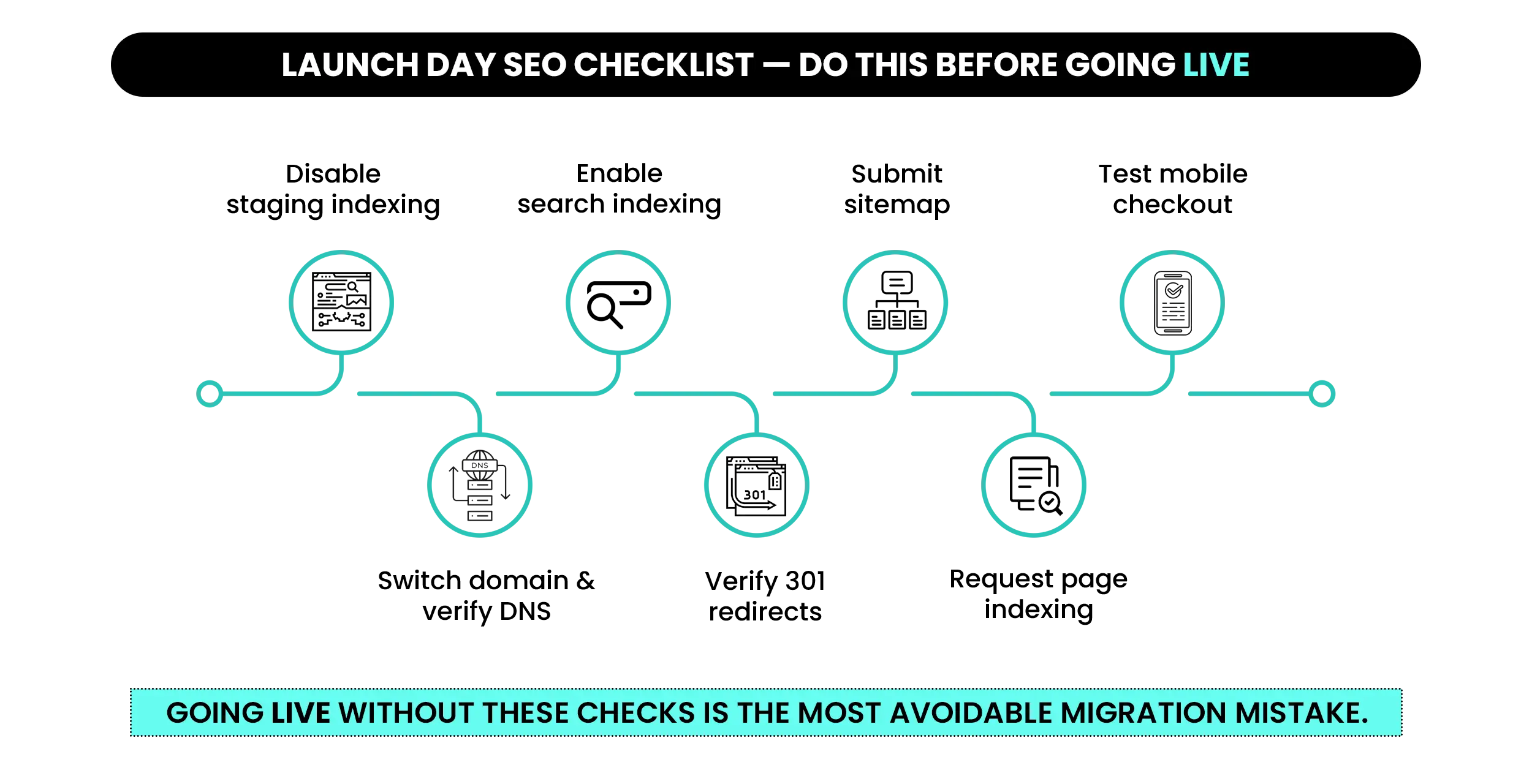
Work through this list in order on the day you switch your domain. Don’t skip steps to save time — each one catches a different problem.
- ✓ Confirm your staging store still has password protection on before switching DNS
- ✓ Switch your domain and wait for DNS propagation to finish completely
- ✓ Remove password protection to make your store live and indexable: Shopify Admin > Online Store > Preferences > Password protection > uncheck “Enable password” > Save
- ✓ Crawl your top 200 old URLs and confirm each returns a 301 pointing to the correct new Shopify URL
- ✓ Submit your sitemap to Google Search Console: yourstore.com/sitemap.xml
- ✓ Request indexing in Google Search Console for your homepage and top 10 priority pages
- ✓ Run Google’s Rich Results Test on three product pages to confirm structured data is working
- ✓ Check canonical tags on product pages point to the /products/ URL format
- ✓ Scan for pages accidentally tagged with noindex — particularly collection and product pages
- ✓ Complete a full checkout test end-to-end on mobile before calling the launch done
Don’t announce the migration publicly until every item above is confirmed.
Once it’s out, customers start clicking, and a broken redirect or missing metadata is much harder to fix under live traffic.
PHASE 6 — POST-LAUNCH MONITORING
The First 30 Days
Going live is not the finish line. The 30 days after launch decide how quickly — or whether — your rankings recover. Brands that watch closely in this window recover faster than almost anything else predicts.
What to Watch in the First Two Weeks
Google Search Console
Open the Coverage report daily. Any 404 error that wasn’t there before launch is a redirect that’s missing or broken. Find it and fix it the same day — the longer a 404 sits unresolved, the more link equity drains away.
Google Analytics
Compare organic traffic week over week against your pre-migration baseline. A dip of 10–15% in the first two weeks is normal — Google is re-crawling and re-processing your site. Sustained decline beyond two weeks is a signal that something specific is broken.
Keyword Tracking
Monitor your top 20–30 keywords daily. A ranking drop on a specific group of keywords usually points to a metadata or canonical issue on those page types — not a site-wide problem.
How to Fix Issues as They Come Up
| Issue | Action |
|---|---|
| 404 errors in Search Console | Add the missing redirect right away at Shopify Admin > Online Store > Navigation > URL Redirects |
| Duplicate content flagged | Check canonical tags and confirm /products/ URLs are set as canonical across all product templates |
| Pages not being indexed | Check robots.txt for accidental blocks and resubmit pages via URL Inspection |
| Traffic drop on specific pages | Check whether meta titles and descriptions were migrated correctly |
When to Expect Full Recovery
Recovery time depends on store size and how well the redirect map was built before launch:
- Small stores (under 500 pages): two to six weeks
- Mid-size stores (500–5,000 pages): two to four months
- Large and enterprise stores (5,000+ pages): three to six months
The single biggest predictor of fast recovery is a complete redirect map built before development began.
Stores that had their redirects mapped and ready before the first line of code was written consistently come through faster than stores that built the map after going live.
COMPLETE SHOPIFY MIGRATION SEO CHECKLIST
Use This as Your Quick Reference Throughout the Project
Pre-Migration
- Crawl and export all current URLs using Screaming Frog or Google Search Console
- Identify top 200 URLs by organic traffic — these are your redirect non-negotiables
- Document all meta titles, descriptions, H1s, and canonical tags for priority pages
- Record organic traffic baseline, keyword rankings, and backlink profile
- Map every URL structure change between your old platform and Shopify
- Start the redirect mapping spreadsheet before any development begins
301 Redirects
- Build a one-to-one redirect map: every old URL to its new Shopify URL
- Prioritise high-traffic pages, top-ranking pages, and pages with external backlinks
- Remove all redirect chains — each old URL goes directly to its final Shopify destination
- Implement via Shopify Admin > URL Redirects (Matrixify for bulk volumes)
Metadata and Content
- Migrate meta titles and descriptions for all products, collections, blog posts, and pages manually or via Matrixify
- Re-enter or import image alt text for all product, collection, and homepage images
- Reinstall review apps and confirm review schema is working on product pages
- Check all structured data types with Google’s Rich Results Test
Technical SEO
- Confirm canonical tags use /products/ URL format across all templates
- Verify staging store had password protection on throughout the full build phase
- Submit sitemap to Google Search Console right after going live
- Check robots.txt is not accidentally blocking indexable pages
- Run PageSpeed Insights and check Core Web Vitals before launch
Launch Day
- Confirm password protection is still on before switching DNS
- Switch domain and wait for DNS propagation
- Remove password protection: Online Store > Preferences > Password protection > uncheck “Enable password” > Save
- Crawl top 200 old URLs and confirm 301 status on each
- Submit sitemap to Google Search Console
- Request indexing for homepage and top 10 priority pages
- Run Rich Results Test on three product pages
- Check for accidental noindex tags on collection and product pages
- Test full checkout flow on mobile end-to-end
Post-Launch Monitoring
- Monitor Google Search Console Coverage report daily for 14 days
- Compare organic traffic week over week against pre-migration baseline
- Fix 404 errors within 24 hours of finding them
- Track top 20–30 keywords daily for the first two weeks
- Check meta titles and descriptions on any page showing a traffic drop
CONCLUSION
Shopify Migration SEO Doesn’t Protect Itself
The stores that come through with rankings intact treated SEO as a parallel workstream from day one — not something to deal with the week before launch.
The redirect map, the metadata migration, the structured data check, the post-launch monitoring — none of it happens automatically. Every phase needs deliberate action in the right order.
Miss one phase and the recovery period stretches out. Get all of them right and your organic traffic comes through intact.
If you want every phase handled correctly, Mastroke’s Shopify migration service covers the full scope — pre-migration SEO audit, redirect mapping, data migration, and post-launch monitoring — so your rankings stay protected throughout the move.
FAQs
1. Will migrating to Shopify hurt my SEO?
Any platform migration causes a temporary ranking fluctuation as Google re-crawls and re-indexes your site. With proper 301 redirects, migrated metadata, submitted sitemaps, and active post-launch monitoring, most stores recover to pre-migration traffic levels within two to six months. Stores that skip redirect mapping or metadata migration can take significantly longer to recover — sometimes over a year.
2. How long does SEO recovery take after a Shopify migration?
Small stores (under 500 pages) typically recover within two to six weeks. Mid-size stores (500–5,000 pages) take two to four months. Large or enterprise stores take three to six months with proper planning. The single biggest factor in recovery speed is how thoroughly the redirect map was built before launch — not after.
3. What are 301 redirects and why do I need them for a Shopify migration?
A 301 redirect permanently tells search engines that an old URL has moved to a new location and transfers the ranking power from the old URL to the new one. Without 301 redirects, every old URL returns a 404 error, link equity built over months or years is lost, and rankings drop immediately. Shopify’s own guidance recommends keeping redirects live for at least one year, ideally indefinitely.
4. Does Shopify automatically handle SEO during migration?
Shopify handles some things automatically — it generates canonical tags, creates a sitemap at /sitemap.xml, and includes basic product schema. It does not automatically migrate your meta titles, meta descriptions, image alt text, or structured data from your old platform. It also does not create 301 redirects for your old URLs. All of these need to be handled manually or via Matrixify bulk import.
5. How do I submit my sitemap to Google after migrating to Shopify?
Go to Google Search Console, select your property, navigate to the Sitemaps section, and submit yourstore.com/sitemap.xml. Shopify generates this file automatically — you just need to tell Google it exists. Submit it on launch day, not later. The earlier Google receives the sitemap, the faster it processes and indexes your new store structure.
6. What happens to my meta titles and descriptions when I migrate to Shopify?
They do not migrate automatically. If you don’t transfer them manually, Shopify generates titles from product names and leaves meta descriptions blank. This removes all keyword optimization built on your previous platform, silently, on the day you launch. Migrate meta titles and descriptions for all products, collections, and pages before going live — using Shopify’s SEO editor for small volumes, or Matrixify’s CSV import for larger stores.
7. Should I migrate to Shopify myself or hire an agency?
For small stores with under 200 products, no custom integrations, and a simple URL structure, a self-managed migration is manageable if you follow the checklist carefully. For stores with more than 500 products, SEO rankings worth protecting, ERP or CRM integrations, or any custom platform logic that needs rebuilding, working with an experienced Shopify migration agency significantly reduces the risk of SEO damage. The cost of getting a migration wrong — lost rankings, traffic, and revenue over months — consistently exceeds the cost of doing it right the first time.