This blog post explains why many Shopify merchants struggle with Google Shopping campaigns despite having active budgets, focusing on common structural problems that lead to poor performance. It breaks down the three critical elements that determine Google Shopping success: campaign structure, product feed quality, and bidding strategy.
Your campaign is live. Budget is moving. But the results don’t add up.
A handful of products are burning through your daily budget without converting. Your actual best sellers are barely showing up. ROAS swings week to week for no obvious reason. You’ve adjusted bids, tweaked budgets, maybe even rebuilt a campaign — and the numbers still don’t make sense.
This is where most Shopify merchants land after the first few weeks of running Google Shopping. The campaign isn’t broken. It’s just not built right. And what makes it frustrating is that the damage is slow and quiet — steadily wasted spend until the numbers get bad enough to force a look.
Google Shopping Ads drive 85.3% of all clicks on Google Ads retail campaigns and account for 76.4% of all retail search ad spend in the US. The reach is massive. But reach doesn’t pay for itself when the foundation is wrong.
Three things control whether Google Shopping works for your store: campaign structure, product feed quality, and bidding strategy. This guide breaks down each one — what goes wrong, why it costs you money, and exactly what to fix.
How Google Shopping Actually Works — And Why It Behaves Differently From Search Ads?
With Google Search campaigns, you choose keywords. You decide which searches trigger your ads. You control the match. Google Shopping doesn’t work that way.
There are no keywords to target. Google reads your product feed — titles, descriptions, images, price, and product attributes — and decides when your products are relevant for a given search. If your feed is vague, incomplete, or poorly structured, Google matches your ads to the wrong searches. Sometimes it doesn’t show them at all.
This is why the feed is the single most important element in any Google Shopping setup. Every other decision — bids, structure, campaign settings — depends on the feed being right first.
For Shopify merchants, product data flows to Google via Google Merchant Center, which serves as the bridge between your store and your ads. Products submitted without unique product identifiers may not be eligible for all Shopping programs or features. Products with incomplete data will run — but they’ll attract the wrong clicks. If your Merchant Center is showing errors or your account has been suspended, our guide to why Google Merchant Center suspends your Shopify store and how to fix it is worth reading before you touch anything else.
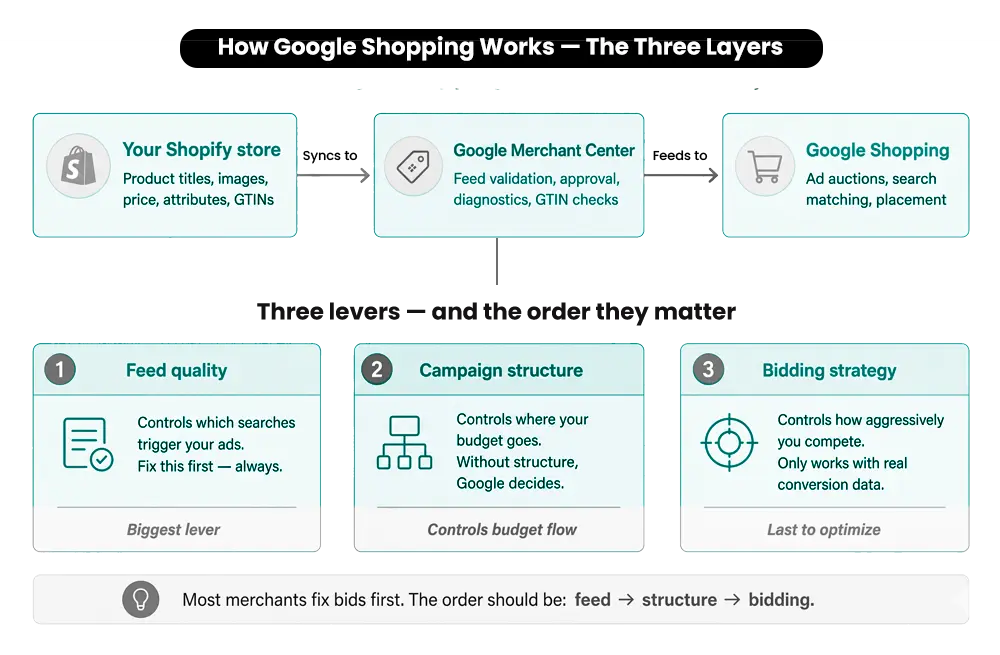
The simple version: the feed controls who sees your ads. Campaign structure controls where your budget goes. Bidding controls how aggressively you compete. All three have to work together.
If you want to see how this system actually works behind the scenes, this quick breakdown will make it easier to understand how Google decides which products to show:
>
>
Why Most Shopify Merchants Don’t Get Results From Google Shopping?
The most common reason Google Shopping underperforms isn’t the bid amount. It’s one of three structural problems:
- Budget gets swallowed by the wrong products. A few items — usually the most-searched, not the most profitable — account for the majority of your daily spend. Your actual top sellers barely get impressions. This happens when campaigns aren’t segmented by performance or margin.
- Feed problems cause wrong audience matching. Generic or vague product titles cause Google to match your ads to searches that have nothing to do with what you’re selling. You get clicks. They don’t convert. Spending rises, but revenue doesn’t follow.
- The wrong bidding strategy for the wrong stage. To use Target ROAS on Shopping campaigns, Google requires at least 15 conversions per Merchant Center ID in the last 30 days. Merchants who run it earlier than that are giving the algorithm nothing meaningful to learn from — so it guesses, and those guesses cost money.
The order matters more than most merchants realize. Fix the feed first. Build the right structure second. Then choose a bidding strategy that matches your actual conversion data.
Not Getting Consistent Results From Google Shopping?
If your campaigns are spending but not scaling, the problem is usually structure or feed quality. Mastroke helps Shopify merchants fix campaign setup, improve product feeds, and scale Google Shopping with a data-driven SEM approach.
How to Structure Your Google Shopping Campaigns?
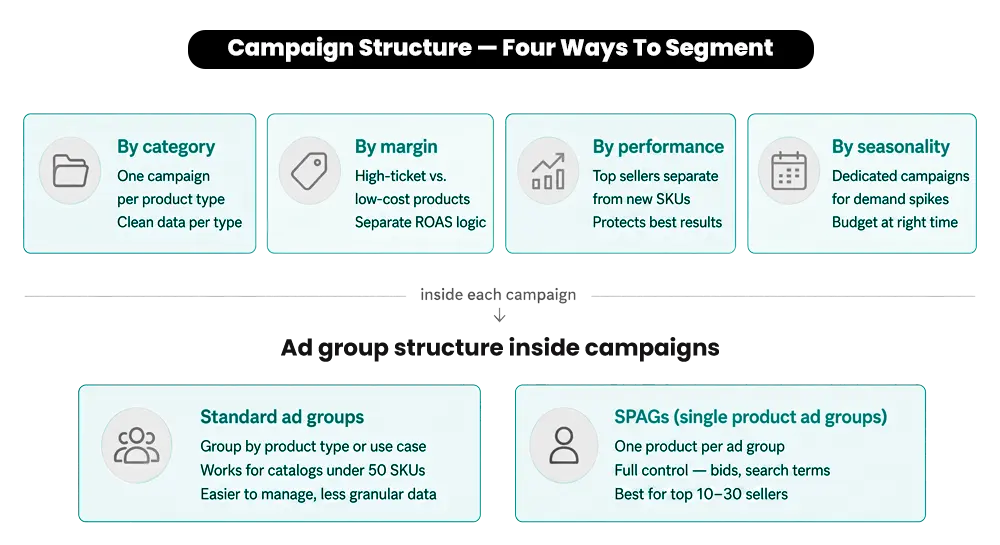
Campaign structure is how you control where your budget goes. Without the right structure, Google decides — and Google’s priorities don’t always match yours.
Should You Start With One Campaign or Multiple?
If your Shopify store has fewer than 50 products, starting with one campaign and segmenting it into ad groups by product category is a reasonable approach. It keeps things manageable while still giving you some separation between product types.
For stores with larger catalogs, a single campaign almost always creates problems. Budget concentrates around whatever gets the most search volume — not what converts best or generates the most margin. Once that pattern forms, it’s hard to correct without rebuilding.
The rule is simple: the more products you have, the more your structure needs to reflect how those products actually perform — not just how they happen to be categorized.
How to Segment Campaigns That Actually Work
There are four logical ways to segment Google Shopping campaigns for a Shopify store:
- By product category. The most straightforward structure — each campaign covers one product type. This keeps performance data clean and makes it easy to understand what’s working at the category level. Budget adjustments become simple when one category outperforms another.
- By margin or price range. High-ticket and low-cost products behave differently. Someone buying a $15 item makes a fast decision. Someone buying a $300 product typically visits multiple times before purchasing. Running both in the same campaign distorts your ROAS data and makes it hard to bid correctly for either.
- By performance tier. Keep your proven top performers separate from untested products. New SKUs mixed into a well-performing campaign can drag down ROAS, which causes automated bidding to reduce bids across the board — including on your best products. Give new products their own campaign with a controlled budget until they prove themselves.
- By seasonality. If parts of your catalog see demand spikes at specific times — festive periods, back-to-school, summer sales — dedicated campaigns let you push budget at the right moment without affecting your year-round products.
Single Product Ad Groups (SPAGs) — When to Use Them
A single product ad group, or SPAG, isolates one product into its own ad group. This gives you full visibility into which search terms trigger that product and lets you set a bid specific to that product’s margin and conversion data.
SPAGs make the most sense for your top 10–30 bestsellers, high-margin products, or any product where you want complete control over spend.
For large catalogs, applying SPAGs across every product isn’t practical — and it isn’t necessary. Create SPAGs for your best performers and group the rest by category or performance tier.
To set one up: in Google Ads, create an ad group → name it by product ID or title → subdivide the product group by Item ID → exclude all other products from that group.
Campaign Priorities — What They Are and Why They Matter
Google Ads lets you assign each Shopping campaign a priority level: High, Medium, or Low. When the same product appears in multiple campaigns, priority determines which campaign Google enters into the auction first.
Priority overrides bid amount. A high-priority campaign with a lower bid will run before a medium-priority campaign with a higher bid. It’s not about which campaign matters more to you — it controls which one Google uses first.
The most practical use of this is the Gold Pan structure, covered in the negative keywords section below: a high-priority campaign with a low bid catches broad traffic, while a low-priority campaign with a higher bid is reserved for your most valuable, high-converting search terms.
One thing to watch: if your high-priority campaign exhausts its daily budget, Google automatically falls back to the next priority level. Watch budget allocation carefully — especially during peak periods.
Google Shopping Feed Optimization — Where Most of the Money Is?
Campaign structure controls where your budget goes. Your product feed controls whether your ads reach the right people at all.
Most Shopify merchants spend more time adjusting bids than improving their feed. That’s usually the wrong priority. Impression share improvements from title rewrites alone — without any bid changes — are well documented across Google Shopping accounts. Fix the feed first. The bid work comes after.
Product Titles — The Most Important Feed Element
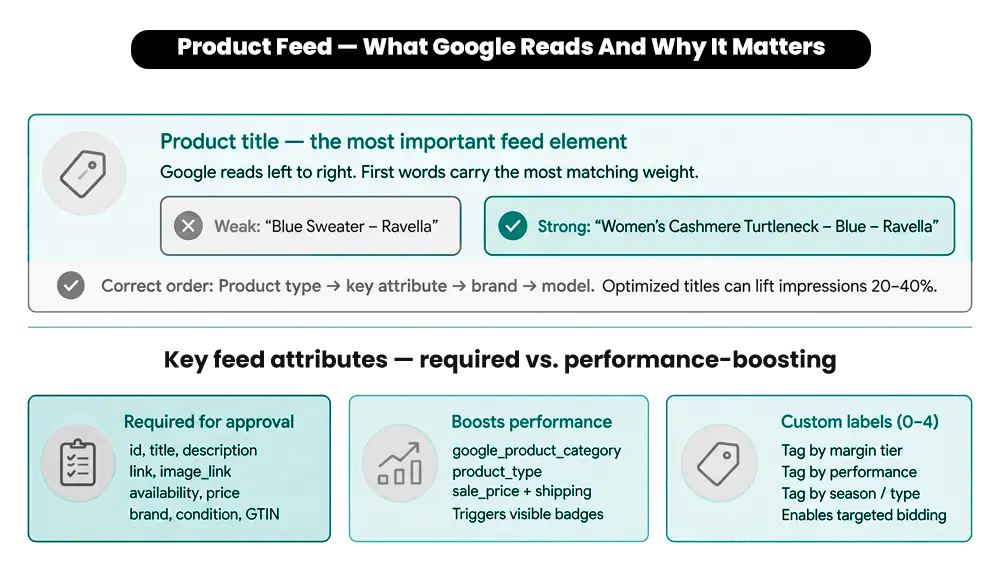
Google reads product titles from left to right. Whatever comes first carries the most weight when Google decides which searches to match your product to. The order of information in your title matters more than most merchants realize.
- A strong title structure for most products: Product Type → Key Attribute (color, material, size) → Brand → Model or SKU
- Weak title: “Blue Sweater – Ravella.” Strong title: “Women’s 100% Cashmere Turtleneck Sweater – Blue – Ravella.”
The second version tells Google exactly what the product is, who it’s for, what it’s made of, and what it looks like. That leads to better matching, more relevant impressions, and clicks from shoppers who are actually looking for it.
A well-optimized product title can increase impressions by 20–40% and CTR by 10–15%. The gap between a weak and a strong title for the same product can look like a bidding problem when it’s actually a feed problem.
A few specific situations:
- For electronics and appliances, include the model number and SKU. Buyers at this stage often know exactly what they want — matching on a model number means you’re showing up for high-intent, ready-to-buy searches.
- For branded products with real search demand, push the brand name to the front. Shoppers already familiar with your brand get captured earlier in their search.
- For fashion and apparel, include gender, fit, and fabric. These are the attributes shoppers filter by when browsing the Shopping tab.
One thing to avoid: marketing language in titles. “The Ultimate Comfort Tee” tells Google nothing. “Men’s Slim Fit Cotton Crew Neck T-Shirt – White” gives Google everything it needs to make an accurate match.
Required Attributes vs. Optional Ones That Change Performance
Every Google Shopping product needs a baseline set of attributes to be approved in Merchant Center: id, title, description, link, image_link, availability, price, brand, condition, and either a GTIN or MPN. But the attributes that improve performance — not just approval — go further.
- google_product_category tells Google what your product is within its taxonomy. Without it, Google guesses — and guesses aren’t always accurate. This affects which searches you appear for and how competitive your listing looks.
- product_type lets you build your own internal taxonomy, which becomes useful when applying different bids by category using custom labels.
- sale_price and shipping attributes trigger visible annotations in the Shopping tab — showing the discounted price or highlighting free shipping directly in the listing. These details make a measurable difference in CTR when competing listings don’t show them.
GTINs — Why They’re Worth Getting Right
Products that have a GTIN assigned but are submitted without one may have limited visibility, according to Google’s own Merchant Center documentation. Missing or wrong GTINs don’t always cause disapprovals — but they consistently reduce impressions and weaken matching.
Merchants who have added correct GTINs to their product data have seen conversion rates increase by up to 20%.
To check your GTIN status: in Merchant Center, go to Products → Diagnostics → Item Issues tab. Filter by GTIN-related warnings and download the affected product list. Fix each product using the correct barcode from your manufacturer or supplier — never guess or invent a GTIN value.
Custom Labels — The Underused Lever for Smarter Bidding
Google Shopping lets you attach five custom labels (0–4) to your products. These labels don’t affect how Google categorizes your products — they’re internal tags you control and use in Google Ads for bidding decisions.
Common uses for Shopify stores:
- Tag by margin: “high-margin,” “low-margin”
- Tag by performance: “top-seller,” “slow-mover”
- Tag by type: “seasonal,” “clearance,” “new-arrival.”
Once tagged, you can build separate campaigns around these labels and bid differently for each group. A campaign for all “high-margin” products can be bid more aggressively — because the numbers support spending more to acquire those sales.
Custom labels can be applied through the Merchant Center’s attribute rules. No need to edit the feed product by product.
Common Feed Errors That Hurt Performance
Missing or Wrong GTINs
Products with assigned GTINs that aren’t submitted correctly end up with limited visibility. Check Merchant Center diagnostics regularly — these errors don’t always send alerts.
Outdated Pricing
If your Shopify store runs a sale but the feed hasn’t updated to reflect the new price, Google may show the old price or disapprove the product for a price mismatch. Both outcomes mean wasted clicks. The Google & YouTube app for Shopify handles real-time data syncing, which removes the risk of mismatches between your live store and your active ads.
Low-Quality Images
Google reduces visibility for products with small images, watermarks, or promotional text overlaid on the image. Use clean, high-resolution images on white or plain neutral backgrounds. Listings with seller ratings get 17% more clicks than those without — clean images and strong ratings work together to improve CTR.
Out-of-Stock Products Still Running
If inventory changes but the feed doesn’t sync, you’re paying for clicks on products that can’t be purchased. This is one of the most common and most avoidable problems in Shopify Google Shopping setups.
How Often Does the Feed Need to Refresh?
Google Merchant Center requires feed data to be refreshed at a minimum every 30 days. But for most Shopify stores — especially those with frequent price changes, flash sales, or shifting inventory — daily sync is the standard to aim for.
For stores with product variants, confirm that variant-level data is passing correctly. If size, color, or material attributes are missing at the variant level, Google may show the wrong variant in a Shopping ad — leading to a poor experience and a click that doesn’t convert.
If you’ve been working to validate and prep your products before running ads, feed sync issues can quietly undo all of that groundwork. A clean feed has to stay clean to keep working.
Google Shopping Bidding Strategies for Shopify Merchants
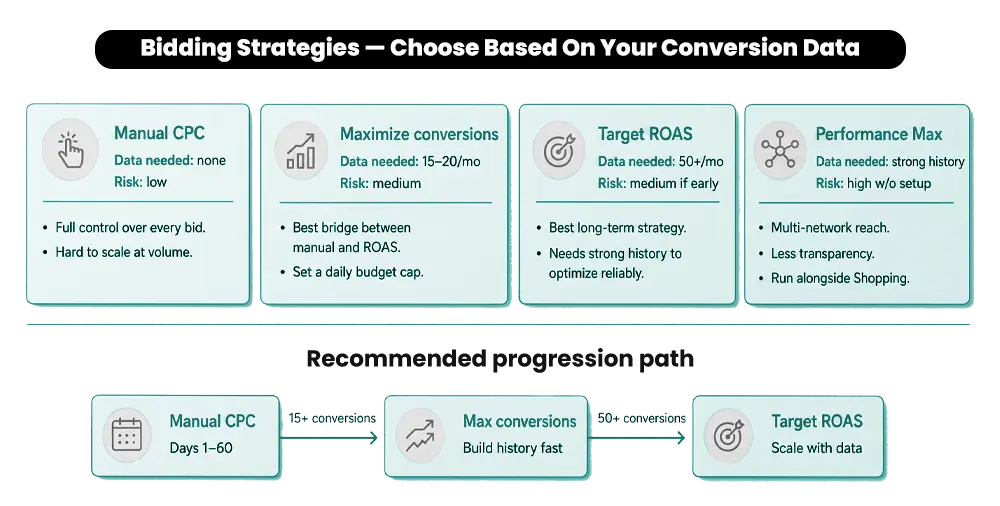
Once your feed is in good shape and campaigns are structured properly, bidding determines how efficiently you compete in Google Shopping auctions.
The biggest mistake isn’t choosing the wrong strategy — it’s choosing one that doesn’t match the conversion data you actually have. To use Target ROAS on Shopping campaigns, Google requires at least 15 conversions per Merchant Center ID in the last 30 days. No history means no learning. No learning means the algorithm guesses, and those guesses cost money.
Here’s how the main strategies compare:
| Strategy | Best For | Conversion Data Needed | Risk Level |
| Manual CPC | New campaigns, no history | None | Low (time-intensive) |
| Maximize Conversions | Building conversion history | 15–20/month minimum | Medium |
| Target ROAS | Scaling proven campaigns | 15 min. per Google; 50+ recommended | Medium-High if data is thin |
| Performance Max | Multi-channel scale | Strong existing history | High without proper setup |
Manual CPC — Full Control, Hard to Scale
Manual CPC lets you set a specific bid for each product or ad group. Google uses that bid in every auction with no automatic adjustments.
Use it when you’re launching a new campaign with no conversion history, your catalog is small enough to manage bids product by product, or you’re testing a new segment before adding it to a larger campaign.
The limitation: manual bidding doesn’t scale well. As your catalog grows, managing individual bids becomes a major time investment — and you’ll likely over-bid on poor performers while under-bidding on products that could convert more with more budget.
Best practice: Use Manual CPC to build your first 30–60 days of conversion data, then move to an automated strategy once Google has enough history to work with.
Maximize Conversions — The Right Bridge Strategy
Maximize Conversions tells Google to get as many conversions as possible within your daily budget, with no ROAS target. It’s the most forgiving Smart Bidding option — able to function with as few as 15–20 conversions monthly.
It works well as a middle step between manual bidding and Target ROAS. One thing to watch: without a clear daily budget cap, it can spend aggressively. Set your ceiling before switching.
Target ROAS — Powerful When the Data Exists
Target ROAS tells Google to maximize revenue for every dollar spent, adjusting bids in real time based on conversion likelihood. It’s the right long-term strategy for most Shopify stores — but only when the data supports it.
Google’s official minimum for Shopping campaigns is 15 conversions per Merchant Center ID in the last 30 days. In practice, 50 or more conversions per month gives the algorithm the data it needs for consistent, reliable optimization. Switching too early leads to either overspending or severe throttling.
The right path: Manual CPC or Maximize Conversions first → build data → move to Target ROAS when the numbers support it.
A Note on Enhanced CPC
If you were previously using Enhanced CPC as a transition strategy between manual and automated bidding, check your current settings. Enhanced CPC was deprecated for Search and Display campaigns effective March 31, 2025. Campaigns that weren’t migrated proactively are now effectively running Manual CPC.
Performance Max — What to Know Before You Use It
Performance Max extends your ads across all of Google’s networks — Search, Display, YouTube, and Gmail — using machine learning for placement and bidding. It works well for stores with solid conversion history, clear ROAS targets, and enough creative assets to support multi-format ads.
The tradeoff: it offers far less transparency than standard Shopping campaigns. It’s harder to see which products, placements, or audience signals are driving results.
The practical approach: run Performance Max alongside standard Shopping campaigns — not as a replacement — until you have clear comparative data to justify the shift.
Negative Keywords in Google Shopping — Why This Gets Skipped and Why It Shouldn’t
Google Shopping campaigns don’t use keywords to target searches. But they do allow negative keywords — searches you explicitly want to exclude. This is one of the most underused tools available to Shopify merchants running Google Shopping, especially for stores with multiple product types.
Common negatives to add early:
- Competitor brand names, if you don’t sell their products
- Informational queries: “how to,” “DIY,” “review,” “vs,” “guide.”
- Low-intent modifiers: “free,” “cheap,” “used” — unless you actually sell used or discounted products
The Gold Pan technique. Run two campaigns for the same products: one high-priority campaign with a low bid to catch broad traffic, and one low-priority campaign with a higher bid reserved for your top-converting search terms. Add those high-converting terms as negatives in the broad campaign — this pushes that traffic into the focused campaign where you’re bidding more aggressively.
Where to find your triggering search terms: Google Ads → Insights & Reports → Search Terms. Review weekly for the first 60 days, then monthly once your account has a clearer pattern.
For stores with multiple product types, apply negative keywords at the ad group level — not just campaign level. This stops Google from matching the wrong product to a search when a term could apply to several items in your catalog.
A Step-by-Step Framework for Getting Google Shopping Working
Step 1: Fix the feed first.
Run a diagnostics check in Merchant Center. Fix disapproved products. Rewrite product titles using the correct structure: Product Type → Key Attribute → Brand → Model. Add missing attributes — especially Google Product Category and GTINs.
Step 2: Structure your campaigns.
Segment by category, margin, or performance tier. Create SPAGs for your top 10–20 products. Set campaign priorities if multiple campaigns share overlapping products.
Step 3: Launch with controlled bidding.
Start with Manual CPC or Maximize Conversions. Set daily budgets you can sustain while building data. Don’t move to Target ROAS until you hit at least 15 conversions per month — and ideally 50 or more.
Step 4: Analyze what’s actually happening.
After 2–3 weeks, open your Search Terms report under Insights & Reports, and the Products tab in Google Ads. If a product has 500+ clicks and zero conversions over 14 days, pause it or move it to its own ad group. Searches triggering your ads that have nothing to do with what you sell become negative keywords immediately.
Step 5: Scale what’s working.
Increase budgets on campaigns and products with a positive ROAS trend. Move consistent top performers into SPAGs if they aren’t already there.
Step 6: Cut what’s wasting spend.
Pause products with high spend and zero conversions over 30 days. Add negative keywords for search terms that get clicks but don’t convert.
Step 7: Review on a schedule.
- Weekly: Search terms report, product-level performance, Merchant Center disapprovals.
- Monthly: Full feed audit — prices, availability, and attributes still accurate? Bidding strategy review — enough data to move to a more automated strategy? Custom label review — have your top sellers changed?
Signs Your Google Shopping Campaign Needs a Structural Fix
Not every underperforming campaign needs a full rebuild. Knowing which is which saves both time and money.
Signs the structure needs a review:
- 3–4 products are consuming most of the budget, while the rest of the catalog barely shows
- Spending is rising, but conversions aren’t following
- ROAS swings significantly week to week with no external cause — no promotions, no price changes, no inventory issues
Weekly checks:
- Search terms report: Are the searches triggering your ads relevant to what you sell?
- Product-level performance: impressions, clicks, conversions — which products are doing which?
- Merchant Center diagnostics: any products disapproved or serving with limited visibility?
Monthly checks:
- Full feed audit: prices, availability, and attributes still accurate across the whole catalog?
- Custom label review: Are your performance tiers still reflecting the current reality?
- Bidding strategy review: Does your current approach still match your conversion volume?
Where to Start If Your Campaigns Aren’t Performing
If your Google Shopping results aren’t where they should be, the starting point isn’t adding more campaigns or raising bids. Fix the feed. Build the right campaign structure. Pick a bidding strategy that matches your conversion data. Most campaigns that underperform aren’t broken — they’re just built in the wrong order.
At Mastroke, we work with Shopify merchants to set up, structure, and manage Google Shopping campaigns built around actual product data, margins, and performance history. Our Shopify SEM services cover feed optimization, campaign architecture, bid strategy management, and ongoing performance analysis.
If you want a clearer picture of what your campaigns are actually doing — and what they should be doing — that’s where to start.
Ready to Scale Google Shopping With the Right Strategy?
Google Shopping isn’t just about running ads—it’s about structure, feed quality, and continuous optimization. Mastroke helps Shopify brands scale profitably with performance-driven strategies built for long-term growth.
Frequently Asked Questions About Google Shopping Campaigns-
Q: What is Google Shopping and how does it work for Shopify stores?
A: Google Shopping shows your products directly in search results using your product feed — not keywords. Shopify stores connect through Google Merchant Center, which sends product data to Google Ads. Google then decides when to show your products based on feed quality, relevance, and your bids. The stronger your feed, the more accurately Google matches your ads to the right searches.
Q: Why is my Google Shopping campaign spending but not converting?
A: The most common causes are poor feed quality or weak campaign structure. If product titles are generic or campaigns aren’t segmented, Google ends up showing your ads to people who weren’t looking for what you sell. Start by auditing your product titles and checking your Search Terms report — under Insights & Reports in Google Ads — to see what searches are actually triggering your ads.
Q: How important is product feed optimization in Google Shopping?
A: It’s the single biggest factor in visibility. The feed determines which searches your products appear for and how relevant your listing looks to both Google and the shopper. Strong bids can’t compensate for a weak feed — they just mean you spend more to reach the wrong audience. Fixing titles and attributes alone can meaningfully increase impressions without touching your bids at all.
Q: What’s the difference between Performance Max and standard Shopping campaigns?
A: Standard Shopping campaigns run in Google Shopping search results and give you clear visibility into which products, search terms, and bids are driving results. Performance Max runs across all of Google’s networks using automation to decide placements. It’s harder to audit, requires more creative assets, and needs a strong conversion history to work well. For most Shopify merchants who are still building data, standard Shopping gives far more control and transparency.