This blog post explains the common but fixable reasons behind Google Merchant Center suspensions for Shopify stores and why they occur. It breaks down Google's verification process and provides guidance on how to identify and resolve the specific issues that trigger suspensions.
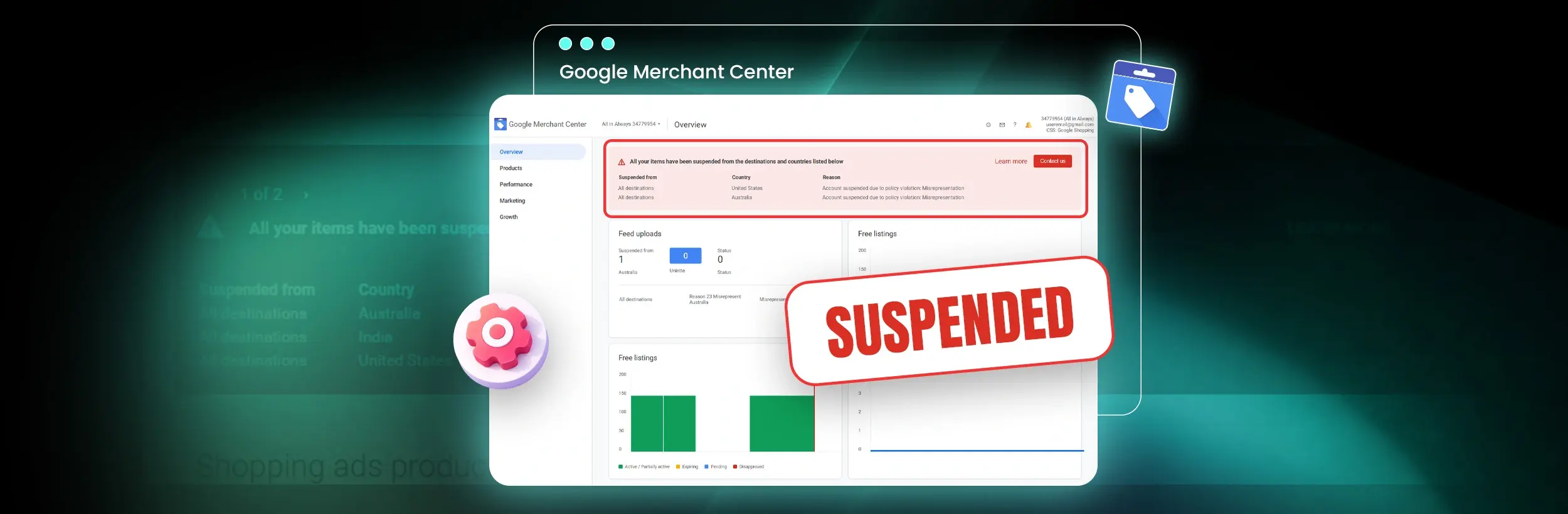
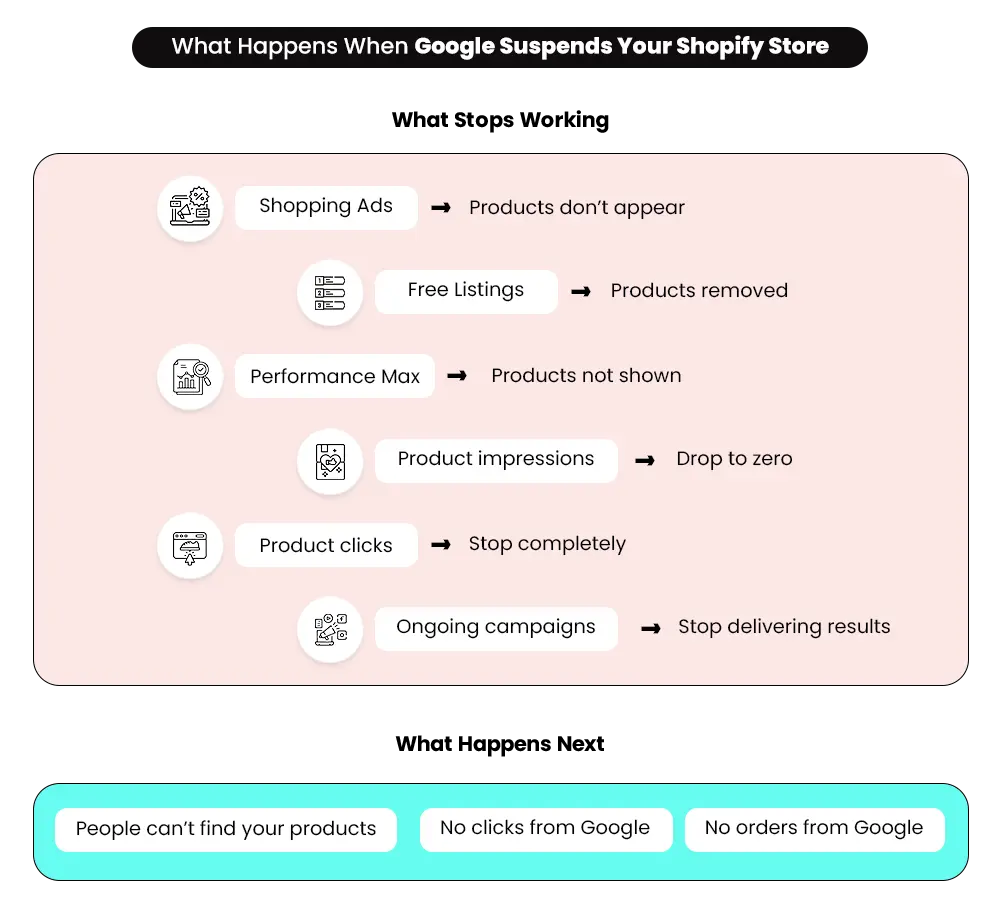
When your Google Merchant Center account gets suspended, everything stops. Your products disappear from Google, ads stop running, and traffic drops almost immediately. The only explanation you usually see is a vague message:
“Account suspended due to misrepresentation.”
And that’s where the confusion starts. There’s no clear product flagged. No exact page mentioned. No direct instruction on what needs to be fixed. Most merchants assume there’s one major issue causing this.
But in reality, that’s rarely the case. A Google Merchant Center suspension for misrepresentation usually comes down to how Google evaluates trust. If your store has inconsistencies across business details, policies, product information, or overall presentation, it starts to look unreliable — even if each issue on its own seems small.
That’s what makes this difficult to fix. You’re not dealing with a single error, but a combination of gaps that affect how your store is perceived. This guide breaks down:
- what misrepresentation actually means
- why a Google Merchant Center account gets suspended
- what exactly you need to fix
- how to get your account reviewed and approved
What Does a Google Merchant Center Suspension Actually Mean?
Misrepresentation does not mean Google thinks you are intentionally misleading customers. It means your store does not provide enough clear, consistent, and verifiable information for Google to confidently trust it. Google is trying to answer one simple question:
“Would a customer feel safe buying from this store?”
To answer that, it evaluates your store across:
- business identity
- policy clarity
- product accuracy
- website completeness
- data consistency (website vs feed)
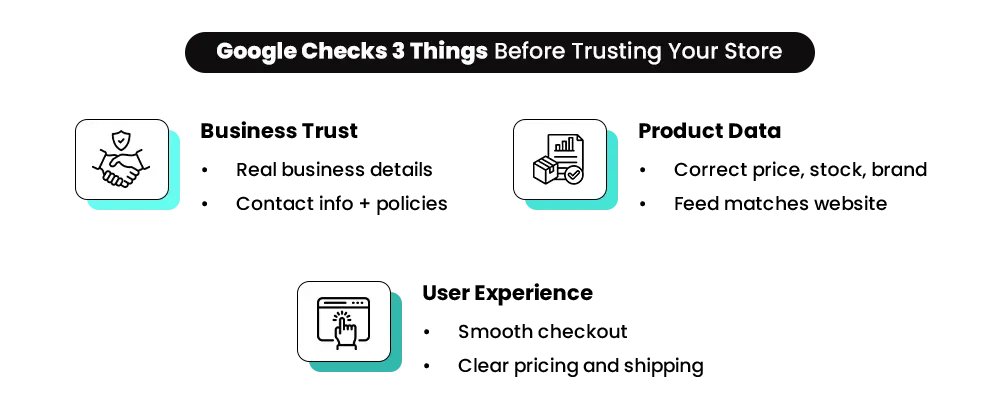
If anything feels unclear, inconsistent, or incomplete — trust drops.
And when that trust drops below a certain level, it leads to a Google Merchant Center suspension.
Types of Google Merchant Center Suspension
Before you start fixing anything, quickly check what type of issue you’re dealing with.
- Product Disapproval — Only some products are affected due to missing or incorrect data. Your account is still active.
- Account Suspension — Everything stops. No ads or listings. This requires fixing overall store issues.
- Misrepresentation Suspension — Google could not clearly verify your business due to inconsistencies across your store.
These issues can build over time. Multiple product-level problems can eventually lead to full account suspension.
What You Should Do First
Go to Google Merchant Center → Diagnostics Check if the issue is:
- product-level
- feed-level
- account-level
Fixing product issues will not resolve an account-level suspension.
Common Reasons for GMC Misrepresentation Suspension
Most misrepresentation suspensions are not caused by one major issue. They usually come from a combination of smaller gaps across your store. Here are the most common ones:
- inconsistent business details
- unclear or generic policies
- unreliable or incomplete product information
- unnatural or misleading reviews
- mismatch between website and Merchant Center feed
- weak trust signals across the store
- misleading tactics like fake urgency or unrealistic discounts
Individually, these issues may not seem serious.
But together, they make your store harder to trust — which is exactly what triggers a Google Merchant Center misrepresentation suspension.
Step-by-Step Checklist: How to Fix a GMC Misrepresentation Suspension
A Google Merchant Center misrepresentation suspension is rarely caused by one issue. It usually comes from multiple small gaps across your store. Instead of fixing things randomly, go through your Shopify store in this order. Treat each step like a checklist — once everything in a step is clear and aligned, move to the next.
Step 1: Fix Business Identity & Transparency
- What’s going wrong
Your store does not clearly show who runs the business. Business name, address, or contact details may be inconsistent or incomplete.
- Why it matters
If Google cannot verify your business identity, it directly affects trust.
- What to check and fix
Make sure:
- your business name is consistent across homepage, footer, checkout, and policies
- you have a complete, real, and verifiable address
- a working phone number is visible
- you are using a domain-based email (not Gmail/Yahoo)
- your About page clearly explains who you are
Step 2: Fix Policy Pages (Clarity + Accuracy)
- What’s going wrong
Policies exist but are vague, copied, or don’t reflect how your store actually works.
- Why it matters
Customers and Google both rely on policies to understand what happens after purchase.
- What to check and fix
Make sure:
- shipping policy clearly explains delivery timelines and origin
- timelines are realistic (avoid vague ranges)
- return policy defines conditions clearly
- privacy policy and terms are present
- policies are not copied templates
- all policy pages are visible and accessible
Step 3: Fix Product Page Accuracy
- What’s going wrong
Product pages may contain copied descriptions, missing details, or misleading pricing.
- Why it matters
This is where trust is validated. If product information feels unclear or misleading, it affects both customer decisions and how Google evaluates your store — often leading to a merchant account suspension.
- What to check and fix
Make sure:
- descriptions are written in your own words
- pricing is realistic (no fake discounts)
- all variants (size, color, material) are accurate
- shipping information is clearly visible
- images reflect actual product quality
- no misleading claims are used
Step 4: Fix Reviews & Social Proof
- What’s going wrong
Reviews may be imported, duplicated, or unnatural.
- Why it matters
Fake or unrealistic reviews reduce trust.
- What to check and fix
Make sure:
- no imported or supplier reviews
- review count matches store stage
- no duplicate or same-date patterns
- verified tags are used only when genuine
Step 5: Strengthen Trust Signals Across Your Store
- What’s going wrong
Your store may feel incomplete — missing a contact page, FAQ section, or basic brand information.
- Why it matters
Customers look for trust signals before trusting a store. If these are missing, the store feels like a quick setup instead of a real business, which can lead to a Google merchant account suspension.
- What to check and fix
Make sure:
- contact page is clearly available
- FAQ section exists
- payment methods are visible
- homepage includes a basic brand story
- no exaggerated claims are used
Step 6: Fix Website & GMC Feed Consistency
- What’s going wrong
Data does not match between your website and Merchant Center. Prices, availability, or currency may not align.
- Why it matters
Even small mismatches trigger issues. Google relies on accurate data to decide whether your listings can be trusted.
- What to check and fix
Make sure:
- prices match exactly
- availability is accurate
- currency is consistent
- product data aligns across website and feed
- GTIN/MPN (if used) are correct
- product links are working
Step 7: Fix Technical Issues & Store Functionality
- What’s going wrong
Your store may have broken links, incomplete pages, or technical gaps.
- Why it matters
A partially functional store reduces trust.
- What to check and fix
Make sure:
- no broken links or error pages
- checkout flow works completely
- no placeholder content exists
- SSL (HTTPS) is enabled
- apps or popups are not causing issues
Step 8: Fix Inventory, Messaging & Branding Consistency
- What’s going wrong
Store messaging does not match actual product availability or brand positioning.
- Why it matters
Mismatch between messaging and reality creates a trust gap. For example, showing “low stock” on a sold-out product is a clear signal that something is off.
- What to check and fix
Make sure:
- stock levels reflect actual availability
- no fake “low stock” or urgency messages
- banners and messaging are consistent
- brand positioning aligns with products
Step 9: Align Geography & Business Details
- What’s going wrong
Your store may be targeting one region while showing details from another. This includes mismatches between your domain, business address, and target country.
- Why it matters
Google needs clear location consistency. If your location and targeting don’t align, it becomes difficult to understand where your business operates.
- What to check and fix
Make sure:
- business address matches your target country
- domain, currency, and shipping regions align
- no conflicting location signals
Step 10: Fix URL Structure & Store Quality Signals
- What’s going wrong
Your store structure may look unpolished or reused.
- Why it matters
Unclean URLs reduce trust signals and creates a gap.
- What to check and fix
Make sure:
- product URLs are clean and readable
- no draft slugs exist
- no unnecessary foreign-language URLs
- no template reuse signals
Step 11: Be Transparent About Fulfillment (Dropshipping or Not)
- What’s going wrong
Your store may promise faster delivery than it can actually provide.
- Why it matters
Expectation vs reality mismatch is a major trigger for both customers and Google.
- What to check and fix
Make sure:
- shipping timelines are realistic
- no misleading “fast delivery” claims
- delivery expectations are clearly mentioned
- timelines match actual fulfillment
Step 12: Final Consistency Check Across the Store
Before moving forward, review your store as a whole.
What to check
- business, policies, and product details all align
- no contradictions across pages
- no incomplete sections
- store feels clear and trustworthy overall
What to Do After Fixing Everything
Once you’ve fixed the issues behind your Google merchant account suspension, the next step is to submit a review request. This stage is less about fixing and more about letting Google reassess your store properly.
1. Before You Request a Review
Before submitting your store for review, quickly confirm:
- all pages are live and complete
- product data matches your Merchant Center feed
- no misleading signals (fake urgency, discounts, or reviews)
- policies clearly explain how your store works
- checkout flow works end-to-end
If anything feels incomplete, fix it first — otherwise your review may get rejected again. Furthermore, make sure to review Google’s official Merchant Center reinstatement guide — it tells you exactly what Google expects before they’ll reinstate your account.
2. How to Request a Review in Google Merchant Center
Once everything is fixed:
- Go to Google Merchant Center
- Open Diagnostics
- Find the suspension notice
- Click “Request Review”
What to keep in mind:
- do not submit too early
- do not write long explanations
- confirm fixes clearly and simply
3. What Happens After You Submit Review
A Google merchant account suspension is not removed right away, even if everything is fixed. Google takes time to re-evaluate your store and rebuild trust. After submitting:
- review take time
- no immediate updates are shown
- silence does not mean failure
Avoid making frequent changes during this time. Let your store remain stable so Google can evaluate it properly.
One thing to remember: Do not create a new Merchant Center account while your existing one is suspended. Google sees this as trying to get around their rules — and it can permanently ban your website from all Google services, including your ad account.
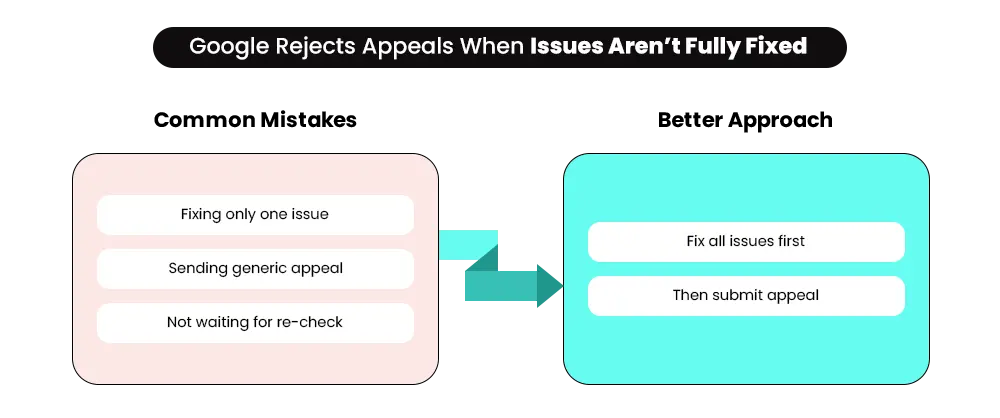
4. Common Mistakes That Delay Approval
- fixing only one issue
- ignoring policies
- leaving mismatches across pages
- using fake urgency or reviews
- submitting review too early
5. How to Prevent This From Happening Again
Once your account is approved, focus on consistency:
- keep website and feed aligned
- review your store regularly
- avoid shortcuts like fake urgency
- update policies as your business evolves
- maintain clarity across all pages
📌Related Video
>
>
What Happens After Your Account Is Reinstated
Getting your account reinstated is a big step — but it’s not the end of the process.
In the first few days after reinstatement, performance may not immediately return to previous levels. Traffic and impressions can take time to stabilize as Google re-evaluates your account. This is normal. Instead of trying to force performance back quickly, focus on stability.
1. What to Do Right After Reinstatement
- start campaigns with controlled or moderate budgets
- monitor your Merchant Center diagnostics regularly
- check for any new product disapprovals
- make sure your website and feed remain fully aligned
If issues reappear early, it increases the risk of another suspension.
2. Why Some Stores Get Suspended Again
Repeat suspensions are usually not caused by major mistakes. They often happen because something small changes without being noticed. For example:
- a new app changes how prices are displayed
- a design update affects product data or layout
- new products are added without complete information
- feed data becomes inconsistent again
Even small inconsistencies can affect trust if they are not caught early.
Also read: Shopify Store Audit: How Conversion and Performance Gaps Impact Sales and How to Fix Them
3. What Matters Going Forward
Once your account is reinstated, consistency becomes more important than speed.
Keeping your store stable, accurate, and aligned will help prevent future suspensions.
Every day your Google Ads are down, your competitors are taking your customers.
A suspension doesn’t just pause your visibility — it hands it to someone else.
Mastroke helps Shopify stores rebuild and run Google Shopping and Search campaigns
that win back lost ground.
Final Thoughts
A Google Merchant Center misrepresentation suspension is rarely caused by one major mistake. It usually comes down to how your store is perceived — across your business details, product pages, policies, and overall consistency.
Fixing it isn’t about quick changes. It’s about making your store feel clear, complete, and reliable from end to end.
And these gaps don’t just affect Google Merchant Center. The same issues often show up as deeper problems in how your store performs — from conversions to overall user experience. If you’ve been noticing friction in performance or conversions, these signs your Shopify store has deeper structural problems are a good place to start.
In many cases, it also points toward the need for a cleaner, more structured store experience — something a focused Shopify store redesign can help solve at the root.
FAQs — Common Questions Around GMC Suspension
Most suspension questions come down to clarity, not complexity. These answers focus on what actually causes issues, how Google interprets them, and what actions move you forward.
Why does my store keep getting suspended even though I’ve fixed the issues?
Because something was left unfixed. Most merchants correct what they can see — a product title, a policy page — and miss the deeper cause. Google checks your business trust, your product data, and your shopping experience all at once. All three need to be right for the suspension to lift.
What’s the difference between a product disapproval and an account suspension?
A product disapproval removes specific products but leaves everything else running. An account suspension stops everything — all ads, all listings, all Google traffic. Disapprovals that build up past a certain number can lead to full account suspension.
How long does recovery take?
Google usually reviews appeals within 3 to 7 working days. The full process — fixing everything, waiting for Google to re-check your store, submitting an appeal, and getting approved — typically takes 10 to 14 days when done properly. Rushing it and getting rejected adds more time on top of that.
My appeal was rejected. What now?
Don’t submit another one straight away. A rejection means something is still wrong. Read the rejection message carefully — it often gives a clue about what Google is still concerned about. Fix more thoroughly, wait for Google to re-visit your store, then appeal again with more specific details.
Can I just open a new Merchant Center account?
No. Creating a new account while suspended is against Google’s rules. It can result in a permanent ban across your website domain and all connected Google accounts. The only correct path is to fix and recover the existing account.
Once I’m reinstated, is there anything I should keep doing?
Yes. Check Merchant Center diagnostics every week. Test your checkout after any store update. Make sure your product information stays consistent between your store and your feed. Reinstatement doesn’t mean Google stops watching — it means you’re back, but on closer watch than before.
My store was managed by a previous agency. Could that be causing the suspension?
Yes — and this is more common than most merchants realise. Misconfigured settings, incorrect feed setups, and unresolved previous violations can all carry over after an agency hands back a store. If you’ve inherited a store with a history you don’t fully understand, a proper audit before appealing is strongly recommended.
GMC Account Still Suspended? The Problem Is in Your Store — Not Your Appeal.
Rewriting the appeal won’t fix what Google is actually flagging. The issue is in your store — and it’s usually deeper than it looks. By now, you’ve seen that misrepresentation isn’t caused by one issue, but by gaps across your policies, product pages, data, and overall store setup.
At Mastroke, we don’t just fix individual errors — we look at how the entire store is structured.
If those gaps come from a weak foundation, a Shopify store redesign is usually the right approach. If the store is fundamentally sound but something has broken along the way, it becomes a Shopify troubleshooting issue.
Identifying which one you’re dealing with is what actually leads to a proper fix — not just getting the account back, but keeping it stable after.
A poorly structured campaign is one of the fastest ways back into a suspension. Mastroke builds and manages Google Ads for Shopify stores the right way — so you grow without risking everything you just fixed.The right Google Ads setup doesn't just perform — it keeps you out of trouble.