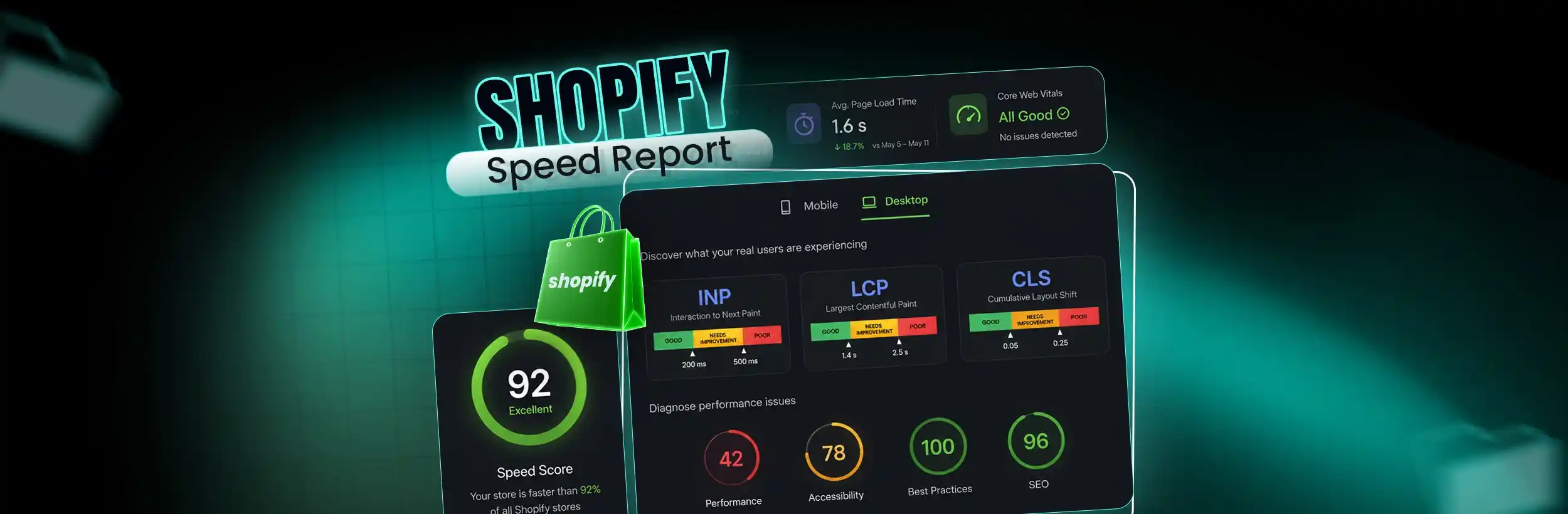
This blog post explains Shopify's 2024 speed reporting changes, where the single 0-100 score was replaced with the Web Performance Dashboard that measures three Core Web Vitals based on real shopper experiences. It provides a comprehensive guide on locating, interpreting, and acting on these new performance metrics.
You open your Shopify admin expecting a clear number. What you find instead are three labels, some unfamiliar acronyms, and a score that may not mean what you think it does.
The Shopify speed report changed in 2024. The single score out of 100 is gone. Your store’s performance now lives in the Web Performance Dashboard, measured by three Core Web Vitals based on how real shoppers experience your store — not a lab simulation.
This guide covers where to find the report, how to read each metric, why your numbers might look worse than your store actually feels, and how to know when a problem is worth fixing — and when it isn’t.
What Happened to the Old Shopify Speed Score?
For years, every Shopify store had one number: a speed score out of 100. Simple to check, easy to chase. The problem was that it pushed merchants to treat speed as the only metric that mattered — even when their store already felt fast to real shoppers.
In 2024, Shopify replaced the Online Store Speed Score with the Web Performance Dashboard. Speed is now measured using Core Web Vitals — three metrics built around how visitors actually experience your store, not a throttled lab test. If you’re hunting for a score out of 100 in your admin, you won’t find one. The three metrics that replaced it tell you far more about what a shopper actually feels.
You might still see a 0 –100 score in Google PageSpeed Insights. That’s a separate tool using a Lighthouse lab test, so its results often don’t match Shopify’s real-user Core Web Vitals data. That’s one reason the numbers can look very different.
Where to Find Your Shopify Speed Report
Two places, depending on how much detail you want.
Quick snapshot: Online Store → Themes. Your Core Web Vitals summary appears here, giving you a fast overview of how each metric is performing.
Full report: Analytics → Reports, then search “Web performance.” This view shows each metric over time and lets you adjust the date range to spot trends.
Before you start analyzing the data, check these three things:
- Reports permission. No access to that permission means no Web Performance Dashboard. Check under Settings → Users and Permissions → the relevant staff account → enable Reports.
- Password protection. A password-protected store collects no real visitor data. Remove the store password first.
- Mobile access. The report works in the Shopify app too if you’re checking on the go.
Once you’re in, the numbers only mean something if you know how to read them.
How to Read the Three Core Web Vitals
Your speed report comes down to three metrics. Each one measures something a shopper actually notices, and each has a clear pass/fail line from Google.
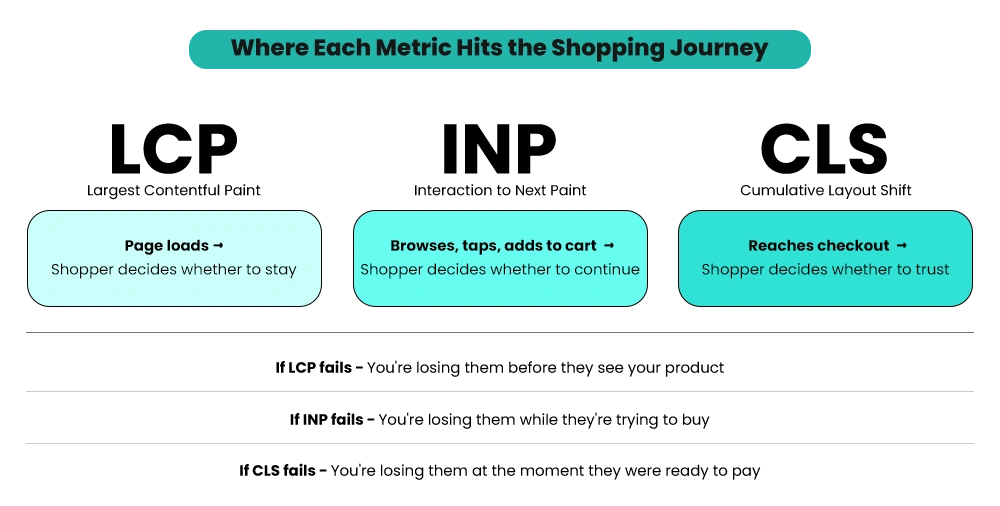
LCP — Largest Contentful Paint
This measures how fast your main content appears — usually your hero image or lead product photo. Good is under 2.5 seconds. Slow LCP means shoppers stare at a blank or half-loaded page before they see anything. The usual cause: large, uncompressed images.
INP — Interaction to Next Paint
This measures how fast your store reacts when someone taps or clicks — add to cart, open a menu, select a variant. Under 200 milliseconds is good. Between 200 and 500 milliseconds needs attention. Over 500 milliseconds is a real problem. Poor INP makes your store feel frozen even when it loads quickly — shoppers tap a button and nothing happens. Heavy app and theme JavaScript is the usual culprit. If INP is your worst metric, this Shopify INP optimization guide walks through exactly how to fix it.
CLS — Cumulative Layout Shift
This tracks whether things jump around as the page loads. Good is under 0.1. For example, a promo banner loads late and pushes the checkout button down just as a shopper tries to click it. That’s CLS in action, and it can create a frustrating buying experience. Common causes include images, banners, videos, and fonts loading without enough space reserved for them.
Each metric shows a status: Good, Needs Improvement, or Poor. Because the data comes from real visitor sessions, improvements won’t appear instantly and may take several days to show up. Start with anything marked Poor. One failing metric usually deserves more attention than two passing ones.
Core Web Vitals failing but not sure where to start?
How Your Store Compares — and Why Passing Beats Perfect
Once you can read the three metrics, the next honest question is: are these numbers actually a problem?
Shopify reports that 80% of stores now pass Core Web Vitals. Passing isn’t a high bar — it’s where most stores already sit. If yours isn’t passing, that’s the signal worth taking seriously.
Google’s standard for passing is straightforward: your page needs to meet the “good” threshold for all Core Web Vitals based on real-user data at the 75th percentile. Google evaluates this separately for mobile and desktop visitors.
This matters because perfection is where merchants waste the most time. A store that passes all three Core Web Vitals is already delivering a strong experience for the majority of its visitors. Once you’re there, focus on the next biggest opportunities — product pages, checkout friction, trust signals — before sinking more time into marginal speed gains.
Aim to pass all three. Once you’re there, move on.
Why Your PageSpeed Score and Shopify’s Dashboard Don’t Match
This trips up almost everyone. You run Google PageSpeed Insights, see a 47, and panic. Then your Shopify dashboard shows your vitals passing. Which one is lying?
Neither. They measure different things.
PageSpeed Insights runs your store through a simulated test on a mobile device under controlled conditions. It’s useful for spotting specific performance problems, but it isn’t measuring what your actual shoppers experienced.
Shopify’s Web Performance Dashboard works differently. It uses Core Web Vitals data collected from real visitors on real devices and networks. That’s why it’s completely normal for the two tools to show different numbers. One is a controlled test. The other reflects what shoppers actually experienced.
A few more things that move your numbers:
- Mobile runs lower than desktop. Most store traffic is mobile, so the report leans mobile-first — and mobile is always tougher.
- The data shifts. A new app, a theme update, or a batch of heavy images can move your vitals within a day or two.
- New stores show thin data. Just launched, or just removed your password? Shopify needs more real sessions before the numbers settle.
The takeaway: don’t react to a single reading from a single tool. Watch your Core Web Vitals over two or three weeks and read the direction they’re moving — not just where they sit today.
Reading Your Result: Which Situation Are You In?
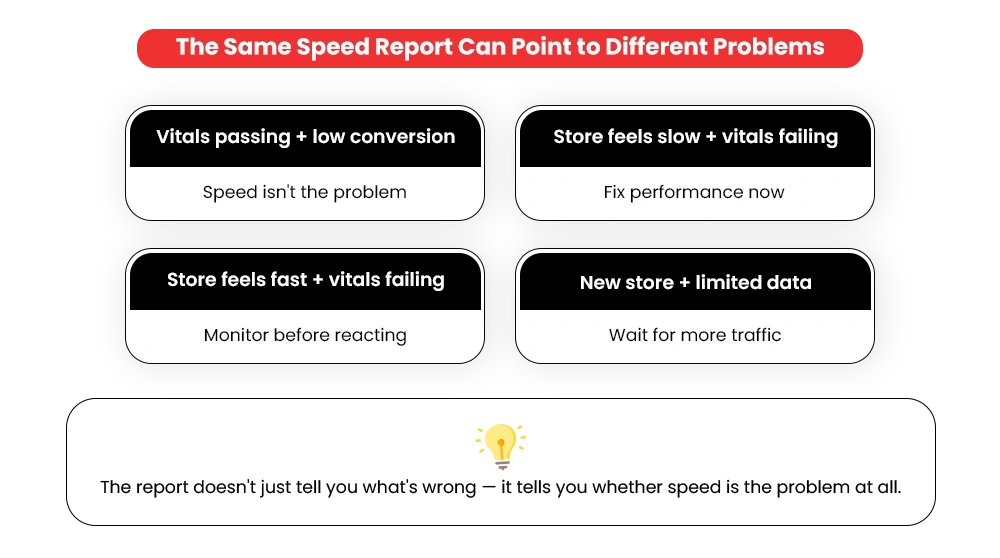
Two stores can show the same metrics and have completely different problems. Find your situation before you change anything.
That third row matters more than merchants expect. A store with passing vitals and weak sales has a gap somewhere else entirely, and speed fixes won’t touch it. A full Shopify store audit checklist is usually the right next step when the report checks out but sales don’t.
Reading your speed report well isn’t really about the numbers. It’s about knowing which of these four situations you’re in — because that tells you whether to fix something, wait, or look somewhere else entirely.
What to Actually Do When Your Vitals Are Failing
If your vitals are genuinely in the red, here’s the order that gets you the most improvement for the least effort — not the order that feels easiest.
Start with images. They’re the most common cause of slow LCP on Shopify, and the easiest to fix without touching code.
- Resize images to the actual dimensions your theme displays. A 4,000px photo in a 600px slot is wasted load time on every visit.
- Turn on lazy loading so images below the fold don’t delay the first view.
- Use an app like TinyIMG to bulk-compress your existing product and collection images from inside the Shopify admin — no manual download-reupload workflow needed.
Next, audit your apps. Every app adds code to your pages, including ones you installed months ago and forgot about.
- Remove any apps you’re not actively using.
- Check for leftover code from apps you already deleted. It often stays behind and keeps loading on every page silently.
Then review third-party scripts. Tracking pixels, chat widgets, review tools, and other apps can add extra code that slows down page loads and interactions. Keep the ones earning their place. Cut the rest. This guide to fixing a slow Shopify store goes deeper on each fix if you want the full breakdown.
One rule matters more than any single fix: change one thing at a time. Because the data lags, a fix you make today won’t show for a couple of days. Change five things at once and you’ll never know what worked. Make one change, watch your vitals and conversions for about a week, then move to the next.
And watch both numbers together. A faster metric doesn’t always mean more sales. Pull a product video to speed up a page and you might remove the thing that was helping buyers decide. Speed is a means, not the goal.
Final Word: Read the Trend, Not the Number
The single score that pushed every merchant toward 100 is gone, and that’s a good thing. What’s left is more honest: three metrics measured from real shoppers, telling you how your store actually feels to the people buying from it.
Aim to pass all three — not to be perfect. Read the trend over weeks, not a single day. Match your situation before you touch anything, because half the time the report is telling you the problem lives somewhere else entirely.
That’s the difference between merchants who chase numbers and merchants who actually fix things.
Read the report but still not sure what to fix?
Frequently Asked Questions About the Shopify Speed Report
The Shopify speed report raises a lot of questions — especially the first time you look at it. Here are the ones merchants ask most, answered simply.
Q: Where did my Shopify speed score go?
A: Shopify retired the single speed score in 2024 and replaced it with the Web Performance Dashboard. Instead of one number out of 100, you now see three Core Web Vitals — LCP (loading), INP (responsiveness), and CLS (visual stability) — based on real visitor data. Find them under Online Store → Themes for a quick view, or Analytics → Reports → “Web performance” for the full breakdown.
Q: Does my Shopify speed report affect SEO?
A: Indirectly, yes. Google uses Core Web Vitals as a ranking signal, and those are exactly the metrics your Shopify dashboard reports. Improving your LCP, INP, and CLS scores can help your search visibility — and a faster store converts better regardless of rankings.
Q: What’s a good Core Web Vitals result for a Shopify store?
A: Aim for LCP under 2.5 seconds, INP under 200 milliseconds, and CLS under 0.1. If all three sit in the “Good” range for most of your real page loads, your store passes — and passing is the goal, not a perfect score. Around 80% of Shopify stores already meet this bar.
Q: Why did my Core Web Vitals suddenly get worse?
A: Usually something changed recently — a new app, a theme update, or a batch of heavy images. Check what you added to your store in the days before the drop. Keep in mind that Core Web Vitals data isn’t real-time, so the impact of recent changes can take a day or two to appear in your reports.
Q: Can I fix my Core Web Vitals without a developer?
A: Partly. Compressing images with an app like TinyIMG, removing unused apps, and enabling lazy loading are all merchant-level fixes that often move the numbers significantly. Cleaning up leftover app code or reducing the theme JavaScript behind a poor INP score generally needs a developer.
Q: Is the Shopify dashboard the same as Google PageSpeed Insights?
A: No. PageSpeed Insights runs a one-off simulated test on a throttled mobile connection, so its score skews low. Shopify’s dashboard pulls field data from your actual visitors on their real devices. They measure different things, which is why they often show different results for the same store — and why the dashboard is usually closer to what shoppers actually experience.
Q: My vitals are all passing but my conversion rate is still low. What now?
A: Speed isn’t your problem — which is actually useful information. Passing vitals with weak conversions usually points to something in the buying experience: product page clarity, checkout friction, trust signals, or pricing. A full store audit is a good next step to find where the real drop-off is happening.
Not Sure Where to Start?
You’ve read the report. You know what the numbers mean. But if it’s pointing to something real and you’d rather not spend hours inside theme code and app settings — that’s a reasonable place to ask for help.
A Shopify performance audit can pinpoint exactly what’s slowing your store down and what’s actually worth fixing — without the guesswork.