
This blog post addresses the common problem of Shopify checkout failures, where customers reach the checkout stage but cannot complete their purchase due to various technical issues. The post provides a systematic approach to diagnosing and fixing the nine most common causes of checkout problems.
A customer adds a product, reaches checkout, and then nothing happens.
The page won’t load, the button does nothing, or an error shows up right before payment. For a store owner, that’s the worst place for things to break — the customer was ready to buy.
The hard part is that a Shopify checkout not working isn’t one problem. It can mean a payment failure, a missing shipping rate, an app conflict, or a setting most merchants never touch. Each one looks different, and each one needs a different fix.
This post covers the nine most common causes, what each one looks like from the customer’s side, and the exact steps to fix it. Start with the five-minute check below — it tells you which cause to jump to.
Run This 5-Minute Check Before Changing Anything
Before touching a single setting, find out where checkout is actually failing. This takes five minutes and saves you from fixing the wrong thing:
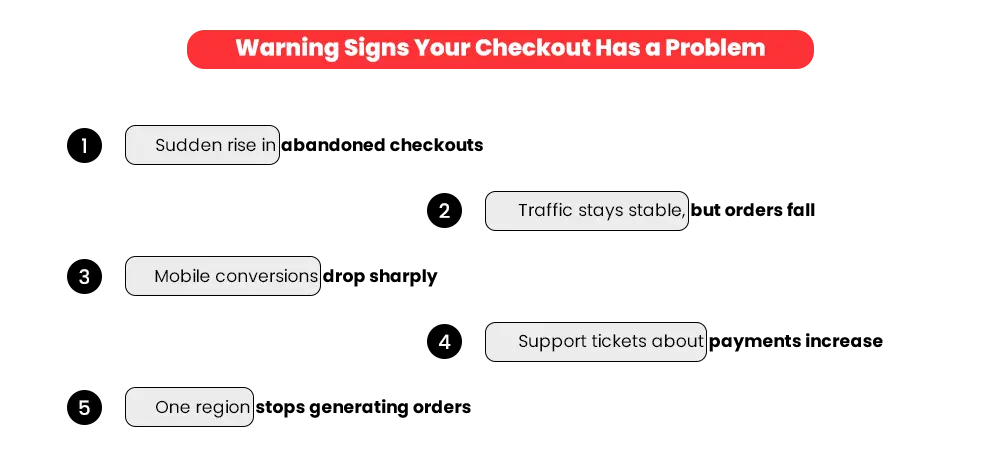
1. Open Orders → Abandoned checkouts and see how far customers get in checkout — shipping, payment, or somewhere earlier in the process.
2. Reproduce it yourself using the same country, address, product, and device the customer used.
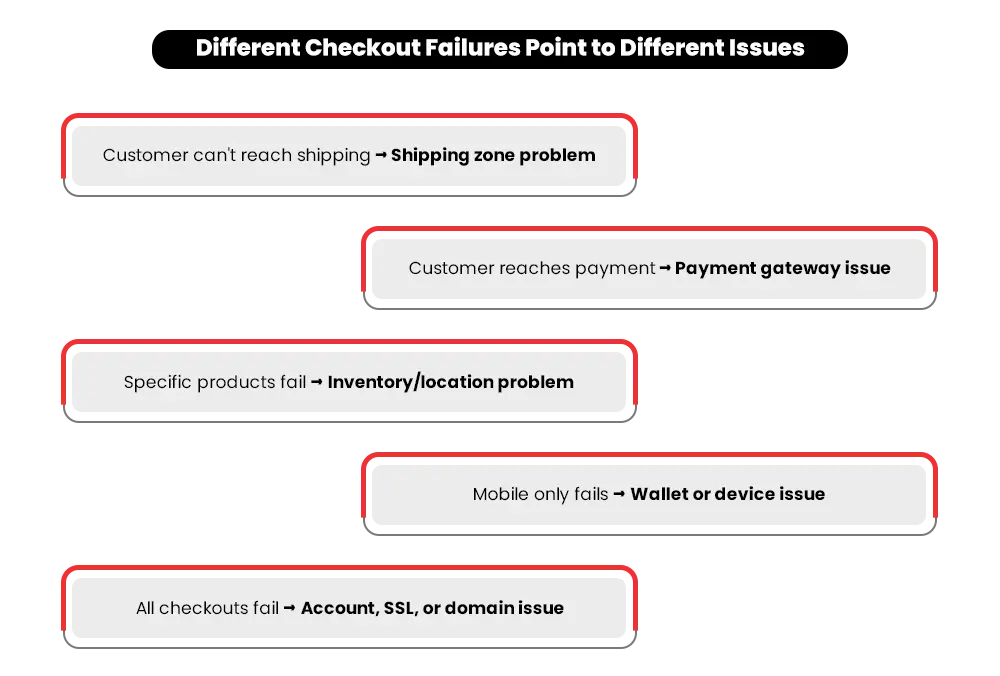
3. If they get stuck at shipping, check your shipping zones and rates before touching payment settings.
4. If they reach payment, open the abandoned checkout timeline and look for payment errors, gateway messages, or decline details.
5. Check your app installs, app settings, and theme activity for anything that changed around the time the issue started.
6. Open shopifystatus.com and rule out a platform-wide issue before spending time on your own settings.
The abandoned checkout report shows you where the failure sits in under a minute — and it’s the one report most merchants never open. Once you know the failing step, jump to the matching cause below.
If this check surfaces problems across shipping, payments, apps, and settings at once, work through a Shopify store audit checklist to catch them before they affect more customers.
The 9 Causes, From Most Common to Least
1. No Shipping Rate for the Customer’s Address
This is one of the most common reasons Shopify checkout stops working — and it’s easy to miss because your store looks fine from your end.
The customer reaches the delivery step and sees “No shipping methods available.” Checkout stops right there. It usually means there’s no shipping zone for that customer’s country, the order weight or price falls outside your rate brackets, or a carrier-calculated rate is failing silently.
Go to Settings → Shipping and delivery and confirm every region you sell to has a zone with at least one active rate. Check your rate brackets too — if an order falls through a gap between brackets, it won’t go through. Add a flat-rate fallback so no customer ever hits a dead end.
2. Payment Gateway Issue
If the customer gets through the delivery step but hits an error at payment, the issue could be with the payment gateway, store configuration, or the customer’s payment method.
The most common reasons: your Shopify Payments account is on hold, your store currency doesn’t match what your gateway supports, or 3D Secure is failing for customers in certain regions.
Go to Settings → Payments and confirm your provider is active and connected. Then check Finances → Payouts for any hold or pending verification.
One distinction worth knowing: a payout hold usually means you don’t get paid — it doesn’t always stop customers from ordering. If orders are completing but money isn’t arriving, that’s a payout problem. If customers can’t pay at all, keep reading. Place a test order using Shopify’s test mode to confirm the gateway is processing correctly, then switch it off immediately after.
Note: Shopify Payments is only available in select countries. If you use a third-party gateway, check that provider’s own dashboard for verification flags — the steps differ by provider.
If everything looks fine on your end but customers still see payment errors, check shopifystatus.com. A platform-wide checkout or payment issue will usually be reported there.
3. A Third-Party App Breaking Checkout
Apps that inject code into your store can be a surprisingly common source of Shopify checkout problems. The tricky part is that the app looks fine everywhere else. It’s only when customers reach checkout that the issue shows up.
The clearest sign is timing. If checkout stopped working right after installing or updating an app, look there first. Checkout customizations, upsell apps, currency tools, and tax-related apps are often worth checking first.
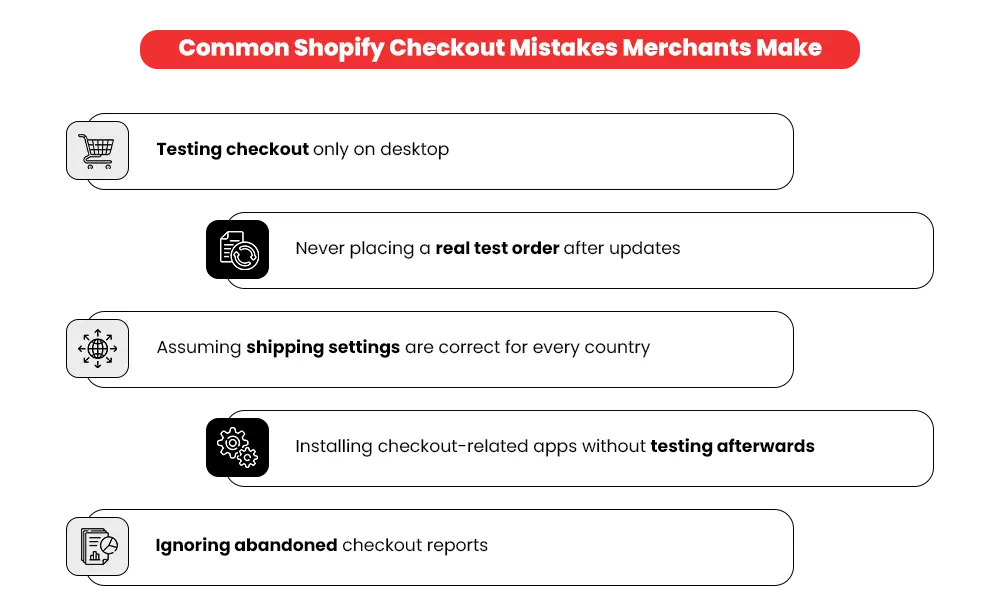
Go to Apps, disable the most recently added checkout-related app, and test immediately. If checkout starts working again, that app or its configuration is a strong suspect. If not, work backward — one app at a time. This is one of the common Shopify setup mistakes that catches merchants off guard before a single customer reports it.
4. Out-of-Stock or Inventory Location Problems
Sometimes the product itself is blocking the order — easy to miss because the rest of your checkout works fine.
The sign is specific: certain products can’t be purchased while others go through without a problem. It means Shopify can’t confirm the item is available to fulfill — either it’s out of stock with “Continue selling when out of stock” turned off, or no location serving that customer has inventory.
Go to Products, open the affected product, and check three things in its Inventory section: stock availability, inventory levels at each location, and whether the “Continue selling when out of stock” setting matches what you actually want. If you sell to multiple regions, confirm the location serving each region has stock for the product.
This one slips past everyone — especially after a busy sales period when stock levels change fast.
5. Tax Setup Blocking the Order
Tax-related checkout failures are uncommon, but hard to spot because the customer often sees only a generic error. They usually come from a third-party tax app or integration rather than Shopify’s built-in tax settings.
Go to Settings → Taxes and duties and review your configuration. If you run a tax app, check its dashboard and recent logs as well — that’s where calculation conflicts and integration errors show up.
If you’ve recently expanded into new markets or changed tax software, place a test order in those regions to confirm taxes calculate correctly.
6. Shopify Checkout Not Working on Mobile
Desktop checkout works fine — but a customer on their phone hits a blank page, a frozen screen, or a payment button that doesn’t respond. It’s easy to miss because a checkout flow that works on one device doesn’t always behave the same way on another.
Mobile checkout already loses more shoppers than desktop. A broken one compounds the loss. Common causes include express payment wallets, third-party apps, browser-specific issues, or a theme that renders differently on smaller screens.
Open your checkout on a real phone in an incognito window. If it breaks there, go to Settings → Payments and confirm any express payment options you’re offering are active. Then test on a second device to rule out a device-specific fault.
Mobile checkout failures are a settings problem far more often than a code problem.
7. Test Mode Left On
If real orders won’t go through but checkout looks completely fine, check this first. It’s embarrassingly simple to fix — and easy to miss if you set up your store a while ago and never switched it off.
When Shopify Payments test mode is on, checkout accepts test card numbers but silently rejects every real payment. No clear explanation — the payment just fails and the order never completes.
Go to Settings → Payments → Shopify Payments → Manage and check whether test mode is enabled. Switch it off, then place a small real order to confirm payments process correctly. Shopify’s testing guide walks through this properly before going live.
8. Domain or SSL Issues Stopping the Page
If customers can’t reach checkout and your payment settings look correct, check your domain setup next. When a domain isn’t connected properly or an SSL certificate hasn’t been issued, visitors see security warnings or certificate errors — and some won’t reach checkout at all.
Go to Settings → Domains and confirm your primary domain is connected and SSL shows as active. Shopify provisions certificates automatically after a domain change, but it can take up to 48 hours. If SSL stays pending beyond that, contact Shopify Support.
Domain and SSL faults are rarer than payment configuration problems. But when they hit, customers can’t order at all — which makes them worth ruling out early.
9. Shopify Checkout Not Working After an Update
This is the most disorienting one — everything was fine yesterday, and nothing looks different today. But something changed, and checkout stopped.
Updates to your theme, a third-party app, or changes to your store configuration can break checkout without throwing a visible error. The most common culprits are theme updates that overwrite customizations and app updates that introduce a conflict.
If checkout broke within the last 24–48 hours, work through what changed:
- Go to Online Store → Themes and check the theme activity log for recent updates or edits — anything touching the cart, payment buttons, or app embeds.
- Open the theme editor and review App embeds — a newly toggled or updated embed is a frequent culprit.
- Check Settings → Checkout for recently added checkout apps or customizations.
- Review any recently installed, updated, or reconfigured apps for changes that coincide with when the issue started.
Revert or disable the most recent change first, and test checkout immediately after each one.
Checkout works — but visitors still aren't buying?
Why Shopify Disables Your Checkout (and How to Get It Back)
Some merchants don’t see an error — they see a message: “Checkout has been disabled for this store.” This isn’t something you broke. Shopify switched it off deliberately, and no amount of theme editing or app disabling will bring it back.
The fix starts with understanding why it happened:
Theme edits and app changes won’t fix any of these — the cause sits at the account level. Start with Settings → Plan and Finances → Payouts, then review Shopify’s account documentation to identify any restrictions or actions required on your store.
Wrapping Up
Checkout breaking mid-sale is stressful — but it’s never random. Every Shopify checkout failure has a specific cause, and now you know exactly where to look for each one.
Run the five-minute check to pinpoint the failing step, then work through the matching cause. You’ll have an answer faster than most merchants expect — and once you find it, orders start moving again.
Still losing orders to checkout issues?
Q: Why is my Shopify checkout not working?
A: It almost always comes down to one of nine things: a missing shipping zone, a payment gateway issue, an app conflict, an inventory problem, a tax setup error, a mobile wallet misconfiguration, test mode left on, a domain or SSL issue, or a post-update conflict. Open Orders → Abandoned checkouts to see which step is failing before you change anything.
Q: Why does Shopify say my checkout is disabled?
A: That message means Shopify switched checkout off — not that you broke something. The most common reasons are an unpaid bill, incomplete Shopify Payments verification, or a store still on a trial plan. Check Settings → Plan and Finances → Payouts first.
Q: Why don’t shipping rates show at checkout?
A: There’s no shipping zone covering that customer’s country, or the order weight or price falls outside your rate brackets. Go to Settings → Shipping and delivery and confirm every region you sell to has at least one active rate.
Q: Why is my checkout button not working on the cart page?
A: This is almost always a JavaScript conflict from a leftover app script. When an app is uninstalled, its code doesn’t always get removed cleanly — and that leftover script can stop the checkout button from responding. Check your theme code for scripts from recently removed apps, or disable apps one at a time and test after each.
Q: How do I know if an app is breaking my checkout?
A: Timing is the clearest sign — if checkout stopped working right after installing or updating an app, that app is the likely cause. Disable the most recently added checkout-related app and test immediately. Work backward one app at a time until checkout works.
Q: Does Shopify Payments work in all countries?
A: No. Shopify Payments is only available in select countries. If you’re in a region where it isn’t supported, you’ll need a third-party payment gateway — and the troubleshooting steps for gateway issues vary by provider.
Need a Hand With This?
If you’ve worked through all nine causes and Shopify checkout issues are still blocking orders — or the problem keeps coming back after every update — it may point to something deeper in your store’s setup.
A Shopify performance audit looks at exactly what’s interfering with checkout, payments, and the settings that quietly affect sales. You get a clear picture of what’s broken, what’s at risk, and what needs fixing first.