
This blog post explains how Shopify store redesigns commonly damage SEO rankings when done without proper planning, as Google loses the signals it relied on to rank pages. It provides a comprehensive guide for protecting SEO during redesigns through careful auditing, URL mapping, and monitoring processes.
You put months into getting your store to rank. Then you decide it’s time for a redesign.
The new theme goes live — and two weeks later, organic traffic starts sliding. Pages that ranked consistently for months drop off the first page. You didn’t break anything visually. But Google is treating parts of your store like it’s never seen them before. That’s what a Shopify store redesign does when it goes live without an SEO plan in place.
The redesign changed the signals Google was relying on — URLs shifted, content got trimmed, and page speed changed. Google had spent months learning your store. The redesign asked it to start over from scratch.
This guide covers exactly what to audit before you touch anything, how to set up redirects, what to check before launch, and what to monitor in the first 30 days — so your rankings stay intact through the whole process.
Why Shopify Store Redesigns Hurt SEO Rankings
Google doesn’t rank your store based on how it looks. It ranks based on signals that have built up over time — which URLs exist, how fast pages load, how content is structured, and how pages connect to each other. That trust takes months to earn. It doesn’t rebuild overnight.
When a redesign changes those signals without a plan, Google has to relearn everything. Same products, same brand — but different URLs, different structure, different load time. And during that process, rankings slip.
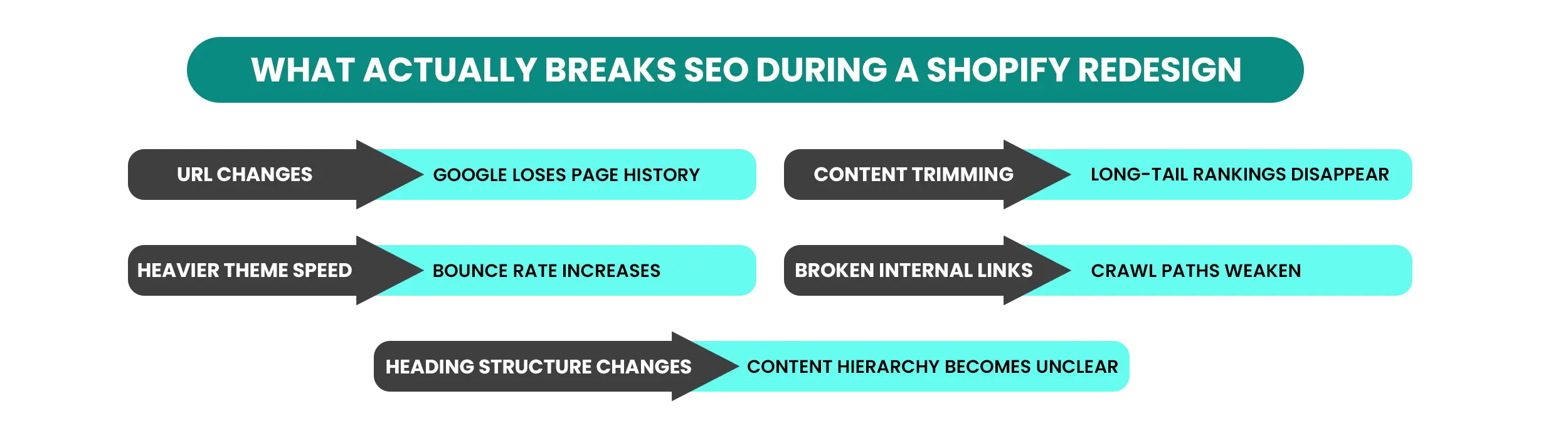
Here’s what typically breaks — and none of it is dramatic. It all happens in the middle of trying to make things better:
- URLs change. Your old URL was yourstore.com/collections/mens-boots. After the redesign it becomes yourstore.com/collections/footwear/boots. Feels cleaner. But Google had been ranking that old URL for months. The new one starts from zero — no history, no authority, no rankings.
- Content gets trimmed. That three-paragraph product description ranking for a long-tail search term gets replaced by two clean lines. The ranking disappears with the copy.
- Page speed shifts. The new theme runs heavier. Google’s research on load time and user behavior shows that a load time increase from one to three seconds raises the probability of a visitor bouncing by 32%. Rankings follow.
- Internal links break. Your homepage links to a seasonal campaign page. That page doesn’t exist in the new design. Google follows the link, hits a dead end, and that’s a signal working against you.
- Heading structure changes. The new theme reorganizes H1s and H2s. Google loses the content hierarchy it was relying on to understand your pages.
Every one of these is fixable — but only if you catch them before launch. Missed redirects and dropped rankings can take months to recover from. That’s the real cost of skipping the prep work.
How to Protect Your SEO Rankings During a Shopify Store Redesign
The instinct going into a redesign is to jump straight into the visual work — new layout, new theme, new structure. That’s exactly where things go wrong. Protecting SEO during a Shopify redesign starts before you touch a single page.
Step 1: Audit What’s Currently Working
Before anything changes, you need to know what’s already working for you.
Open Google Search Console and pull your top pages by organic clicks. Export that list. These are the pages driving real traffic right now — they’re the first thing that needs protecting during a redesign.
Check Google Analytics as well. Pages with high traffic and low bounce rate are doing something right. Whatever is driving that — the content, the headings, the page structure — stays intact.
Check your Core Web Vitals report in Google Search Console under Experience → Core Web Vitals. It shows how real visitors experience your store’s loading speed, responsiveness, and visual stability. While Core Web Vitals are part of Google’s page experience signals, content relevance remains a much stronger ranking factor.
Pay close attention to mobile performance, since most Shopify traffic comes from mobile devices. Also test key pages with Lighthouse or PageSpeed Insights. A mobile Lighthouse score above 90 is generally considered strong. If your scores are lower, identify the gaps—the redesign should improve them, not make them worse.
Before the redesign starts, export your current keyword rankings from the Search Console Performance tab. You’ll need this baseline in weeks three and four after launch to know whether rankings are recovering or still slipping.
Step 2: Map Every URL Before Anything Moves
The audit tells you what’s working. This step documents exactly where everything lives before a single page changes.
Before the redesign starts, put every product page, collection page, blog post, and policy page into a simple spreadsheet — current URL, page type, and traffic level. Three columns. That’s it.
This list exists for one reason: if a URL changes or disappears during the redesign, you know exactly where it was and where it needs to point now. That’s done through a 301 redirect — a permanent signal to Google that a page has moved.
To pull your full URL list quickly, use Screaming Frog (free up to 500 URLs) or Ahrefs Webmaster Tools to crawl your store and export all discovered URLs in one go. Much faster than going page by page.
Step 3: Know What’s Safe to Change and What Isn’t
A redesign touches a lot of things at once — and not all of them carry the same SEO risk. Here’s how to think about each one:
A page that’s currently ranking isn’t just a page. It’s an asset. Treat it like one. Not sure whether what you’re planning counts as a full redesign or just a theme refresh? The answer changes what you actually need to protect. This breakdown of Shopify store redesign vs. refresh makes the distinction clear.
Step 4: Set Up 301 Redirects for Every URL That Changes
Once you know which URLs are changing, every single one needs a redirect in place before the redesign goes live. This is where protecting your SEO either happens or it doesn’t.
A 301 redirect tells Google a page has permanently moved. It transfers the ranking signals and SEO value from the old URL to the new one. Without it, Google sees the old page as gone and the new one as something it has never seen before — no history, no authority, no rankings.
How to set it up in Shopify:
- From your Shopify admin, go to Content → Menus
- Click View URL Redirects
- Click Create URL redirect
- In Redirect from, enter the old URL you want to redirect visitors away from
- In Redirect to, enter the new URL you want to redirect visitors to. To redirect to your homepage, enter /
- Click Save redirect
If many URLs are changing, format your Step 2 spreadsheet as a CSV with two columns — old URL and new URL — and upload it in bulk instead of adding them one by one. For full documentation, see Shopify’s guide to URL redirects.
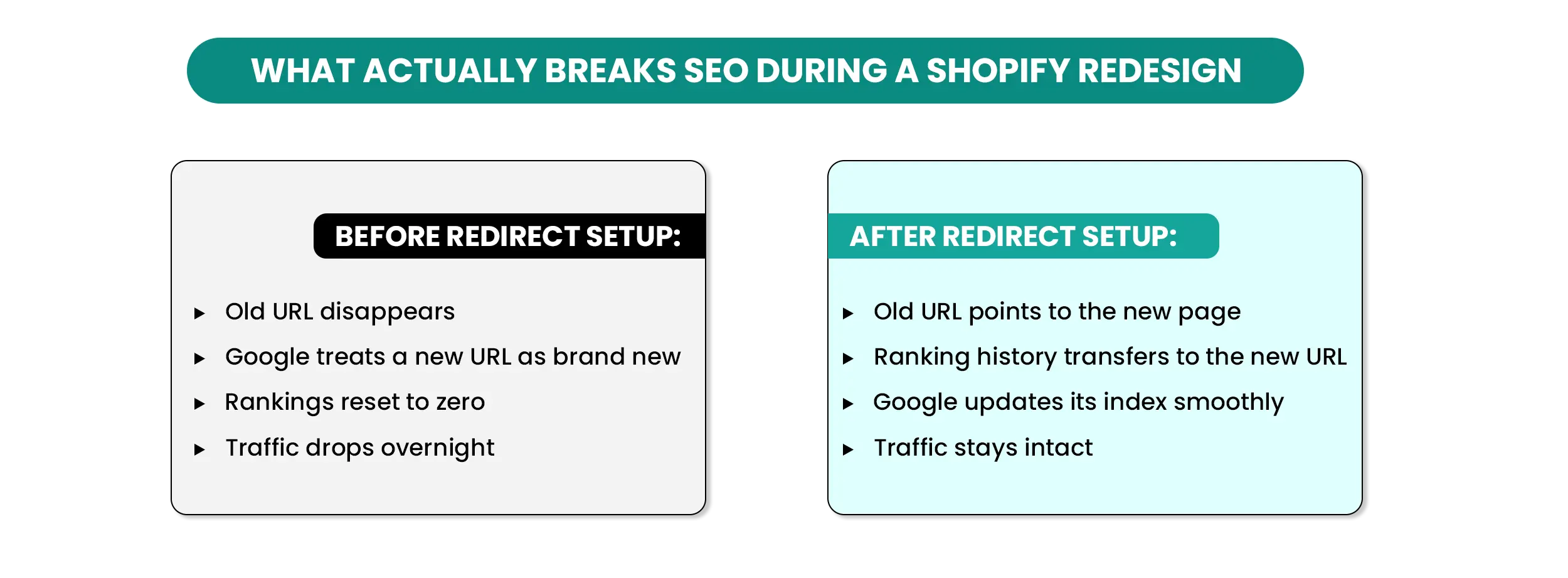
A few things to keep in mind:
Each changed URL should redirect to its closest matching page — not your homepage. If /collections/mens-boots no longer exists, it should point to /collections/footwear, not the homepage. Sending everything to the homepage tells Google nothing useful about what the old page was.
The redirect should go from the old URL directly to the new one in a single step. If it goes A → B → C, Google has to follow multiple redirects, which weakens signal transfer and slows crawling.
A missed redirect on even one high-traffic page can slowly drain rankings for weeks before it shows up in Search Console.
Step 5: Test Everything Before Going Live
Shopify lets you build and test a duplicate version of your theme without touching the live store. This is your staging theme — and it’s where the entire redesign should be checked before anyone sees it.
To create one: go to Online Store → Themes → select your current theme → click the three-dot menu → Duplicate. This creates an exact copy you can edit freely without affecting live traffic.
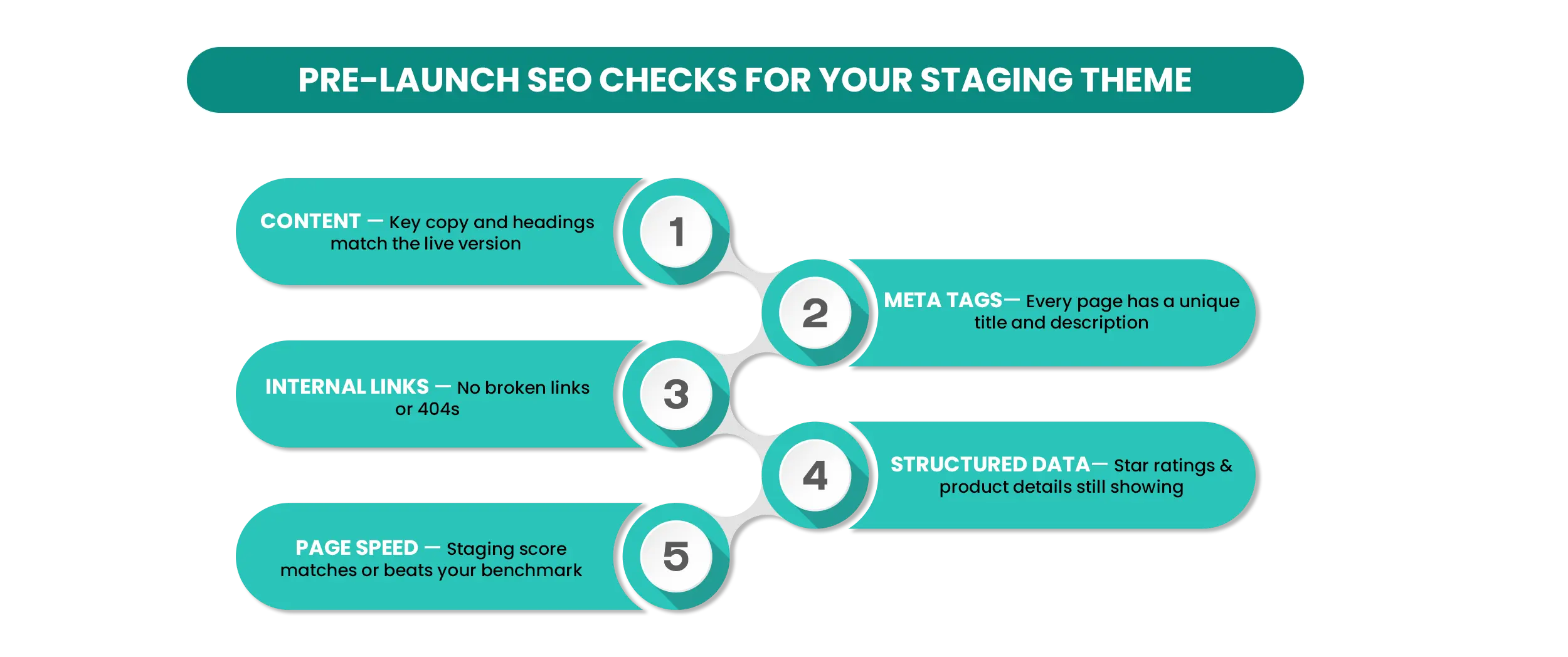
Work through these checks one by one:
- Content check: Open each of your top-ranking pages in the staging theme and compare them side by side with the live version. The copy, headings, and key paragraphs should match. If a section is missing or a heading has shifted from H1 to H2, fix it before publishing.
- Meta tags check: Go to each key page in Shopify → scroll to the bottom → click “Edit website SEO.” Every page needs a unique title and meta description. Blank fields or duplicate titles need fixing before launch.
- Internal links check: Click through every important link in your navigation and page content. Any link that lands on a “page not found” error is a 404. Update broken internal links to point to the correct URL.
- Structured data check: Paste your staging URL into Google’s Rich Results Test. If product details and rich result data appear correctly, you’re in good shape. If the test shows errors or missing data, the new theme may have dropped your structured data — fix it before launch.
- Page speed check: Run your staging theme through Google PageSpeed Insights and compare the score against your pre-launch baseline. If mobile load times or Core Web Vitals have worsened — especially if LCP goes above three seconds — the new theme may be too heavy and will affect rankings after launch.
Good Rankings Don't Always Mean Good Sales.
The First 30 Days After a Shopify Store Redesign
Going live is not the finish line. The first 30 days are when problems surface — catching them early limits the damage.
Week 1 — Submit and Check
- Go to yourstore.com/sitemap.xml and copy your sitemap URL.
- Submit it in Google Search Console → Sitemaps. This helps Google discover and re-crawl your updated pages faster.
- Open the Pages report in Search Console and look for 404 errors, redirect issues, and pages that aren’t being indexed. Cross-check against your pre-launch URL spreadsheet and create any missing redirects via Content → Menus → View URL Redirects.
Week 2 — Speed and Mobile
- Run your top pages through Google PageSpeed Insights and compare against your pre-launch benchmark.
- Check your Core Web Vitals and mobile performance reports in Search Console for any flagged pages.
- If speed has dropped, unoptimized images and heavy scripts are usually the cause. Fix these early — performance issues affect user experience first, then rankings.
Weeks 3–4 — Track Rankings
- Open the Performance report in Search Console and compare clicks, impressions, and average positions against the benchmark you exported before launch.
- A small dip during the first one to two weeks can be normal while Google re-crawls and reprocesses the updated site.
- If rankings and traffic continue to decline after a few weeks, check for redirect errors, missing metadata, broken internal links, and any important content that was removed or significantly changed during the redesign.
One thing worth saying clearly: don’t roll back immediately if something dips. Diagnose first. A sudden rollback creates another wave of changes for Google to process, and that makes recovery longer, not shorter.
A Shopify Store Redesign Can Actually Improve Your SEO
Most merchants going into a redesign are focused on one thing — not losing what they already have. That’s the right instinct. But here’s something worth knowing: most stores carry SEO gaps that existed long before the redesign started. Since you’re already inside these pages making changes, it’s the right time to fix them.
- Collection pages — Many have little or no descriptive copy. Add two to three sentences using search terms shoppers would actually use. A “Men’s Running Shoes” collection page could open with: “Shop lightweight running shoes built for road and trail — from neutral cushioning to stability support.” Even a short introduction helps Google understand what the page is about.
- Product page titles — Generic product names are harder to rank. Instead of “Nike Air Zoom,” try “Nike Air Zoom — Lightweight Running Shoes for Flat Feet.” Specific titles match what shoppers actually search for.
- Internal linking — Link older blog posts from new pages you’re already building. If you’re creating a new collection page for winter jackets, link it from any existing blog post that mentions layering or cold-weather gear. One link, two minutes, real SEO context.
Done right, a Shopify store redesign becomes an SEO upgrade — not just a risk to survive. Once rankings recover and you’re ready to focus on what comes next, this guide on Shopify store growth strategies for 2026 breaks down where to direct your attention after the redesign is done.
Final Thoughts
A Shopify store redesign without a plan is one of the fastest ways to lose rankings you’ve spent months building. The rankings don’t disappear because the new design is bad — they disappear because the SEO signals that supported them weren’t protected.
The merchants who come out of a redesign without losing ground aren’t doing anything complicated. They’re doing it in the right order: protect first, improve second, monitor after. The pre-launch audit and redirect mapping are where that process either holds together or breaks down.
Get those two things right, and the redesign becomes exactly what it was always meant to be.
Your Store Deserves a Redesign That Keeps Its Rankings.
Q: Does changing a Shopify theme affect SEO?
A: It can — but only if the switch isn’t handled carefully. A new theme controls heading structure, page speed, and how metadata is applied across your store. A well-tested theme switch with staging checks and redirects in place leaves rankings intact. The theme itself isn’t the risk — skipping the checks is.
Q: Will my rankings drop right after a Shopify store redesign?
A: A small dip in the first one to two weeks is normal while Google re-crawls your store. If rankings are still dropping after week three, something specific broke. Check redirects, meta tags, and whether any ranking pages had content removed during the redesign.
Q: How long does it take to recover SEO after a Shopify redesign?
A: With redirects, preserved content, and a sitemap resubmission in place, most stores see rankings stabilize within two to four weeks. Without these steps, recovery can take several months — and on high-traffic stores, sometimes longer.
Q: Can I redesign my Shopify store without affecting SEO at all?
A: Visual changes like colors, fonts, and images carry no SEO risk. Anything that touches URLs, page content, heading structure, or metadata needs a plan. The design work itself isn’t the issue — skipping the SEO prep is.
Q: What’s the biggest SEO mistake merchants make during a Shopify redesign?
A: Not mapping redirects before launch. It’s the most common and the most damaging — pages that ranked for months simply vanish from Google overnight, and the traffic drop shows up weeks later when it’s much harder to diagnose.
Q: Should I do a Shopify redesign all at once or in stages?
A: If your store has a large number of ranking pages, staging the redesign reduces risk. Start with lower-traffic pages, monitor for two weeks, then roll out to higher-traffic ones. It slows the process, but it gives you time to catch redirect or content issues before they affect your best-performing pages.
Ready to Redesign Without the Risk?
Planning a Shopify store redesign while keeping SEO intact isn’t just a checklist — the pre-launch audit, redirect mapping, staging checks, and post-launch monitoring all need to happen in the right order.
Skipping any one of them is where rankings quietly start slipping. Getting the right Shopify redesign support in place before anything goes live is what keeps the entire process clean from start to finish.