📌 Key Takeaways
- 1. Why do stores look better after customization but still struggle to convert?
Because most changes improve how the store looks, not how users decide. When key details like pricing, delivery, or next steps aren’t easy to understand, users hesitate—even if the design feels polished. - 2. What are merchants actually optimizing vs what users act on?
Most updates focus on what users see first—like banners or layouts. But decisions usually happen later, when users look for clarity around the product, pricing, or what to do next, and don’t find it easily. - 3. Where do conversions actually start breaking down?
Not across the entire store, but at specific points—like product pages or the cart—where users pause, double-check information, or feel unsure before moving forward. - 4. What does it actually mean to customize your store the right way?
It’s not about changing everything at once. It’s about identifying where users slow down, get confused, or start looking for answers—and improving those moments so decisions feel easier and more natural. - 5. What happens when customization is done without a clear order?
Changes start overlapping without solving the actual problem. Design gets updated before structure is clear, apps are added without purpose, and the same pages keep getting reworked. Over time, this slows down decision-making, and increases drop-offs.
Shopify lets you customize almost everything, from design to functionality and structure. This is exactly why Shopify customization becomes confusing. When themes, apps, and layouts feel equally important, deciding what to customize becomes difficult. The real problem is not effort or access to Shopify customization tools. The problem is choosing changes that do not impact buying decisions or optimize the Shopify store for conversions.
Many store owners focus on Shopify store design customization that improves visuals but does not improve conversions. The store looks better, yet users still leave without taking action. For example, improving banners during Shopify homepage customization feels useful, but often does not solve understanding gaps that block decisions.
In this blog, you’ll see exactly where to focus your customization efforts, which areas actually influence purchases, and what changes usually waste effort.
Signs Your Shopify Store Needs Customization
Customization usually starts too late, after performance begins to drop. When you customize store elements at the right time, you prevent deeper issues and avoid Shopify customization mistakes. Ignoring early signs leads to bigger problems later.
Here are clear signs your store needs customization:
- Visitors leave quickly: Users land on your store but exit without exploring further.
- Users browse but don’t click: Products get views, but actions do not follow.
- High traffic, low conversions: Visitors come in, but purchases remain low.
- Cart abandonment is high: Users add products but leave before completing checkout.
- Customers ask basic questions: Repeated queries show missing or unclear information.
When you notice even one of these signs, improving Shopify store design customization or Shopify theme customization becomes necessary. Delaying changes increases confusion for users. If you’re noticing these issues, customization is no longer optional. It becomes necessary to guide users toward decisions.
Why Do You Need to Customize Your Shopify Store?
Customization is not just about changing how your store looks. It directly affects how customers understand, trust, and interact with your store. When you customize Shopify store elements with clarity, users quickly understand what you sell and why it matters. This directly supports how to improve Shopify store conversions and overall buying behavior.
Here’s what effective Shopify customization improves:
- Conversions: Clear product pages and visible CTAs help users decide without confusion.
- User experience: Better Shopify store design customization makes navigation simple and reduces effort while browsing.
- Trust: A structured and consistent store feels reliable, which increases purchase confidence.
- Drop-offs: When pricing, delivery, and returns are easy to find, users are less likely to leave midway. For example, unclear delivery information can stop a user from completing a purchase even after showing interest.
According to reports, nearly 18% of users abandon purchases due to complicated checkout processes, showing how friction impacts decisions. When you customize Shopify store elements with purpose, you remove confusion and guide users toward taking action.
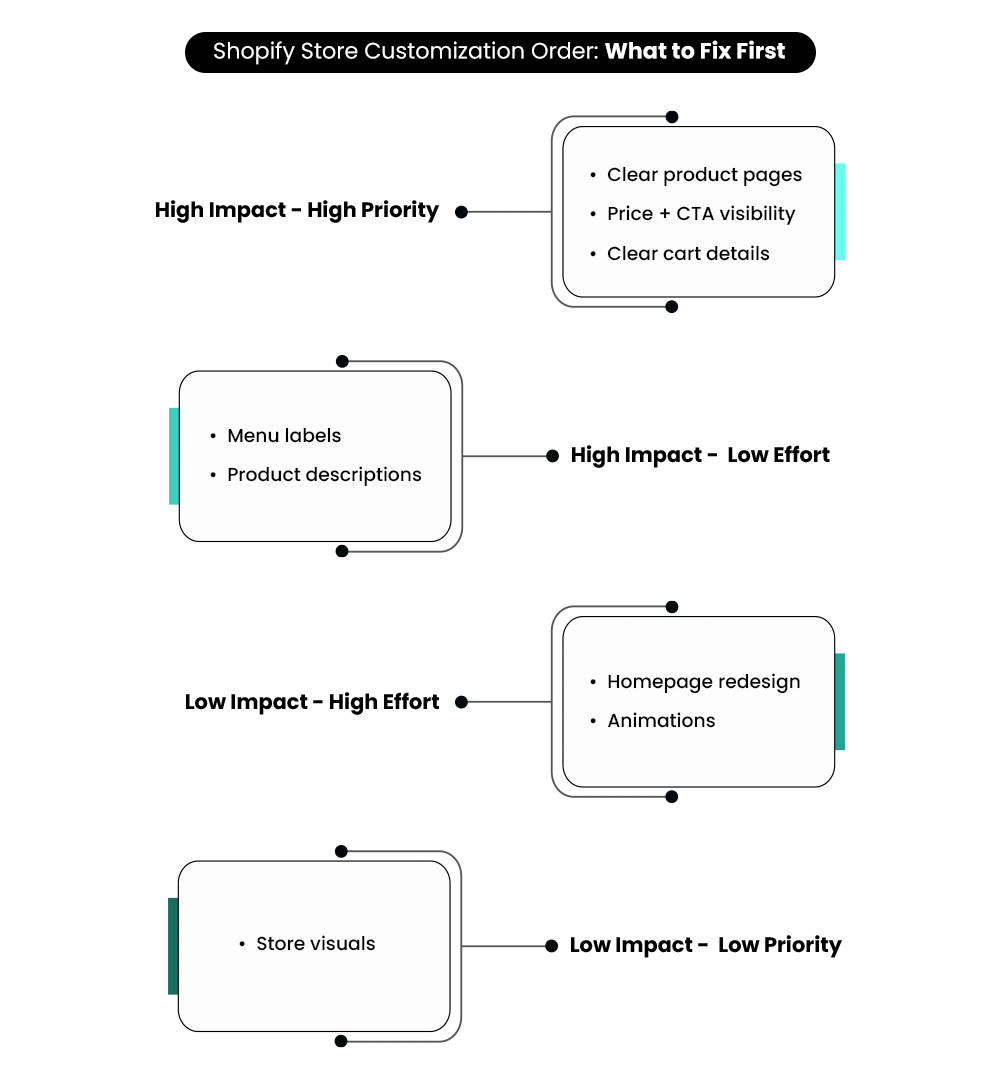
What Does “Shopify Customization” Actually Include?
Customization is not one single action. It is a combination of different layers that work together to shape how your store looks, behaves, and guides users. When you customize Shopify store elements, you are working across three main areas.
1. Visual Customization (What customers see)
This includes colors, fonts, layouts, and overall branding of your store. For example, choosing consistent colors and readable fonts makes your store feel professional. However, visual improvements alone do not guarantee better performance if users still struggle to understand the product or the next step. Most merchants rely on the Shopify theme editor for this level of Shopify design customization.
2. Functional Customization (How your store behaves)
This includes features like product filters, cart logic, and checkout experience. Shopify theme customization and apps are commonly used to control this behavior. For example, adding filters helps users find products faster, which improves their shopping experience. Many rely on a Shopify customization app instead of using the built-in Shopify customization tools.
3. Structural Customization (How your store is organized)
This defines navigation, product categorization, and page hierarchy. Structure decides how easily users can move through your store.
For example, if users cannot find a product within a few clicks, they are likely to leave.
Most stores focus heavily on visual changes but ignore structure and functionality. This creates a store that looks complete but still feels difficult to navigate or act on, even with a strong Shopify custom design. Before moving forward, ask yourself a simple question. Can a user find a product in under three clicks without confusion?
What Can You Customize in Shopify?
Shopify gives multiple ways to customize your store, but each option serves a different purpose. Understanding what you can change helps you customize elements without adding unnecessary complexity.
Here’s what you can customize:
- Themes: Themes allow Shopify theme customization. You can control layout, sections, colors, and typography through Shopify theme customization.
- Apps: Add features like reviews, filters, upsells, and delivery options without coding.
- Code (Liquid, CSS, JavaScript): Used for advanced Shopify customization when you need deeper control. It allows advanced control using Shopify custom CSS, Shopify liquid customization.
- Checkout (with limitations): Basic changes are available, while advanced customization requires Shopify Plus.
Shopify is flexible, but not everything needs customization. Knowing what to use and when helps you avoid unnecessary changes.
Where Should You Start Customizing Your Shopify Store? (Most Merchants Get This Wrong)
Jumping into design first is the biggest mistake most merchants make.
When you customize Shopify store elements without a clear order, you end up reworking the same pages repeatedly. Starting with Shopify store design customization creates a store that looks better, but still leaves key decision points unclear.
This usually happens because of a few common mistakes:
- Designing the homepage before defining navigation.
- Installing apps without a clear purpose.
- Copying competitor layouts without understanding user behavior.
These mistakes make the store look polished but leave core clarity issues unresolved. The right approach follows a simple sequence:
- Customer journey: Understand how users move from landing to purchase.
- Store structure: Fix navigation, categories, and page flow.
- Product pages: Improve clarity, information, and decision points.
- Then design: Use Shopify theme customization to refine visuals after everything is clear.
Customization without strategy leads to repeated changes and wasted effort.
Before making any changes, ask yourself one simple question. Are you customizing based on your store’s needs or copying someone else’s approach?
If you want to understand how poor setup decisions affect performance, explore this → 7 Common Shopify Store Setup Mistakes First-time Owners Make (And How to Avoid Them)
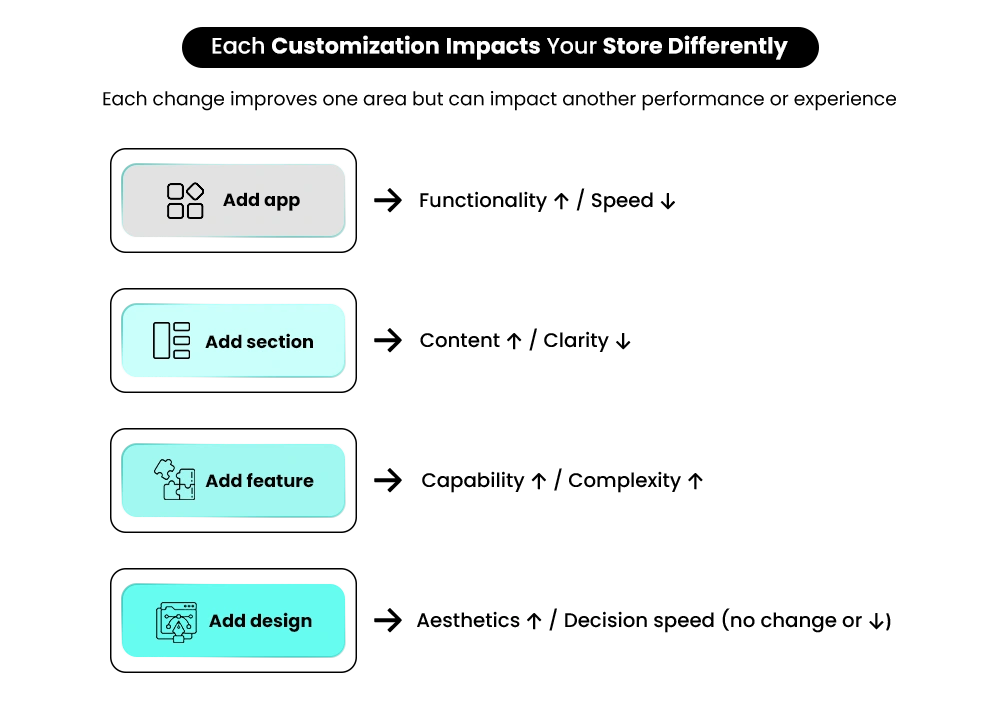
Quick Customization Audit — What to Check Before You Change Anything
| If This Is Happening… | Check This First | Why It Matters |
| Users leave within seconds/td> | Is it clear what you sell immediately? | First-time visitors don’t spend time figuring things out |
| Users scroll but don’t click | Are price, CTA, and key info visible early? | Users act on what they notice first |
| Users browse but don’t add to the cart | Is the product easy to understand in seconds? | Confusion delays or kills decisions |
| Users abandon at the cart | Are delivery, returns, and total cost clear? | Uncertainty increases hesitation |
| The store feels messy after updates | Are there too many competing sections or CTAs? | More elements = more confusion |
| Store gets slower over time | Have you added multiple apps for small fixes? | Performance directly impacts conversions |
Common Shopify Customization Mistakes
Most Shopify customization problems don’t come from a lack of effort. They come from focusing on changes that do not affect buying decisions.
Here are the most common Shopify customization mistakes :
- Over-designing the homepage: Adding more sections and visuals makes the store look polished, but does not help users decide what to do.
- Using too many apps: Installing multiple apps for small features slows down your store and creates conflicts.
- Ignoring mobile experience: A large portion of users browse on mobile, so a poor layout directly affects engagement.
- Copying competitors blindly: Different stores serve different users, so copying layouts does not guarantee results. Blind copying results in weak custom Shopify branding and a poor Shopify store look and feel.
- Focusing only on visuals: Shopify store design customization without improving clarity, structure, or navigation leads to confusion. For example, a product page may look clean and modern, but if key details like delivery time or returns are hidden, users delay decisions or leave to find answers elsewhere.
Many of these mistakes start during the initial setup stage, where structure and clarity are not defined properly. You can see how these issues build early in your store here – Why Shopify Stores Fail After Launch: 16 Reasons Your Store Isn’t Getting Sales
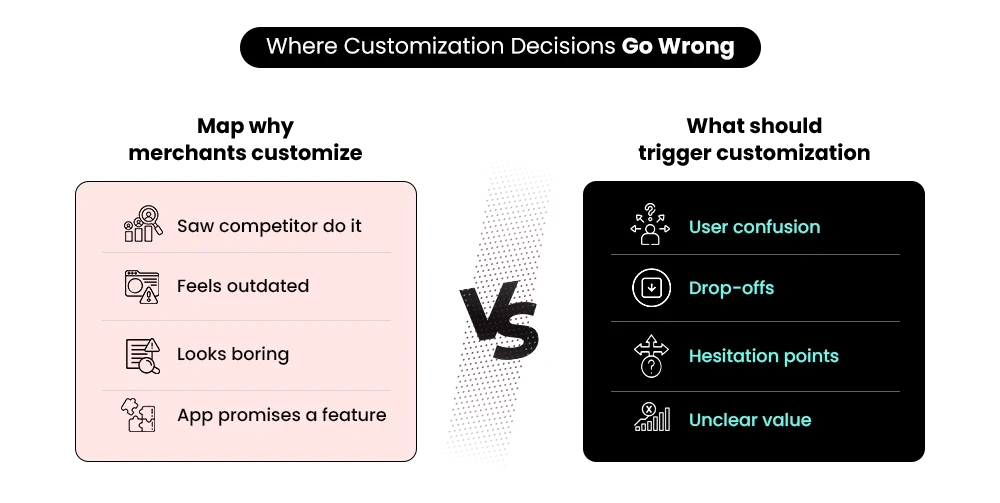
Step-by-Step Shopify Customization Framework
Before making changes, you need a clear sequence to follow. Without a defined process, Shopify customization turns into scattered updates that do not improve results.
When Shopify store elements are customized in the right order, each improvement builds on the last—reducing friction at every step instead of shifting it from one page to another. Follow this framework:
- Review your store performance: Look at where users exit, stop scrolling, or abandon actions. This shows where clarity is missing.
- Spot high-friction pages: Focus on product, cart, and key landing pages where users hesitate or leave. These areas impact conversions directly.
- Simplify navigation and structure: Organize categories and links so users can find products without searching too much.
- Make product pages clearer: Highlight price, benefits, and important details so users can understand quickly.
- Clarify decision points: Add delivery, return, and trust information where users need reassurance.
- Refine visuals at the end: Use Shopify store design customization and Shopify theme customization to improve presentation after everything is clear.
Skipping any of these steps creates gaps where users hesitate, even if the store looks visually complete.
How to Customize Your Shopify Store Website — Pages and Elements That Matter Most
This is where Shopify customization turns into actual execution. Instead of changing everything, focus on the parts of your store that directly influence user decisions. At this level, how you customize Shopify store elements should reduce confusion and guide users toward taking action.
1. Update Homepage Text and Menu Labels to Make Your Store Easy to Understand
Your homepage is where users decide whether to stay or leave. They don’t “learn” your store—they scan it. If meaning isn’t obvious in seconds, they exit. Users form a first impression in under 50 milliseconds, meaning homepage clarity is judged instantly, not gradually. While you customize the Shopify store homepage, focus on making the offering instantly understandable.
What You’re Customizing:
- Homepage headings
- Collection names,
- Navigation menu labels.
Why This Matters: Users do not try to figure things out on their own. Clear labels and headings reduce effort and help users move forward quickly. For example, a label like “Hydration Range” sounds unclear, while “Dry Skin Solutions” explains exactly what the user will find. Clear wording helps users decide faster without guessing.
How to Do It:
To update homepage text – Use the Shopify theme editor to update homepage sections and banners. Go to the online Store and open Themes, then click Customize.
- Open homepage sections, such as image banners or text blocks available in your theme.
- Replace vague headings with clear, use-case-based language.
To update menu labels:
- Again, visit the online Store and open Navigation, then select the Main Menu.
- Rename menu items using customer-friendly terms.
- Avoid internal labels like “Catalog” or “All Products.”
Tools:
- Shopify Theme Editor: Helps you update homepage sections like banners, headings, and text blocks.
- Navigation Settings: Allows you to rename menu items and organize how users move through your store.
When users understand your store quickly, they are more likely to explore and take action.
2. Adjust Product Page Layout to Show Price, CTA, and Key Info Clearly
Most users reach the product page after showing interest, but many still leave without taking action. The issue usually comes from how information is arranged, not what is written. A structured layout improves clarity and supports how to improve Shopify store conversions.
What You’re Customizing:
- Product page layout
- Price visibility
- Add to Cart button placement
- Supporting product information
Why This Matters: Buying decisions depend on quick clarity. Users need to confirm the price, understand the product, and feel confident before clicking the CTA. For example, if a user has to scroll through long descriptions to find delivery timelines, even a small doubt (“Will this arrive on time?”) can stop the purchase.
How to Do It:
To update product layout:
- Go to the Online Store and open Themes, then click Customize.
- Open the product page template, usually labeled as Default Product.
- Place the price close to the product title so it is visible immediately.
- Ensure the Add to Cart button is easy to spot without extra scrolling.
To improve product information:
- Tap on Products and select a product.
- Write clear descriptions that explain benefits and key details.
- Use text blocks or collapsible sections in the theme editor if available.
Tools:
- Shopify Theme Editor: Helps you control layout and adjust where key elements appear.
- Product Editor: Allows you to organize and update product information clearly.
Clear placement of information reduces hesitation and improves the chances of action.
3. Improve High Drop-Off Pages Like Product and Cart First
Not every page needs immediate attention. Some pages lose users fast, and fixing them creates a bigger impact than redesigning the entire store. Pages like product and cart are where users leave most often after showing intent. Improving these areas directly affects how many users complete a purchase.
What You’re Customizing:
- Product pages
- Cart page
- Homepage (if it has high exits)
Why This Matters:
Users dropping off at key steps means something is unclear or missing. These pages already receive traffic, so even small improvements can increase conversions. A common situation is users reaching the cart but leaving before checkout. This usually happens when delivery costs or total price are not clearly shown upfront.
How to Do It:
To identify drop-off pages:
- Open Shopify Analytics and review store performance reports.
- Look for pages with high visits but low engagement or conversions.
- Focus on pages where users leave without completing an action.
Product page improvements usually involve layout and clarity, which we covered in the previous section.
Improve cart clarity through Shopify cart customization. To improve the cart experience:
- Open the Online Store and go to Themes, then click Customize.
- Look for cart settings, which may appear as a cart page or cart drawer depending on your theme.
- Check if the total price, delivery charges, and return details are clearly visible.
- If your theme supports it, add short reassurance messages like delivery timelines or return policies.
Tools:
- Shopify Analytics: Shows which pages have high exits or low engagement.
- Theme Customization Panel: Lets you adjust cart layout or drawer and update supporting information.
4. Add Delivery, Return, and Trust Info on Product and Cart Pages
Buying decisions depend on more than just the product itself. Users need clarity about what happens after they click “Buy.” Details like delivery timelines, return policies, and trust signals answer common questions before they are asked. Adding this supports Shopify’s trust signals design and reduces hesitation. When this information is missing, users delay decisions or leave to look for answers elsewhere.
What You’re Customizing:
- Product page content
- Cart page messaging
- Trust and reassurance elements
Why This Matters: Users want to know when they will receive the product and what happens if something goes wrong. Clear answers remove uncertainty and make the next step feel safer. A typical situation is when return policies are hidden in a separate page. Users who cannot find this information quickly may choose not to continue.
How to Do It:
To add delivery and return details on product pages:
- Open your theme customization settings and select the product page template.
- Find sections where extra information can be added, such as text blocks or collapsible rows.
- Place delivery timelines and return details near the price or product description.
To improve cart messaging:
- Access theme customization and locate cart page or cart drawer settings based on your theme.
- Check if you can add short messages related to delivery or returns.
- Include simple reassurance lines if your theme supports additional text fields.
Tools:
- Theme Editor: Lets you place and organize additional information on product and cart pages.
- Trust badge apps (optional): Help display reassurance elements if your theme does not support them.
📌 Related Video
>
>
5. Remove Extra Sections and Multiple CTAs from Your Homepage
A homepage filled with too many sections can confuse users instead of guiding them. When multiple messages compete for attention, users find it harder to decide what to do next. Simplifying your homepage helps users focus on one clear action instead of choosing between too many options.
What You’re Customizing:
- Homepage sections
- Call-to-action (CTA) buttons
- Content blocks and banners
Why This Matters: When users see too many choices at once, decision-making becomes slower. A clear and focused layout makes it easier to understand what action to take. A common case is having multiple banners with different offers on the same screen. Users get distracted and may leave without clicking any of them.
How to Do It:
To clean up homepage sections:
- Open your theme customization panel and access the homepage layout.
- Review each section one by one and check if it adds real value.
- Remove or hide duplicate banners or sections that repeat similar information.
To simplify CTAs:
- Check how many buttons appear on the homepage.
- Keep one clear action per section, such as “Shop Now” or “Explore Collection.”
- Avoid placing multiple competing CTAs close to each other.
Tools:
- Theme Editor: Helps you remove, hide, or rearrange homepage sections easily.
- Section Settings: Allow you to control visibility and manage content blocks within each section.
Build Your Shopify Store From Scratch With Mastroke
Launch faster with Mastroke, an official Shopify Partner. We build structured stores with conversion-first design, clean setup, and features built to scale!!
6. Use Shopify Theme Features Before Installing Additional Apps
Adding new features through apps feels like a quick solution, but each app adds extra load to your store. More apps mean more scripts running in the background, which can affect performance and user experience. Before installing anything new, check what your theme already offers.
What You’re Customizing:
- Store functionality
- Built-in theme features
- App usage and integrations using Shopify customization tools
Why This Matters: Many themes already include features like product recommendations, filters, and basic upsells. Using built-in options keeps your store lighter and easier to manage. When you install multiple apps for features that already exist in the theme. You create unnecessary complexities that slows down the store.
How to Do It:
To check theme features:
- Open the Online Store and go to Themes, then click Customize.
- Explore theme settings and available sections to see built-in options.
- Look for features like filters, recommendations, or product highlights.
To decide on app usage:
- Review your current apps from the Apps section in your Shopify admin.
- Remove apps that are not actively used or duplicate existing features.
- Install new apps only when a required feature is not available in your theme.
Tools:
- Theme Settings Panel: Helps you explore and enable built-in features available in your theme.
- Shopify App Manager: Lets you review, remove, or manage installed apps easily.
7.Duplicate Your Theme and Test Changes Before Publishing
Making changes directly on your live store can create unexpected issues. Even small edits can affect layout, functionality, or user flow without warning. Testing changes before publishing helps you avoid breaking important parts of your store.
What You’re Customizing:
- Theme design and layout
- Functional changes
- Content updates before going live
Why This Matters:
Users interact with your live store in real time. Any mistake made during edits can affect their experience and reduce trust. A typical situation is updating sections or installing features directly on the live theme. If something breaks, users immediately experience the issue.
How to Do It:
To create a duplicate theme:
- Head to the Online Store and access the Themes section in your Shopify admin.
- Locate your current live theme and click the options menu.
- Choose the duplicate option to create a copy of your theme.
To test changes safely:
- Work on the duplicated theme instead of the live version.
- Use preview mode to review how updates appear across different pages.
- Publish the updated theme only after confirming everything works correctly.
Tools:
- Theme Library: Stores all theme versions and allows you to manage duplicates easily.
- Preview Mode: Helps you review changes without affecting the live store experience.
8. Optimize Your Store Layout for Mobile View
A large number of users browse your store on their phones. If the layout does not fit smaller screens properly, navigation becomes difficult, and users leave early. Mobile screens have limited space, so every section needs to earn its place. The way content is arranged directly affects how easily users move through your store.
What You’re Customizing :
- Mobile layout
- Section order
- CTA placement
Why This Matters: Mobile users rely on quick scrolling and visible actions. Important information placed too far down gets missed, even if it exists on the page. Suppose when the Add to Cart button appears after multiple sections. Users may not reach it, which reduces the chances of action.
How to Do It:
To review your mobile layout:
- Inside the theme editor, switch to mobile view using the preview option.
- Scroll through key pages and observe how content is arranged on smaller screens.
- Check whether important details appear early without requiring long scrolling.
To improve the layout:
- Rearrange sections so key information appears higher on the page.
- Remove unnecessary blocks that increase scroll length.
- Ensure CTA buttons remain clearly visible and easy to tap.
Tools:
- Theme Editor Mobile Preview: Shows how your store appears on smaller screens and helps adjust layout accordingly.
- Real Device Testing: Allows you to check usability on an actual phone for better accuracy.
9. Reduce Apps and Heavy Elements to Improve Store Speed
Store speed affects how quickly users can interact with your pages. When loading takes longer, users lose interest before they even start exploring. Heavy elements like large images, unused apps, and extra scripts increase load time and affect overall performance.
What You’re Customizing:
- Installed apps
- Images and media files
- Page load elements
Why This Matters: Slow loading interrupts the browsing experience. Users expect pages to respond quickly, and delays reduce engagement. A typical case is adding multiple apps for small features. Each app adds scripts, which increases load time and affects responsiveness.
How to Do It:
To manage apps:
- Visit the Apps section in your Shopify admin panel.
- Review installed apps and identify ones that are no longer needed.
- Remove apps that do not contribute directly to store functionality.
To optimize images and elements:
- Before uploading, compress images to reduce file size.
- Replace heavy media files with optimized versions where possible.
- Check your store performance from the theme section to identify slow areas.
Tools:
- Shopify App Manager: Helps you review and remove unnecessary apps from your store.
- Store Performance View: Available in the theme section to monitor loading and speed insights.
Before vs After Shopify Customization
The difference between a poorly customized store and a well-structured one becomes clear in how users interact, interpret information, and complete actions.
Before Shopify customization:
- The homepage fails to set clear expectations, so users do not know what the store specializes in.
- Product pages present too much or poorly arranged information, which makes comparison and evaluation difficult. They lose clarity due to weak Shopify product page customization.
- Important details like pricing or policies are not placed where users naturally look.
- Users keep switching between sections to find answers, which interrupts the buying process.
After Shopify customization:
- The homepage sets a clear context, helping users immediately understand the type of products offered.
- Product pages highlight key details in a way that supports quick and confident evaluation.
- Pricing, policies, and actions appear exactly where users expect them during the journey.
- Users can complete decisions within a single flow without needing to search across pages.
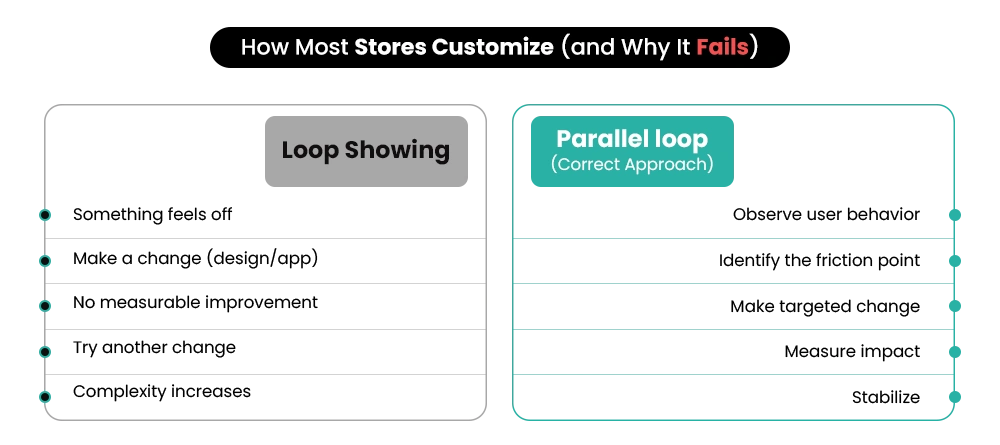
When Customization Becomes Maintenance Instead of Growth
Excessive updates can stop improving your store and start creating extra work, often due to changes made without a clear structure.
Signs:
- Frequent edits with no measurable improvement.
- Updates break existing sections, needing more fixes.
- Reliance on multiple apps or temporary solutions.
Impact:
- Managing the store becomes slower and more complex.
- Even simple updates take extra effort due to interdependencies.
- Shopify customization costs increase, and growth slows down.
Subtle Reality — Why Customization Gets Harder as You Grow
Early changes feel simple because your store has fewer dependencies. As your store grows, each update begins to affect multiple areas at once.
Growth adds more products, pages, apps, and custom setups. This makes every change more sensitive, because one adjustment can influence layout, performance, or user flow. Shopify customization becomes more sensitive and complex.
What changes as you grow:
- More dependencies between apps, themes, and settings increase the chance of conflicts.
- Small updates carry a higher risk because they affect connected sections.
- Mistakes have a larger impact on key pages that drive conversions.
At this stage, changes require more planning and careful execution.
Conclusion — Customization Is Not Design. It’s Decision-Making
Most stores don’t fail because of tools or themes—they fail because decisions are made without clear priorities. A structured setup influences how users navigate, what they initially see, and how decisions are made.
If your store has gone through multiple updates, the key isn’t adding more features—it’s simplifying what already exists.
Mastroke’s Shopify store redesign service reorganizes your store, removes unnecessary elements, and aligns pages with how users actually decide. Map your customer journey and turn cluttered updates into clear, growth-focused changes. Let Mastroke help your store work smarter, not harder.
FAQs – Common Shopify Customization Doubts (Cleared Simply)
Most Shopify customization issues come from unclear decisions—these FAQs address practical doubts around simplifying your store, improving clarity, and avoiding unnecessary complexity.
1. How do I customize my Shopify store step by step?
Start by identifying where users struggle—product clarity, navigation, or checkout. Then follow a structured Shopify store customization guide and fix one area at a time. This keeps your Shopify customization focused and measurable.
2. What should I customize first in my Shopify store?
Begin with product and cart pages where decisions actually happen. This is where Shopify product page customization and cart clarity matter most. Avoid starting with homepage design unless it’s clearly affecting user flow.
3. Can I customize my Shopify store without coding?
Yes, most changes can be handled through themes and apps. The Shopify theme editor supports a large part of Shopify customization without coding. Advanced functionality may still require custom code.
4. Why is my Shopify store not converting even after customization?
Most Shopify customization efforts fail when they focus only on visuals. Issues like unclear information or weak trust signals affect decisions. Fixing clarity is key to improving conversions.
5. How do I improve my Shopify store user experience?
Simplify navigation and reduce unnecessary elements across pages. Apply basic Shopify UX design tips and ensure mobile usability. Better clarity leads to a stronger overall experience.
6. What are common Shopify customization mistakes?
Common Shopify customization mistakes include over-designing and using too many apps. Ignoring mobile experience and copying competitors also creates issues. Most problems come from focusing on visuals instead of usability.
7. How much can you customize a Shopify store?
You can customize most parts of your store, including design and functionality. However, some areas, like checkout have limits without Shopify Plus. The scope depends on how deep your Shopify customization needs go.
Build your dream Shopify store today
Bring your vision to life with Mastroke, an official Shopify Partner. We design and develop high-converting, scalable Shopify stores with clean structure and future-ready features—built to grow with your business.