This blog post explains how Shopify Flow serves as an automation tool for Shopify Plus stores to handle scaling operations challenges. It covers what Shopify Flow is, how it works through trigger-condition-action workflows, and why it's particularly valuable for high-volume merchants.
Growing a Shopify Plus store feels good — until operations take over instead of you. Orders come in fast. Inventory moves quicker than expected. A risky transaction slips through. A VIP customer gets no special treatment whatsoever. Suddenly, your team is spending all day reacting instead of actually moving the business forward.
That’s where Shopify Flow comes in. Think of it as your behind-the-scenes operations manager — one that watches what’s happening in your store and automatically takes action.
With the right Shopify Flow automation, you can tag high-value orders, flag fraud risks, alert your team about low stock, and segment customers without anyone having to touch it manually.
For Shopify Plus merchants, Flow isn’t just about saving time. It’s about building systems that hold up when volume scales fast. This guide covers exactly how it works and the 10 automations worth setting up today.
What Is Shopify Flow?
Shopify Flow is an automation tool built directly into Shopify. It lets you create workflows that run automatically inside your store — no developer required, no code involved.
According to Shopify’s own documentation, Flow is a free app available on the Basic, Grow, Advanced, and Plus plans. That said, Plus merchants get the most out of it. Higher API limits, the ability to use tasks from custom partner apps, and the complexity of enterprise operations make Flow significantly more valuable at that tier than it is for a smaller store running 30 orders a week.
If something happens → check whether conditions are met → then take action.
A few examples of what that looks like in practice:
- If an order is marked as high risk → hold fulfillment
- If inventory drops below 10 units → send an alert to the team
- If a customer spends over $500 → tag them as VIP
You set the rules once. The system follows them every time, consistently, without anyone having to log in and check.
How Does Shopify Flow Work?
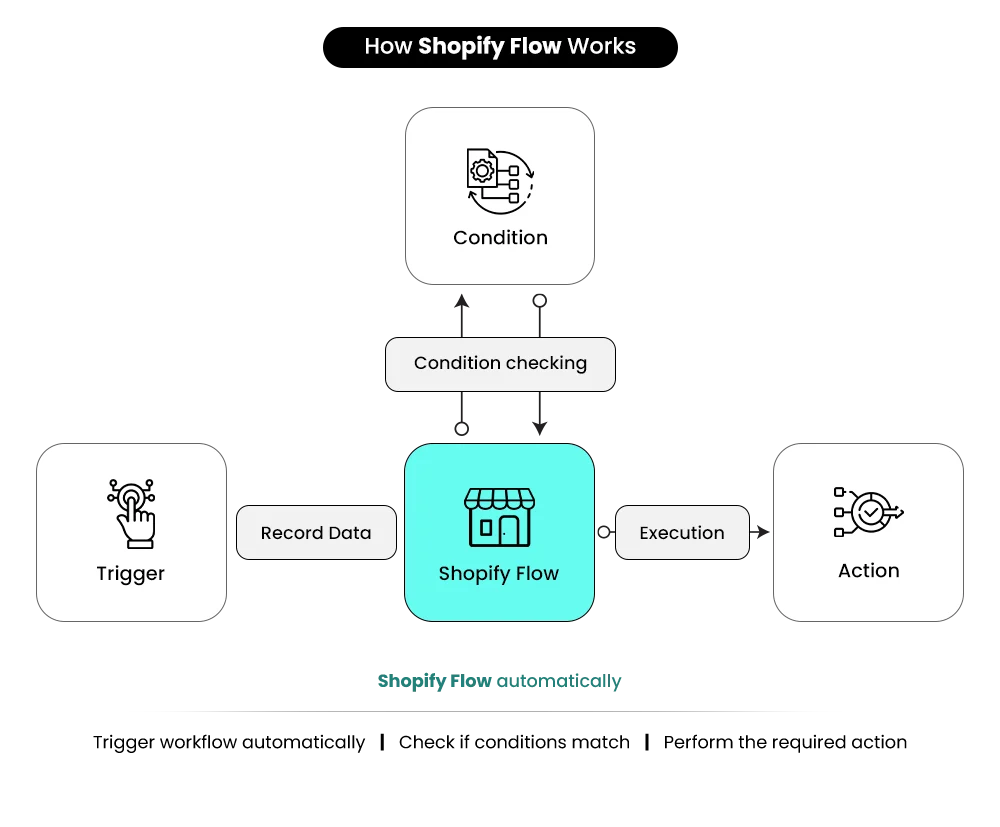
Every workflow inside Shopify Flow follows the same three-step structure. Once you understand it, building any automation becomes straightforward.
Step 1: Choose the Trigger
A trigger is the event that starts the workflow — an order is created, a customer makes their first purchase, inventory changes, a return is approved. The moment that event happens, Shopify Flow activates the workflow.
Step 2: Add Conditions
Conditions act as filters. They check whether certain criteria are met before anything happens. Is the order value above $500? Is this the customer’s first purchase? Has inventory dropped below a specific threshold? If the conditions aren’t met, nothing fires. This keeps your automations precise instead of running on every single event.
Step 3: Set the Action
The action is what Shopify Flow does once conditions are satisfied — tagging a customer, notifying your team on Slack, holding fulfillment, updating order details, or passing data to a connected app. These are the tasks your team would otherwise do manually, one by one, hundreds of times a week.
Trigger → Condition → Action
Flow can also connect with external tools like Klaviyo, Slack, Google Sheets, and Asana through connectors, so your workflows don’t have to stop at the edge of your Shopify admin. For a broader look at how Flow fits alongside other tools in a Plus environment, Shopify Plus Integrations: The Stack That Works and What to Avoid covers how to think about your full operations stack.
Why Shopify Plus Merchants Get the Most From Shopify Flow
More orders means more of everything — more exceptions, more fraud risk, more inventory variability, more customers needing personalized treatment. The processes that worked at 50 orders a day start showing cracks at 500. Here’s where Flow takes over.
High Order Volume
Missed high-value orders, delayed fulfillment, and unchecked high-risk payments become costly at scale. Shopify Flow automates the checks so nothing important slips through on a busy afternoon.
Inventory Complexity
Large catalogs and multiple warehouses make manual tracking unreliable. Automated low-inventory alerts and threshold monitoring prevent overselling before it damages customer trust.
Returns and Fraud
Scaling stores face more returns and more fraudulent transactions — both of which eat margin. Flow flags risky orders, holds fulfillment when needed, and keeps return management consistent.
Customer Segmentation
As your customer base grows, manual segmentation falls apart. Flow automatically tags VIPs and first-time buyers so your marketing stays targeted without anyone maintaining the lists.
The real benefit isn’t one automation — it’s removing hundreds of repetitive decisions from your team’s daily workload.
Operational capacity changes when your team stops spending hours on repetitive checks and manual updates. Shopify Flow creates systems that scale consistently, even as order volume and operational complexity increase.
| Business Challenge | Without Shopify Flow | With Shopify Flow |
|---|---|---|
| High Order Volume | Manual review, missed priority orders | Automated alerts and tagging |
| Inventory Management | Stockouts and overselling | Real-time low-stock monitoring |
| Returns and Fraud | Delayed review and financial losses | Automatic risk detection and holds |
| Customer Segmentation | Generic campaigns | Automated VIP and behavior-based tagging |
| Operational Workload | Team buried in repetitive tasks | Consistent, scalable automation |
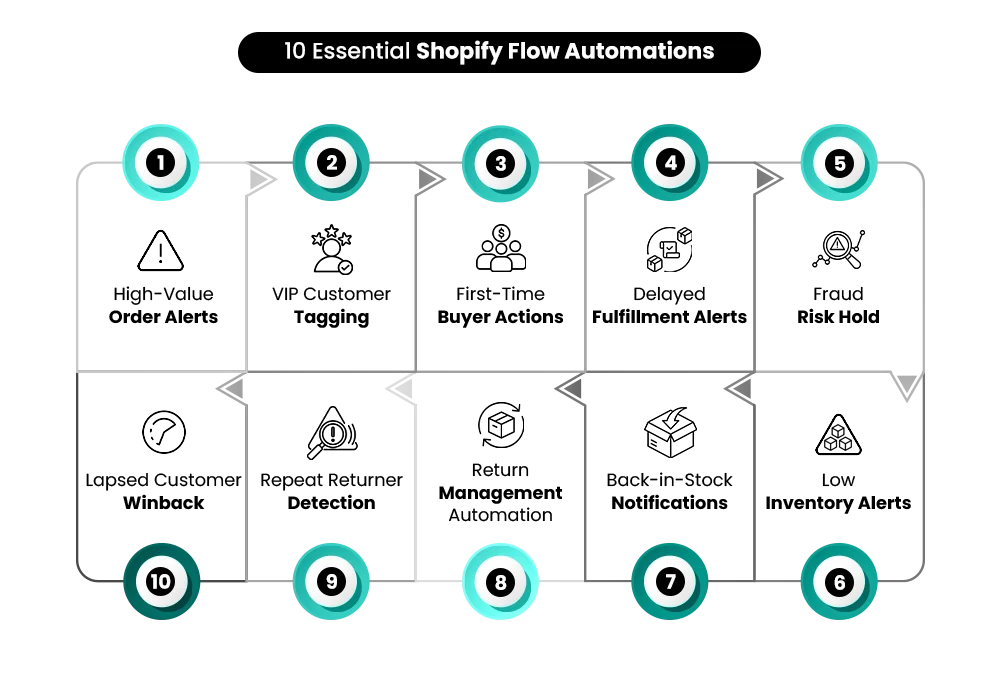
10 Shopify Flow Automations Every Plus Merchant Should Set Up
1. High-Value Order Alerts
What it does: Identifies orders above a defined revenue threshold and instantly notifies your team. Large transactions get visibility the moment they come in — no manual monitoring required.
How it works: The workflow triggers when a new order is created. Flow checks whether the total order value exceeds your set threshold. If it does, it sends an internal notification or tags the order for review.
Order Created → Check Order Value → Send Alert
How to set it up:
- Create a new workflow in Shopify Flow
- Select “Order Created” as the trigger
- Add a condition: total order value is greater than [your threshold]
- Choose action: send internal notification or add order tag
- Activate the workflow
Why it matters: Large transactions carry greater fraud and chargeback risk. Automating the alert means important orders get reviewed promptly, even on your busiest days.
2. VIP Customer Tagging
What it does: Automatically identifies high-value or repeat customers and tags them. Once tagged, those customers can feed into personalized marketing campaigns, loyalty flows, and post-purchase sequences.
How it works: After a purchase, Flow evaluates customer lifetime spend or order frequency. When the defined criteria are met, it assigns a VIP tag to the customer profile automatically.
Order Created → Check Spend or Order Count → Add VIP Tag
How to set it up:
- Create a new workflow
- Trigger: Order Created
- Add condition: customer lifetime spend is greater than [your threshold] OR order count is greater than [X]
- Action: add tag to customer (e.g., “VIP”)
- Activate workflow
Why it matters: Manual segmentation breaks down at scale. Automating VIP tagging keeps your most valuable customers consistently identified and treated differently — without anyone maintaining spreadsheets.
3. First-Time Buyer Automation
What it does: Detects new customers making their first purchase and triggers onboarding actions — a tag, a welcome sequence trigger, or a notification to your team.
How it works: When an order is created, Flow checks whether it is the customer’s first purchase. If it is, it triggers the action you’ve defined, such as tagging the customer or passing data to Klaviyo for a welcome flow.
Order Created → Check Order Count → Trigger Welcome Action
How to set it up:
- Create a new workflow
- Trigger: Order Created
- Condition: customer order count equals 1
- Action: add tag to customer (e.g., “first-time-buyer”) or send data to email platform
- Activate workflow
Why it matters: First-time buyers are more likely to churn than repeat customers. Automated onboarding improves retention from the very first order, not just for the ones your team happens to notice.
4. Delayed Fulfillment Alerts
What it does: Monitors orders that remain unfulfilled beyond a defined time window and flags them before customers are affected.
How it works: The automation tracks fulfillment status and compares it against a time condition. If the order hasn’t been fulfilled within your defined window, it sends an internal alert to the right person.
Order Created → Wait Time Window → Check Fulfillment Status → Send Alert
How to set it up:
- Create a new workflow
- Trigger: Order Created
- Add a time delay condition (e.g., 24 hours or 48 hours)
- Condition: fulfillment status is unfulfilled
- Action: send internal notification
- Activate workflow
Why it matters: Shipping delays compound quickly when you’re running high volume. Catching a fulfillment bottleneck on day one is far cheaper than dealing with customer complaints and refund requests on day three.
5. Fraud Risk Hold Automation
What it does: Flags orders Shopify has identified as high risk and pauses fulfillment for manual review.
How it works: When an order is created, Flow checks the fraud risk level assigned by Shopify’s built-in fraud analysis. If the order is marked as high risk, Flow automatically tags it and holds or cancels fulfillment.
Order Created → Check Fraud Risk → Hold Fulfillment
How to set it up:
- Create a new workflow
- Trigger: Order Created
- Condition: fraud risk level equals high
- Action: add tag (e.g., “fraud-review”) and hold or cancel fulfillment
- Activate workflow
Why it matters: Chargebacks are expensive. Automating the hold means high-risk orders get reviewed before they ship — not after a dispute is already filed.
6. Low Inventory Alerts
What it does: Monitors stock levels across your catalog and sends alerts when inventory falls below a threshold you define.
How it works: When inventory quantity changes, Flow checks whether stock has dropped below your set minimum. If the condition is met, it triggers a notification to your ops team or buying team.
Inventory Updated → Check Stock Threshold → Send Alert
How to set it up:
- Create a new workflow
- Trigger: Inventory Quantity Changed
- Condition: inventory quantity is less than [your threshold]
- Action: send internal notification (Slack, email, or both)
- Activate workflow
Why it matters: By the time you notice a product is out of stock, you’ve already missed sales and possibly burned ad budget sending traffic to an unavailable SKU. Automated alerts give you time to act before that happens.
7. Back-in-Stock Notification Trigger
What it does: Detects when an out-of-stock product is replenished and triggers customer notification workflows in your connected email or SMS platform.
How it works: When inventory is updated, Flow checks whether stock has moved from zero to a positive quantity. If it has, it tags the product or passes data to your marketing tool to trigger a back-in-stock notification sequence.
Inventory Updated → Check Restock Status → Trigger Notification
How to set it up:
- Create a new workflow
- Trigger: Inventory Quantity Changed
- Condition: previous inventory quantity was 0 AND new quantity is greater than 0
- Action: add product tag or send data to connected email/SMS platform
- Activate workflow
Why it matters: Customers who waited for a product are already motivated to buy. Catching the restock moment and notifying them immediately recovers sales that would otherwise just disappear.
8. Return Management Automation
What it does: Tags return requests and sends internal notifications the moment a return is initiated, keeping your returns process consistent at volume.
How it works: When a return is created in Shopify, Flow evaluates the return and applies a tag or sends an alert to the team member responsible for processing it.
Return Created → Evaluate Return → Notify Team
How to set it up:
- Create a new workflow
- Trigger: Return Created
- Add condition if needed (e.g., return reason, order value)
- Action: add tag to order or customer, send internal notification
- Activate workflow
Why it matters: Returns become a real operational strain as volume grows. Automation keeps processing consistent and prevents returns from stacking up unnoticed.
9. Repeat Returner Detection
What it does: Identifies customers who return products frequently and flags them for review — helping you spot abuse patterns or systemic sizing and product issues before they cost you more.
How it works: When a return is created, Flow checks the customer’s total return count. If it exceeds your defined threshold, it applies a tag to the customer profile.
Return Created → Check Return Count → Add Customer Tag
How to set it up:
- Create a new workflow
- Trigger: Return Created
- Condition: customer return count is greater than [your threshold]
- Action: add tag to customer (e.g., “frequent-returner”)
- Activate workflow
Why it matters: Frequent returns can indicate a product description problem, a sizing issue, or deliberate abuse. Knowing who your repeat returners are lets you address the root cause rather than just processing each return in isolation.
10. Enterprise Operations and B2B Automation
What it does: Handles complex workflows across B2B wholesale, ERP integrations, and multi-store environments — the kind of operational logic that only becomes necessary at true enterprise scale.
What this covers in practice:
B2B and wholesale logic:
- Automatically tag approved wholesale customers when they’re added to the system
- Apply custom pricing eligibility tags based on customer type
- Notify your sales team when high-value B2B orders are placed
- Flag orders that exceed a customer’s credit limit for manual review
ERP and backend integration:
- Pass high-value or B2B order data to your ERP system via the Send HTTP Request action
- Trigger fulfillment sync alerts when inventory mismatches occur between Shopify and your warehouse system
- Notify operations when an order fails to sync
Multi-store operations:
- Tag customers based on which storefront or region they purchased from
- Route internal notifications to region-specific team members
- Monitor inventory across expansion stores and trigger alerts from a central workflow
How it works: Using triggers like “Order Created,” “Customer Tagged,” or “Scheduled Time,” Flow applies complex condition logic and fires structured backend actions or integration calls.
Enterprise automation isn’t about saving a few clicks — it’s about keeping complex operations scalable and predictable.
Why it matters: At enterprise scale, the challenge isn’t individual tasks — it’s keeping B2B operations, backend systems, and multiple storefronts aligned without manual oversight. This level of automation is what makes growth manageable rather than chaotic. For a deeper look at how to build this kind of infrastructure, the Shopify Plus ERP Integration Guide walks through the full operations stack.
How to Set Up Shopify Flow (Step-by-Step)
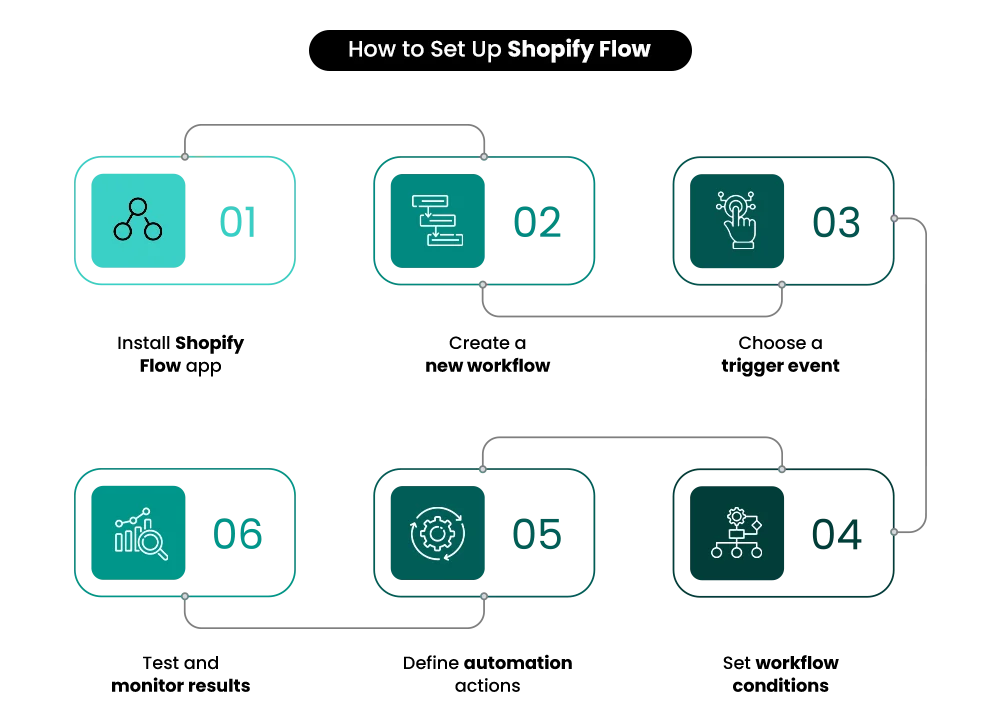
1. Install Shopify Flow
Go to the Shopify App Store, search for Shopify Flow, and install it. Once active, it appears in your Shopify admin app list. No coding involved — the entire builder is visual.
2. Create a New Workflow
Open Shopify Flow and click “Create Workflow.” You can start from scratch or choose from Shopify’s pre-built templates. Templates are useful when you’re new to Flow — they show you how the logic is structured before you build your own.
3. Choose Your Trigger
Every workflow starts here. Pick the event that should kick things off — “Order Created,” “Customer Created,” “Inventory Quantity Changed,” and so on. If there’s no trigger, nothing runs.
4. Add Your Conditions
This is where you define the specific criteria that need to be true before the action fires. Order value above a threshold, fraud risk level, customer order count — conditions keep your automation from running on every single event.
5. Define the Action
Set what actually happens when conditions are met: tag a customer, send a Slack notification, hold fulfillment, pass data to Klaviyo. One workflow can trigger multiple actions at once.
6. Test Before You Activate
Shopify Flow has a built-in test run feature that shows you exactly what a workflow will do using sample data before it touches real orders or customers. Use it every time.
7. Monitor Regularly
Flow keeps an execution log of every workflow run. Check it in the first week after a new workflow goes live, and then regularly after that. A workflow that quietly stopped running two weeks ago won’t announce itself.
Need Shopify Flow Automation Built Around Your Store Operations?
Mastroke helps Shopify Plus brands build scalable Shopify Flow automations for fraud prevention, inventory management, fulfillment operations, customer segmentation, and backend workflow optimization.
Common Mistakes to Avoid
Even well-intentioned automation causes problems when it’s set up carelessly. These are the patterns that come up most often.
| Mistake | What Happens | How to Avoid It |
|---|---|---|
| Conditions set too broadly | Automation fires on unintended events — wrong customers tagged, wrong orders flagged | Make conditions as specific as they need to be before activating |
| Building too many workflows at once | Hard to debug when something misbehaves | Start with one or two high-impact workflows, then expand |
| Never checking the execution log | Broken workflows go unnoticed for weeks | Review logs regularly, especially in the week after launch |
| Workflows going stale | Conditions no longer match how your store actually operates | Audit active workflows quarterly |
| No naming convention or ownership | Team confusion about what each workflow does or who manages it | Use clear, descriptive names — “High-Value Order Alert” not “Workflow 4” |
Shopify Flow Helps Shopify Plus Stores Scale Without Operational Chaos
Shopify Flow turns repetitive backend work into automated systems that run without anyone having to manage them. Fraud detection, customer segmentation, inventory monitoring, fulfillment alerts — the right set of workflows removes friction at exactly the points where it used to slow your team down.
The merchants who get the most out of Flow aren’t the ones who build the most workflows. They’re the ones who identify the right problems to automate, set things up carefully, and build gradually from there.
Start with one or two high-impact automations first — then expand once the system is running reliably.
Fraud holds and low-stock alerts are usually the clearest starting points because the operational impact shows up immediately. Over time, these workflows compound into an operations system that scales with you instead of creating more manual work as order volume grows.
Need Shopify Flow Automation Built Around Your Store Operations?
If you’re on Shopify Plus and want automation built around how your store actually operates — not generic templates, but workflows designed for your specific volume, product type, and team structure — Mastroke’s Shopify Plus team can audit your current operations and build a Flow setup that runs reliably from day one.
FAQs
1. Is Shopify Flow free?
Yes. Shopify Flow is a free app available on the Basic, Grow, Advanced, and Plus plans. You don’t pay anything extra to install or use it. That said, Plus merchants get additional capabilities — including higher API limits and the ability to use tasks built by custom partner apps — which is why Flow tends to deliver more at the Plus tier than on lower plans.
2. Is Shopify Flow only for Shopify Plus?
No. Shopify Flow is available on all paid Shopify plans, including Basic, Grow, and Advanced. However, Plus merchants get access to exclusive features — custom partner app tasks, higher usage limits, and B2B-specific workflow logic — which makes Flow significantly more powerful for Plus stores handling complex, high-volume operations.
3. Can Shopify Flow send emails?
Not directly to customers on its own. Flow can send internal notifications to your team and trigger actions in connected platforms like Klaviyo, which then handles the actual customer email. For customer-facing communication, Shopify Flow acts as the trigger, while your email platform handles the delivery.
4. Can Shopify Flow automate returns?
Yes. Flow can tag return requests, notify your team when a return is initiated, flag customers who return frequently, and trigger internal workflows to keep return processing consistent. It doesn’t process refunds automatically, but it manages the operational side of return management cleanly.
5. Does Shopify Flow require coding?
No. Flow uses a visual workflow builder with drag-and-drop triggers, conditions, and actions. You build and manage automations entirely through the Shopify admin interface. No developer involvement needed for standard workflows.
6. How many workflows can I have active in Shopify Flow?
Shopify doesn’t publish a hard cap on the number of active workflows, but usage limits are governed by your plan’s API rate limits. Plus plans have significantly higher limits than lower tiers. If you’re running a large number of complex workflows, check the execution logs regularly to confirm everything is running within limits.
7. What’s the difference between Shopify Flow and Zapier?
Shopify Flow is built natively into Shopify — it has direct access to your store data, runs in real time, and is free. Zapier connects Shopify to external platforms via API and is better suited for cross-platform workflows that span tools outside of Shopify. For most operational automation that stays inside your Shopify store, Flow is the better starting point.