This blog post explains how Shopify Flow, a free built-in automation tool, can help ecommerce teams eliminate manual repetitive tasks like customer tagging, inventory alerts, and order reviews. It provides a comprehensive guide on how Shopify Flow works using a simple trigger-condition-action structure to automate backend operations.
Your team is manually tagging customers after every campaign, chasing low-stock alerts that nobody sent, and reviewing flagged orders one by one. Meanwhile, orders keep coming in, and the to-do list keeps growing. That’s not a staffing problem — it’s an automation problem.
Shopify Flow is Shopify’s built-in automation tool, and it’s designed to handle exactly this. It lets you build rule-based workflows that run in the background — tagging customers, flagging risky orders, alerting your team, and managing inventory without anyone having to touch it manually. Once a workflow is active, it runs automatically.
This guide covers how Shopify Flow works, what you can automate, and how to set it up in a way that actually helps your store grow.
What Is Shopify Flow and How Does It Actually Work?
Shopify Flow is a free automation app available on all Shopify plans — Basic, Grow, Advanced, and Plus. You install it from the Shopify App Store, and once it’s active, you access it directly from your Shopify admin.
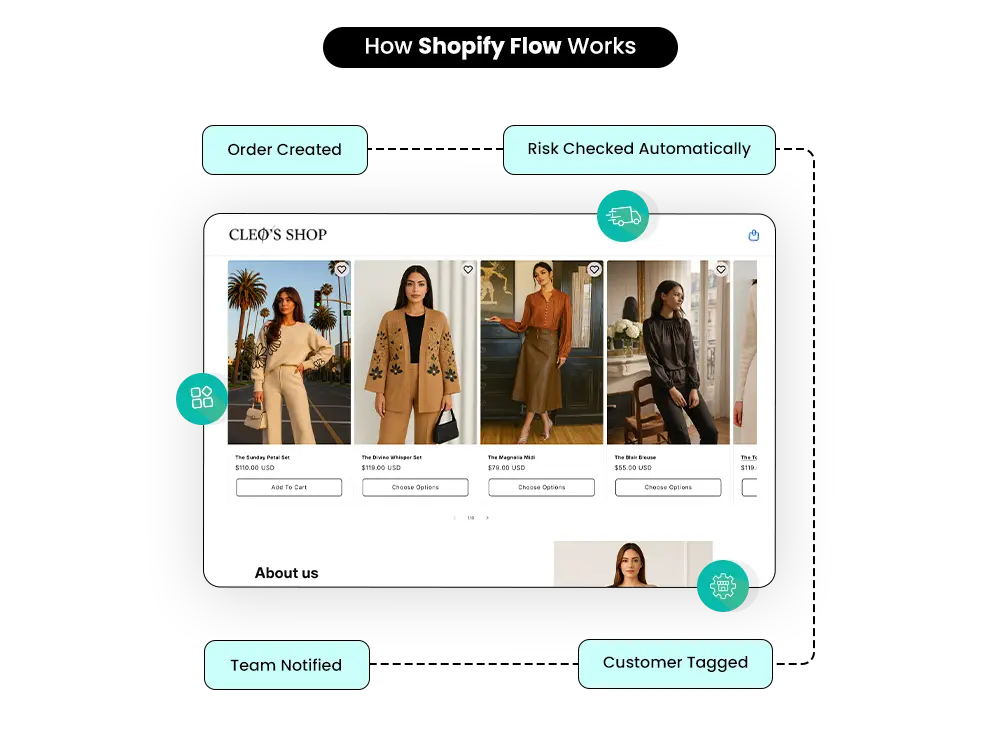
The core idea is simple: when something happens in your store, Shopify Flow checks whether certain conditions are true, then takes action automatically. No manual involvement needed.
Trigger → Condition → Action
Every workflow in Shopify Flow follows this three-part structure:
Triggers: What Starts a Workflow
A trigger is an event that kicks off your automation. Some common examples:
- An order is created or paid
- A customer account is created
- Inventory quantity changes
- A product is updated
Without a trigger, nothing runs. Think of it as the starting signal.
Conditions: The Logic Behind the Automation
Conditions let you control when a workflow should actually do something. You’re essentially setting up IF/THEN logic:
- IF the order total exceeds $500
- IF the order is flagged as high risk
- IF the customer already has a specific tag
This prevents your automation from firing on every single event — it only runs when the situation matches what you’ve defined.
Actions: What Shopify Flow Does for You
Actions are the outcomes. Once conditions are met, Shopify Flow carries out tasks such as:
- Tagging orders or customers
- Sending an internal Slack or email notification
- Updating order details
- Cancelling or holding a high-risk order
These are the tasks your team would otherwise do manually, one by one.
Connectors: When You Need to Go Beyond Shopify
Shopify Flow can also connect with third-party tools you already use — like Slack, Klaviyo, Google Sheets, or Asana. Connectors let Flow send data across systems, so your team stays aligned and your workflows don’t stop at the edge of your Shopify admin.
For more on building your broader Shopify Plus tech stack, see Shopify Plus Integrations: The Stack That Works — and What to Avoid.
Where to find it: After installing the Flow app, go to your Shopify admin. Flow appears in your app list. No coding required — the entire workflow builder is visual, using drag-and-drop.
Still Managing Shopify Tasks Manually?
Mastroke helps ecommerce brands build Shopify automation systems that reduce manual work, improve operational efficiency, and create scalable backend workflows using Shopify Flow and connected integrations.
Shopify Automation
Who Should Be Using Shopify Flow?
Shopify Flow is now available on every paid Shopify plan, but that doesn’t mean every store needs it at the same level. How much you’ll benefit depends on what’s creating friction in your operations.
Growing stores tend to hit the tipping point when manual processes start slowing things down. Customer tagging, order reviews, and inventory monitoring — these pile up fast once volume picks up. Flow handles them in the background instead.
High-volume brands see the clearest return. Fraud checks, VIP segmentation, low-stock alerts, internal notifications — at scale, even a ten-minute manual task repeated 50 times a day adds up to serious time loss.
Large catalog stores benefit from real-time product and inventory logic. When you have hundreds or thousands of SKUs, you can’t manually track every threshold.
B2B sellers on Shopify Plus deal with complex order logic — different pricing tiers, custom payment terms, segmented catalogs. Flow can automate much of the backend work that makes B2B manageable.
Very small stores with low order volume may not need Flow yet. If your operations are simple and manual checks take a few minutes a week, the setup investment may not pay off right away. But it’s worth knowing it’s there when you grow into it.
| Business Type | Why Shopify Flow Helps |
|---|---|
| Growing stores | Reduces manual backend workload as volume picks up |
| High-volume brands | Automates fraud checks, tagging, and internal alerts |
| Large catalog stores | Monitors inventory and product logic at scale |
| Shopify Plus merchants | Supports complex enterprise workflows |
| B2B sellers | Manages order routing, segmentation, and custom logic |
| Very small stores | May not need it yet — revisit when order volume grows |
Shopify Flow Features
Core Shopify Flow Features Worth Knowing
Understanding the mechanics is one thing. Knowing what the tool actually gives you is another.
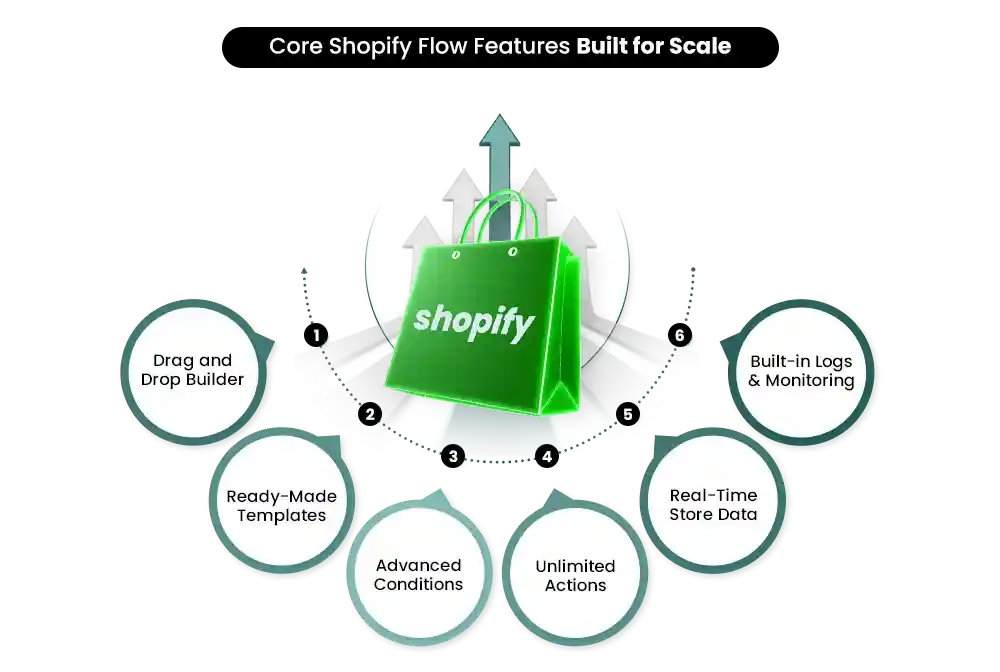
Visual Drag-and-Drop Builder
You build workflows by placing triggers, conditions, and actions on a visual canvas. The interface shows exactly how each step connects to the next. No code, no developer needed — just decisions.
Pre-Built Templates
Flow comes with a library of ready-made templates for common automation tasks. Things like tagging high-value customers, managing fraud risk, or sending low-stock alerts.
For a full list of workflow examples across categories, Shopify’s Flow examples documentation is a useful reference.
Multiple Conditions in One Workflow
You’re not limited to a single IF/THEN rule. You can stack multiple conditions — order value AND customer tag AND risk level, for example — so your automation only fires when all the right factors line up. This keeps workflows precise instead of broad.
Multiple Actions in One Workflow
One workflow can trigger several actions at once. Tag the customer, notify the team, and update the order — all from a single trigger event. That’s what makes automation genuinely time-saving rather than just shifting manual work around.
Built-In Logs and Monitoring
Shopify Flow keeps a log of every workflow execution. You can see what ran, when it ran, and whether it succeeded. This makes troubleshooting straightforward and gives you visibility into what’s actually happening in the background.
Real Workflow Examples
5 Real-World Automations That Deliver Immediate Impact
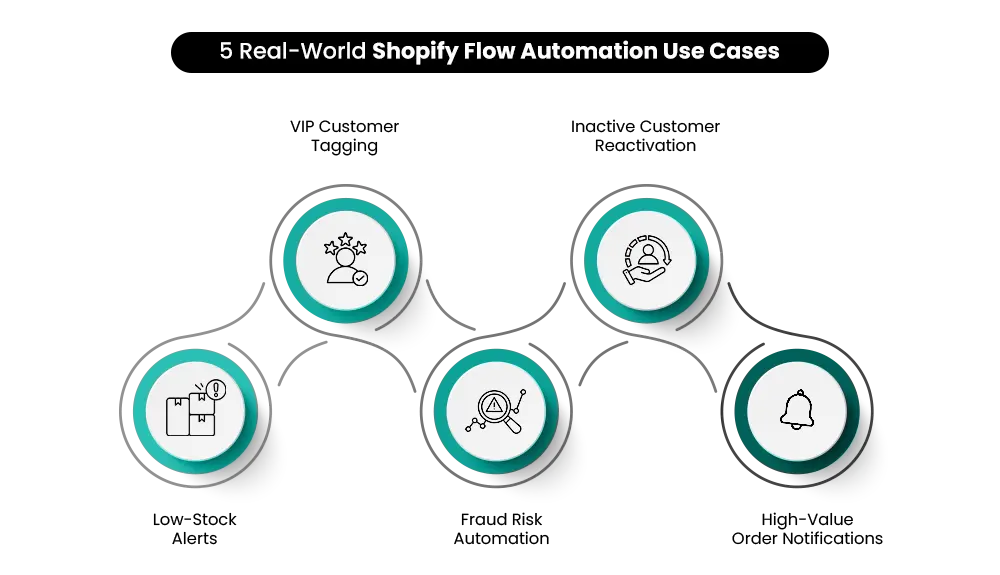
Here’s where things get practical. These are five workflows that growing stores actually use — and the specific difference they make.
Low-Stock Alerts Before Products Run Out
Set a threshold — say, 10 units — and build a workflow that monitors your inventory in real time. When a product drops below that number, Flow automatically sends a Slack message or email to your ops team. The alert goes out the moment the threshold is crossed, not after you notice the product is already out of stock on a busy weekend.
For stores running paid campaigns, catching this early can be the difference between pausing an ad before you burn budget on an out-of-stock product versus after.
Automatic VIP Customer Tagging
Define what “VIP” means for your store — maybe it’s customers whose lifetime spend crosses $500, or anyone who’s placed more than five orders. Build a workflow that tags them automatically when they hit that threshold.
Once tagged, that customer segment can feed into Klaviyo for exclusive campaigns or trigger a different welcome flow in your post-purchase sequence. The segmentation happens without anyone reviewing customer profiles manually.
High-Risk Order Flagging
Shopify’s fraud analysis already flags high-risk orders. Flow lets you act on those flags automatically. When an order is marked as high risk, you can set Flow to add a tag, send an internal alert to your team, or hold the order for manual review — without anyone having to check the fraud dashboard constantly.
For stores processing high volumes, this is one of the clearest wins: fewer chargebacks, less manual review time, faster decisions on orders that actually need attention.
Inactive Customer Re-Engagement Tags
Set a rule: if a customer hasn’t placed an order in 90 days (or whatever window makes sense for your product cycle), Flow tags them as inactive. That tag can trigger a re-engagement sequence in your email platform — a reminder, a discount, a “we miss you” flow.
Without automation, these customers just drift. With it, you have a system that catches them at exactly the right moment.
Instant Alerts for Large Orders
When a high-value order comes in — say, anything over $1,000 — your team should know about it immediately. Flow can send a Slack message or email to whoever needs to see it, with the order details included. Nothing slips through on a busy day.
This is especially useful for stores where large orders sometimes require priority fulfillment, fraud review, or personal follow-up.
Shopify Flow vs Zapier
Shopify Flow vs. Third-Party Tools Like Zapier
Shopify Flow isn’t the only automation option. Here’s how it compares to external tools.
| Feature | Shopify Flow | Zapier / Third-Party Tools |
|---|---|---|
| Integration | Native to Shopify — no API connection needed | Connects to Shopify via API |
| Best for | Store-level Shopify automation | Cross-platform workflows across many tools |
| Speed | Runs in real time inside Shopify | Depends on the app integration method and polling/webhook setup |
| Cost | Free — included in all Shopify plans | Paid subscription, often $50–$150/month |
| Scalability | Strong for high-volume Shopify operations | Better when automation spans many unrelated platforms |
The honest answer: Flow handles most of what Shopify merchants actually need to automate. If your workflows stay inside Shopify — tagging, order management, inventory, notifications — Flow is the right tool, and it’s free. If you need automation that spans Shopify, your CRM, your accounting software, and three other platforms, a tool like Zapier starts to make sense as a complement.
Shopify Flow Setup
How to Set Shopify Flow Up Without Creating More Problems
Automation built carelessly can create as many issues as it solves. Overlapping triggers, untested conditions, workflows firing on the wrong events — these are real problems that merchants run into. A careful setup from the start saves a lot of cleanup later.
Start with one workflow. Pick your highest-pain manual task — probably low-stock alerts or VIP tagging — and automate just that. Get familiar with how Flow works before you build ten workflows at once.
Use templates first. Shopify’s pre-built templates are a good way to understand how workflows are structured. Adjust one before you build one from scratch.
Name your workflows clearly. “High-Value Order Alert” tells you exactly what a workflow does. “Workflow 4” doesn’t. Clear names matter when you’re managing ten workflows six months from now.
Test before you activate. Use a test order or a small product update to confirm your conditions and actions behave the way you expect. A condition that’s slightly too broad can tag hundreds of the wrong customers instantly.
Check for conflicts. If two workflows share a trigger — for example, both fire when an order is created — make sure their conditions are different enough that they don’t contradict each other. Review your active workflows regularly.
Watch the logs. The execution log in Flow tells you whether workflows are running correctly. Check it occasionally, especially in the first week after a new workflow goes live.
For a deeper look at how Shopify Plus tools work together — including how Flow fits into a broader automation strategy — the Shopify Plus ERP Integration Guide covers how to think about your full operations stack
Common Mistakes
Common Mistakes to Avoid When Using Shopify Flow
Most Flow problems aren’t caused by the tool. They’re caused by how workflows are set up and maintained. Here are the ones that come up most often.
Setting conditions that are too broad. If your condition doesn’t narrow things down enough, your action fires constantly. A workflow that tags every customer who places any order as a VIP — because someone forgot to add a minimum order value — is a real example of this. Always double-check that your conditions are as specific as they need to be.
Building too many workflows at once. Starting with 15 automations before you understand how a few of them behave is a recipe for confusion. Build gradually.
Never checking the logs. A workflow that stopped running two weeks ago won’t announce itself. The only way to know it failed is to check the logs. Make this a regular habit.
Letting workflows go stale. Your store changes — new product lines, updated pricing tiers, different customer segments. A workflow built for conditions that no longer exist will either do nothing or do the wrong thing. Review active workflows every quarter.
Forgetting to account for edge cases. What happens when a customer meets two conditions at once? What if a high-value order also comes from a new account with no history? Think through the edge cases before you activate.
Team Impact
The Real Value of Shopify Flow: What Changes for Your Team
The clearest benefit isn’t any single automation. It’s the cumulative effect of removing repetitive decisions from your team’s daily workload.
A team manually reviewing 150 orders a day for fraud risk might spend 90 minutes on that alone. Automating the check doesn’t mean ignoring fraud — it means your team only looks at the orders that actually need attention, not every order in the queue.
Customer tagging that happens automatically means your marketing campaigns segment correctly from the start, rather than running against a customer list that’s weeks out of date.
Low-stock alerts that fire in real time mean your ops team acts on inventory issues before they become sales problems, not after.
None of these are dramatic on their own. Together, they free up hours every week — time that goes toward things that actually require human judgment. That’s where the real return is.
Final Thoughts
The Bottom Line
Shopify Flow turns repetitive backend tasks into automated systems that run without anyone having to manage them. From fraud detection and customer segmentation to inventory monitoring and team notifications, the right workflows remove friction at exactly the points where it used to slow your store down.
The merchants who get the most out of Flow aren’t the ones who build the most workflows — they’re the ones who identify the right problems to automate and set things up carefully. Start with one or two high-impact workflows, confirm they’re running correctly, then expand.
Need Shopify Flow Automation That Actually Works at Scale?
Mastroke helps Shopify brands build reliable automation systems using Shopify Flow, Shopify Functions, and connected integrations — reducing manual operations, improving workflow efficiency, and creating scalable backend processes that grow with your store.